View PC Game Details in Kolektor
Use Kolektor's Game Details panel to inspect covers, source, metadata, screenshots, trailers, launch actions, and cleanup options before you play.
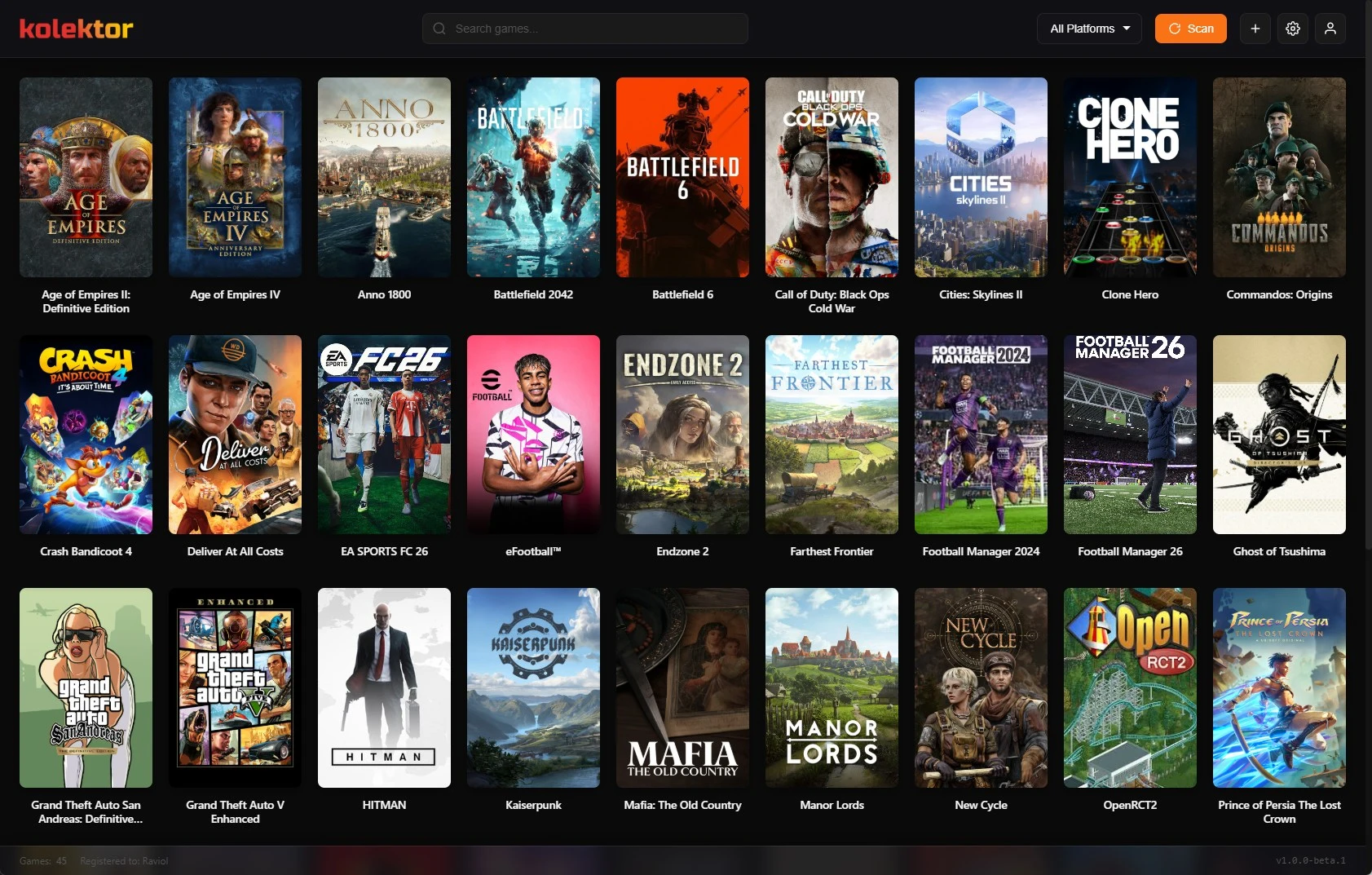
A PC game library should help you decide what to play, not just store shortcuts. Kolektor includes a Game Details panel so you can inspect a game's source, metadata, screenshots, trailers, folder, and launch actions from the same library view.
Why A Details Panel Matters
Most PC game launchers solve the first problem: click a game and start it. A unified library has a second problem: helping you remember what a game is, where it came from, and whether it is the one you want to play right now.
That context matters when your installed games are spread across Steam, Epic Games Store, GOG, Ubisoft Connect, EA App, Xbox/Game Pass, Battle.net, Amazon Games, and manual entries. The title and cover may be enough for a favorite game, but they are often not enough for an old backlog title, a bundle game, a remaster, or a manually added executable.
We built Kolektor’s Game Details panel to keep that context close to the launch action. You can browse the grid, open a game, confirm the details, play it, edit it, manage the metadata match, or open its folder without turning library browsing into a separate cleanup session.
What The Game Details Panel Shows
Kolektor beta 4 added the Game Details panel alongside IGDB integration for cover art and rich metadata. The panel is designed to show useful library information first, then deeper media when the game has it.
| Detail | What it helps answer |
|---|---|
| Cover and backdrop | Do I recognize this game visually? |
| Source platform | Which store or manual entry owns this game? |
| Developer and publisher | Who made or published it? |
| Rating | Is there a community rating available for the match? |
| Release date or year | Which release or edition am I looking at? |
| Genre | What kind of game is it? |
| Description | What is this game about? |
| Screenshots | What does it look like in play? |
| Trailers | Is there a quick video preview available? |
| Actions | Can I play, edit, rematch metadata, or open the folder? |
Not every game will have every field. That is normal. Store data, executable data, manual entries, and metadata matches do not all provide the same depth. The important part is that Kolektor keeps the game playable even when some metadata is missing.
Download Kolektor and inspect your installed PC games from one Windows library.
Download KolektorStart From The Library Grid
The details flow starts from the library, not from a settings screen. After Kolektor scans supported platforms, your installed games appear in the main grid with cover art and platform context. Select a game when you want more than the cover can tell you.
That keeps the workflow simple:
- Browse or search your installed games.
- Select the game you want to inspect.
- Review the Game Details panel.
- Use Play if the entry is correct.
- Use Edit Game or Manage IGDB Match if something needs cleanup.
This is useful because the decision to play and the decision to fix an entry usually happen at the same moment. You notice the wrong cover while browsing. You see an unexpected source platform. You remember a game after seeing screenshots. You decide a manual entry needs a cleaner title before it becomes easy to find again.
Use Details To Decide What To Play
A game library is not only a launch list. It is also a memory surface. Screenshots, trailers, descriptions, genres, and release dates help you answer small questions before opening a store page or searching the web.
Use the details panel when:
- You forgot what a game is after installing it months ago.
- The title is familiar, but you do not remember the genre.
- You want to confirm whether a game came from Steam, Epic, GOG, Xbox/Game Pass, or another supported source.
- You want to preview screenshots before launching a large game.
- You need to know whether the entry has a metadata match or still needs cleanup.
- You are choosing between several games and need quick context.
Kolektor is not trying to replace every store page. Store pages still matter for purchases, updates, DLC, reviews, and account-specific features. The details panel is for the library moment: deciding what to play from the installed games already on your Windows PC.
Screenshots And Trailers In Context
Kolektor supports screenshots and trailers in the Game Details panel when metadata is available. Screenshots appear as a small gallery, and you can open them in a lightbox for a larger view. Trailer thumbnails appear when video data is available for the matched game, and Kolektor opens the trailer in a video lightbox.
That makes the detail view useful for games you do not immediately recognize. A cover can remind you of the box art, but screenshots show the actual style of play. A trailer can jog your memory faster than a paragraph when a game has been sitting in the backlog for a long time.
The panel also handles missing media gracefully. If a game has no screenshots or trailers, it can still show the fields it does have, and the Play action stays close. Metadata should improve browsing, not block launching.
Where IGDB Metadata Fits
Kolektor beta 4 added IGDB integration for cover art and rich metadata. In the current app, IGDB can help populate details such as description, developer, publisher, release date, genre, cover, backdrop, and screenshots when a reliable match is available.
We treat that metadata as library support. It helps the grid look cleaner, improves the details panel, and gives search/filter workflows better fields to work with. It also gives you enough context to recognize a game without opening several different platform clients.
Metadata can still be wrong. Games with similar names, regional editions, demos, old executables, fan projects, and manually added games can need a human check. That is why the details panel includes a Manage IGDB Match action near the game itself. If the visible details do not match the game you own, use that action to search, rematch, unmatch, or block a bad automatic match.
Actions Stay Close To The Game
The Game Details panel is not read-only decoration. It keeps practical actions next to the context you are reviewing.
| Action | Use it when |
|---|---|
| Play | The game is the right entry and you are ready to launch. |
| Edit Game | The title, sort title, cover, executable path, install folder, or local details need correction. |
| Manage IGDB Match | The metadata points to the wrong game or should be removed. |
| Open Folder | You need to inspect the install location on disk. |
This is the reason the panel matters more than a plain metadata page. If the details look right, play the game. If something is wrong, fix it while the problem is visible. If the folder matters, open it from the same context.
What To Check In A Details Review
You do not need to audit every installed game. Use a quick review when a game looks unfamiliar, wrong, duplicated, or hard to launch.
| Check | Why it matters |
|---|---|
| Source platform | Confirms where the game came from and what may still need the original client. |
| Title and cover | Makes the game easier to recognize in the library grid. |
| Genre and description | Helps you decide whether it fits the play session you want. |
| Screenshots and trailers | Give quick visual context without leaving Kolektor. |
| Metadata match | Prevents the wrong game from filling the details panel. |
| Launch and folder actions | Confirm the entry points to the right installed game. |
This review is especially helpful after a fresh scan, after moving games between drives, after adding a standalone game manually, or after refreshing metadata.
Good Fit
Kolektor’s Game Details panel is a good fit if you want a PC library that feels more like a collection than a shortcut folder. It helps when you have installed games from several platforms, when you forget what a title is, when metadata makes browsing easier, or when you want cleanup actions near the game you are already inspecting.
It is also useful for players who want the launcher to stay practical. You can ignore the deeper details when you already know what to play. You can open them when you need context. The Play button stays central either way.
FAQ
Does every game show screenshots and trailers?
No. Screenshots and trailers depend on available metadata for that game. Kolektor still lets you launch and manage the game when those media fields are missing.
Where does the metadata come from?
Kolektor beta 4 includes IGDB integration for cover art and rich metadata. Some platform-native and local metadata can also help, depending on the game and settings.
Can I fix a wrong details panel?
Yes. Use Edit Game for local fields such as title, cover, paths, and folder information. Use Manage IGDB Match when the metadata match itself is wrong.
Does opening game details change the original store game?
No. Kolektor shows and manages its local library entry. Your original store account, ownership, updates, cloud saves, and platform services remain with the platform that owns the game.
Is the details panel only for automatically detected games?
No. Manual entries can appear in the library too. Clear titles, covers, paths, and metadata make manually added games easier to inspect and launch.
Related Guides
- Game cover art and metadata
- Edit PC game details in Kolektor
- Search and filter your PC game library
- Launch PC games from one Windows library
Try Kolektor for your PC library
Kolektor Core is free, including automatic detection, one-click launching, cover art, a unified view across major PC game platforms, and Full Library Sync.
Download Kolektor