Sort Your PC Game Library in Kolektor
Use Kolektor's Sort Title field, A to Z control, search, and platform filters to keep a large Windows game library easier to browse.
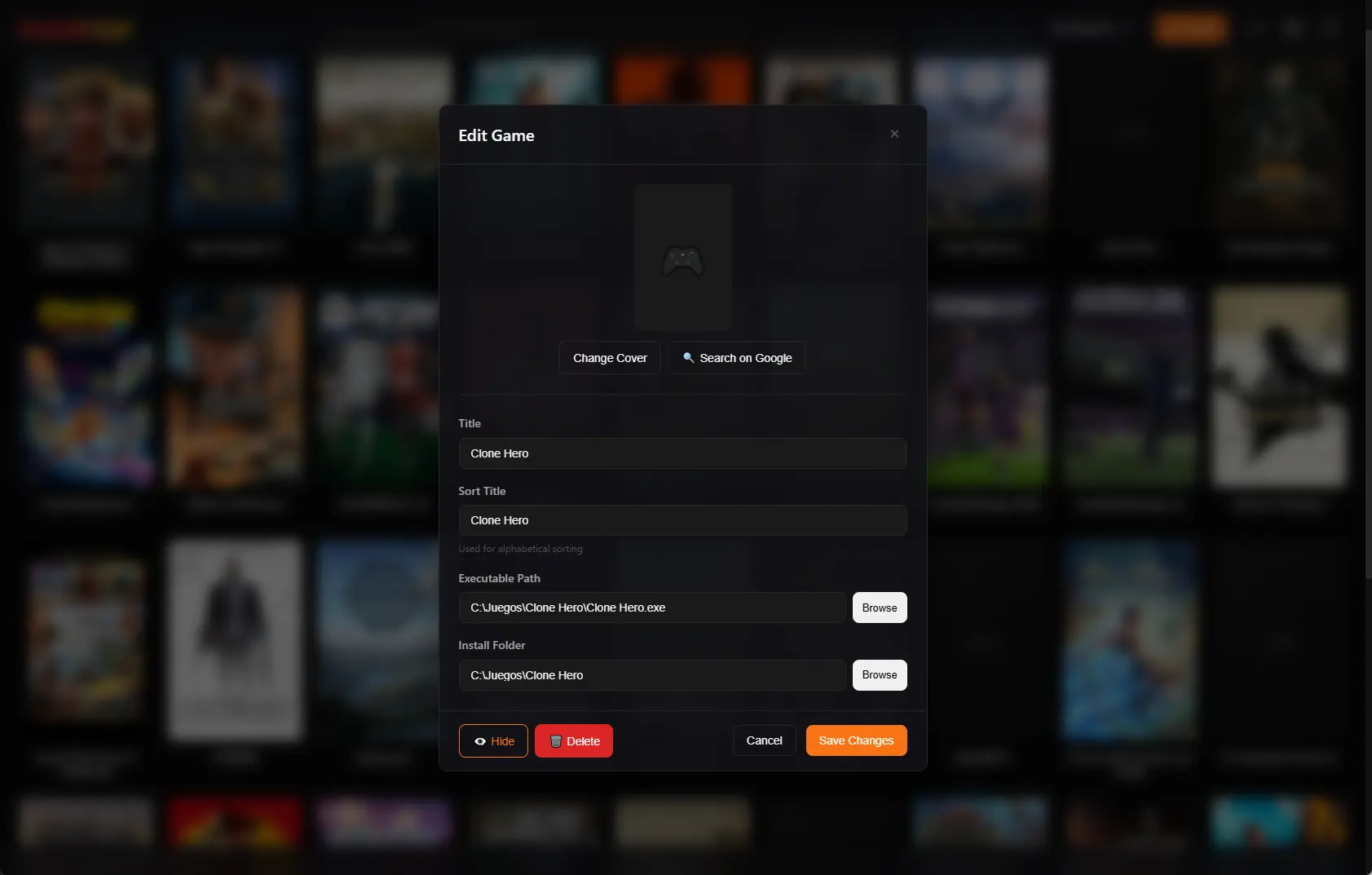
A unified PC game library should not turn into another messy shelf. Kolektor gives Windows players alphabetical sorting, platform filters, search, and a separate Sort Title field so the library can stay readable without renaming every game into a filing-system workaround.
Quick Answer
Kolektor sorts your visible PC game library by the custom Sort Title when you set one, and otherwise falls back to the normal game title. You can reverse the library between A to Z and Z to A from the main library toolbar, then combine that order with search and platform filters when you only want to review part of the library.
Use Sort Title when the visible name is correct but the alphabetical position is annoying. For example, keep the display title as “The Witcher 3: Wild Hunt” and set the Sort Title to “Witcher 3” so it appears with W instead of T.
Download Kolektor and organize installed PC games from one Windows library.
Download KolektorWhy Sorting Matters In A PC Game Library
Small libraries can survive on cover art alone. Larger PC libraries need predictable order because the same player may have Steam games, Epic Games Store games, GOG installs, Ubisoft Connect games, EA App titles, Xbox/Game Pass games, Battle.net games, Amazon Games, and manually added executables in one place.
That mix creates normal naming friction. Some games start with “The” or “A”. Some use punctuation. Some include edition labels, remaster labels, subtitles, or launch-year text. Some manual entries are named after the executable until you clean them up. If the only tool is renaming the visible title, the library either sorts better or reads better, but not always both.
We built Kolektor’s cleanup flow around the idea that those two jobs should be separate. The Title field is what you see. The Sort Title field is how the entry is ordered alphabetically.
| Library problem | Kolektor control | Result |
|---|---|---|
| A title starts with “The” | Sort Title | Keep the real title visible, sort by the useful word |
| A series has inconsistent names | Sort Title | Keep related games closer together |
| A manual game has a messy executable-derived name | Title and Sort Title | Make it readable and place it where expected |
| You want to review only one platform | Platform filter | Sort a narrower shelf instead of the whole grid |
| You need the reverse order | A to Z control | Flip the visible grid without changing game data |
How Kolektor Orders Games
Kolektor stores game entries locally and orders them by Sort Title when that value exists. If Sort Title is empty, Kolektor uses the normal game title. That means you do not have to fill the field for every game. Most entries can stay automatic, and only the awkward titles need a custom value.
The main library also has an A to Z sorting control. In daily use, that gives you two layers:
- The saved name fields decide each game’s alphabetical key.
- The toolbar decides whether the current view runs forward or backward.
That distinction is useful because a sort preference should not rewrite your library. Reversing from A to Z to Z to A is a viewing choice. Editing Sort Title is a cleanup choice for a specific game.
Use Sort Title Without Renaming The Game
Open a game, choose Edit Game, and use the Sort Title field when the display title should stay as-is. The field is optional. Leave it empty when the normal title already sorts well.
Good Sort Title values are short, recognizable, and boring on purpose. You are not creating a second public name for the game. You are giving Kolektor a better alphabetical key.
Useful examples:
| Visible title | Sort Title to consider | Why |
|---|---|---|
| The Witcher 3: Wild Hunt | Witcher 3 | Removes the leading article from sorting |
| A Plague Tale: Innocence | Plague Tale Innocence | Places it with P instead of A |
| DOOM Eternal | Doom Eternal | Normalizes shouting or stylized capitalization |
| Grand Theft Auto: San Andreas - Definitive Edition | GTA San Andreas Definitive Edition | Matches how you may search for it |
| Final Fantasy VII Remake Intergrade | Final Fantasy 7 Remake | Keeps a series near the expected number |
Do not overdo it. If a title already appears where you expect, leave Sort Title blank. A good library is easier to maintain when only exceptions have custom cleanup.
A Practical Cleanup Flow
Use this workflow when your library feels close, but browsing is still slower than it should be:
- Scan your installed games in Kolektor.
- Keep the library in A to Z order.
- Look for titles that appear in a surprising place.
- Open the game details panel for one of those entries.
- Choose Edit Game.
- Keep the visible Title readable.
- Add a Sort Title only if the alphabetical order needs help.
- Save the change and return to the library.
- Use search or a platform filter to check the result in a smaller view.
This is intentionally incremental. You do not need to repair the whole library in one session. Fix the games that slow you down, then let the automatic scanner and metadata flow handle the rest.
Sort Manual Games As You Add Them
Manual games are where Sort Title can save the most cleanup later. A manually added game needs only a title; its executable path is optional and can be attached later. Kolektor also lets you set Sort Title in the add flow. That matters for standalone games, portable builds, modded versions, fan projects, old disc installs, and DRM-free folders.
If the game name is already clean, skip the field. If the visible title includes a long mod label or edition suffix, use Sort Title to keep the entry near the base game or series.
For example, a visible title like “Skyrim Together Reborn” may be exactly what you want to see, but you may prefer a sort title such as “Elder Scrolls Skyrim Together” if your library browsing is organized around the series. Kolektor gives you that choice without changing the visible name.
Use Search And Filters With Sorting
Sorting is strongest when it works with the rest of the library controls. Kolektor search checks game name, developer, and genre when those fields are available. Platform filters let you focus on one source, such as Steam, Epic Games Store, GOG, Ubisoft Connect, EA App, Xbox/Game Pass, Battle.net, Amazon Games, or Manual entries.
That means you can use different views for different jobs:
- Search when you already know the game or developer.
- Filter by platform when you want to review one source after a scan.
- Sort A to Z when you are browsing the whole library.
- Sort Z to A when you are checking recent cleanup from the other end of the alphabet.
- Edit Sort Title when a specific game keeps landing in the wrong place.
Kolektor keeps those controls in the library because sorting should stay connected to real actions: launch the game, inspect details, edit metadata, open the folder, or clean up the entry.
What Sorting Does Not Change
Changing Sort Title does not rename the original game in Steam, Epic Games Store, GOG, Ubisoft Connect, EA App, Xbox/Game Pass, Battle.net, Amazon Games, or Windows. It changes how Kolektor orders the local library entry.
It also does not change the executable path, install folder, platform ownership, cloud saves, account, achievements, updates, or store purchase. Those stay with the platform or files that own them. Sort Title is a local organization field for the library view.
That boundary is important. We want Kolektor to make the library easier to browse while respecting where each game actually comes from.
Good Fit
This workflow is useful if:
- Your library has many installed PC games.
- You browse by alphabet instead of only using search.
- You have games with leading articles, edition names, or long subtitles.
- You add standalone or modded games manually.
- You want one library without losing control of how titles appear.
If you only have a few games installed, you may not need custom sorting yet. Use the normal title, search, and platform filters first. Add Sort Title only when the visible order starts getting in your way.
FAQ
Does Kolektor sort by title automatically?
Yes. Kolektor orders games by Sort Title when one is set, and otherwise uses the normal game title.
Do I need a Sort Title for every game?
No. Use Sort Title only for exceptions. Most games can keep the field empty and sort by their visible title.
Can I reverse the library order?
Yes. The library toolbar includes an A to Z control that can reverse the visible order between A to Z and Z to A.
Does Sort Title change the game name in the original store?
No. Sort Title is local to Kolektor. It does not rename the game in its original platform, update files, account, or store library.
Can manually added games use Sort Title?
Yes. The Add Single Game and Edit Game flows both include Sort Title, so manual entries can be organized the same way as detected games.
Related Guides
- Edit PC game details in Kolektor
- Search and filter your PC game library
- Add non-Steam games to one PC library
- Game collection manager for PC libraries
Try Kolektor for your PC library
Kolektor Core is free, including automatic detection, one-click launching, cover art, a unified view across major PC game platforms, and Full Library Sync.
Download Kolektor