Search and Filter Your PC Game Library
Use Kolektor search and platform filters to find installed PC games by title, developer, genre, or platform from one Windows library.
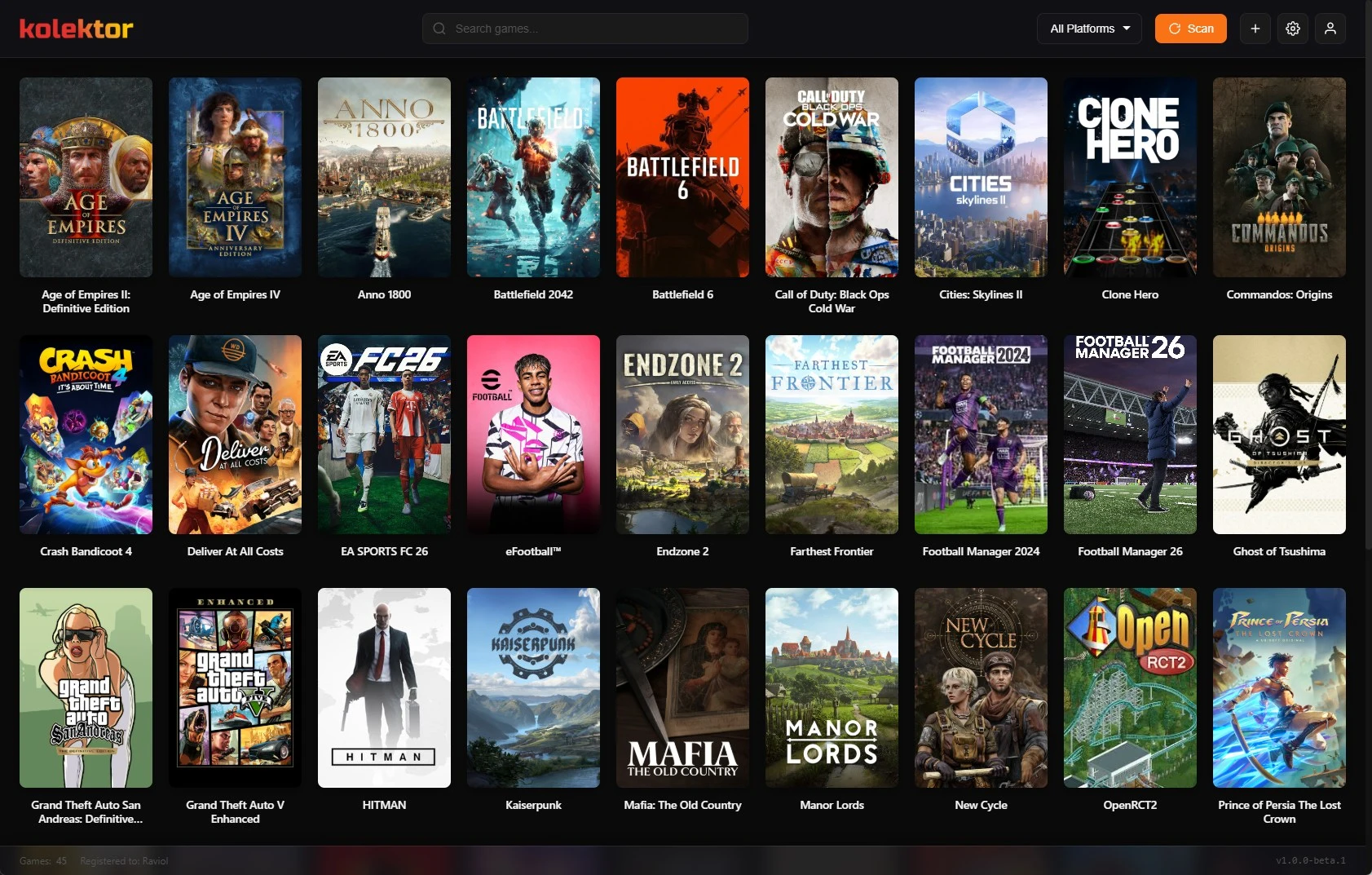
A PC game library only helps if you can find the game you want quickly. Kolektor puts your installed games in one Windows library, then gives you search and platform filters so the right title is not buried across separate store apps.
Quick Answer
Kolektor is a Windows game launcher that supports search and platform filters inside the main library view. You can search your installed games by title, developer, or genre, then narrow the result list to a specific platform such as Steam, Epic Games, GOG, Ubisoft, EA, Xbox/Game Pass, Battle.net, Amazon Games, or manually added games.
That matters when your library is no longer small. A visual grid is useful for browsing, but search and filters are what make a large PC library usable day to day.
Download Kolektor and search your installed PC games from one library.
Download KolektorWhat Search And Filters Solve
When games live across multiple stores, finding one title can turn into a small guessing game. You might remember that a game was installed, but not where it came from. You might remember the developer, but not the exact title. You might want to see only one platform because that is where you are troubleshooting, uninstalling, or launching from that night.
Kolektor supports a simpler path: scan your installed games, review them in the main library, and use the top search box or platform selector when browsing is too slow. We built this for the normal PC gaming situation where a library is mixed, visual, and constantly changing.
| Need | Use in Kolektor | Why it helps |
|---|---|---|
| Find one game by name | Search box | The grid narrows while you type. |
| Find games by creator | Search by developer | Useful when you remember the studio, not the exact title. |
| Find a style of game | Search by genre | Helps when metadata is available and you want a category. |
| Focus on one store | Platform selector | Shows only games from that platform. |
| Return to the full library | All Platforms | Removes the platform filter and restores the unified view. |
How Kolektor Search Works
The main library includes a search box in the top bar. In the current app, the library search checks the game name, developer, and genre fields. That gives you more room than exact-title lookup without turning search into a separate advanced screen.
For example, you can use Kolektor search when:
- You know the first few letters of a title.
- You remember the developer or publisher-style name attached to a game record.
- You want to look for a genre after metadata has been added.
- You are cleaning up a large library and need to jump between related titles.
- You are preparing to launch a game but do not want to open separate store clients first.
Search is meant to be lightweight. Kolektor keeps the library grid as the main surface, so search does not replace browsing by cover art. It just cuts the visible list down to what matches.
How Platform Filters Work
Kolektor also includes a platform selector beside the search area. The selector includes “All Platforms” plus the platforms that appear in your current library. If you choose one platform, Kolektor narrows the visible games to that platform. If you switch back to “All Platforms”, the unified library returns.
This is useful because platform context still matters even when the library is unified. Steam, Epic Games, GOG, Ubisoft, EA, Xbox/Game Pass, Battle.net, Amazon Games, and Manual entries can all belong in one view, but you may still want to focus on one source for a specific task.
Common examples:
- Check what was detected from one platform after a fresh scan.
- Launch a game from the store where you know it is installed.
- Review manually added games separately from detected store games.
- Confirm whether a missing title is really absent or just on another platform shelf.
- Clean up one platform at a time instead of scanning the entire grid visually.
A Practical Search Workflow
Start with automatic detection. Kolektor scans supported PC platforms and brings installed games into the main library. After the first scan, use the visual grid for broad browsing and search for exact moments when you already know what you want.
Then use this flow:
- Keep the platform selector on “All Platforms” when you are not sure where a game came from.
- Type the game title, developer, or genre into the search box.
- If the result list is still too broad, switch the platform selector to the most likely source.
- Open the game details panel when you need metadata, screenshots, trailers, install information, or cleanup actions.
- Launch from Kolektor when the game is ready, or edit the game if the title, cover, executable path, or metadata needs correction.
That workflow keeps search connected to real library actions. You are not searching a store catalog. You are narrowing the installed games Kolektor knows about so you can launch, inspect, or clean up the right entry.
When Search Feels Better Than Browsing
Cover art is great when you want to browse. It is less efficient when a library has dozens or hundreds of games and you already have one target in mind.
Use search when you are:
- Jumping to a game you play often.
- Looking for a game after a scan added many results.
- Checking whether metadata has grouped related games under the expected genre.
- Finding a title whose cover art changed after metadata or cover updates.
- Hunting for a game with a long subtitle or alternate edition name.
Kolektor also supports platform badges on game covers, so browsing and filtering work together. The visual grid gives you quick recognition, while the filter tells you which shelf you are looking at.
Where Metadata Helps
Search becomes stronger when game records have useful metadata. Kolektor beta 4 added IGDB integration for cover art and rich metadata, along with the Game Details panel, screenshots, and trailers. When metadata is present, fields like developer and genre can make the library easier to search than a plain list of executable names.
This is why we treat metadata as part of the launcher experience, not just decoration. A cover helps you recognize a game. A genre helps you find a group of games. A developer field can help when the title is not the thing you remember.
If metadata is wrong, use the edit flow instead of living with a messy result. Kolektor supports editing game details, covers, launch paths, install folders, and IGDB matches from the app, so cleanup can improve both browsing and search.
What To Check After A Scan
After Kolektor scans your installed games, do a quick pass before relying on search completely:
| Check | Why it matters |
|---|---|
| Platform labels | They decide how platform filtering behaves. |
| Game titles | Search depends on names being recognizable. |
| Covers | The grid is faster when covers match the game. |
| Developer and genre metadata | These fields can make search more useful. |
| Manual entries | Manually added games should have clear names and paths. |
You do not need to perfect every record before using Kolektor. Start with the automatic result, then clean up only the games that are hard to find or launch.
What Kolektor Does Not Replace
Kolektor gives you one place to browse, search, filter, and launch installed PC games. It does not remove the need for the original platform app in every case. Some games still need their store client for authentication, updates, cloud saves, multiplayer services, or platform-specific overlays.
That boundary is deliberate. We built Kolektor to make the library easier to use, not to pretend every store can disappear from Windows. Search and filters help you decide what to play faster, while the original platform still handles the platform jobs it owns.
Good Fit
Kolektor search and filters are a good fit if:
- You have installed games spread across several PC platforms.
- You forget which app owns a specific game.
- You want one visual library without giving up platform context.
- You care about cover art and metadata, but still need fast lookup.
- You want a launcher that is useful immediately after automatic detection.
If your library only has a few games, browsing may be enough. Search and filters become more valuable as the library grows, especially when installed games come from many stores and manual folders.
FAQ
Can I search every game I own, including uninstalled games?
Kolektor currently focuses on installed games in the public build. Free Full Library Sync for owned, uninstalled games is in progress as part of the broader collection roadmap.
What fields does Kolektor search?
The current library search checks game name, developer, and genre. That lets you search beyond exact title matches when those fields are available.
Can I filter by platform?
Yes. Kolektor includes a platform selector with “All Platforms” and the platforms present in your library, so you can focus on one source or return to the unified view.
Does search work with manually added games?
Yes. Manual entries appear in the library like other games, so clear names and metadata make them easier to find.
What should I do if a game is hard to find?
Open the game details or edit flow and check the title, cover, platform, path, and metadata match. A clean record makes both browsing and search easier.
Related Guides
- Automatic game detection on Windows
- Edit PC game details in Kolektor
- Launch PC games from one Windows library
- Game collection manager for PC libraries
Try Kolektor for your PC library
Kolektor Core is free, including automatic detection, one-click launching, cover art, a unified view across major PC game platforms, and Full Library Sync.
Download Kolektor