Launch PC Games From One Windows Library
Launch installed PC games from one Windows library with Kolektor. See how one-click launch works, when store clients still matter, and what to expect.
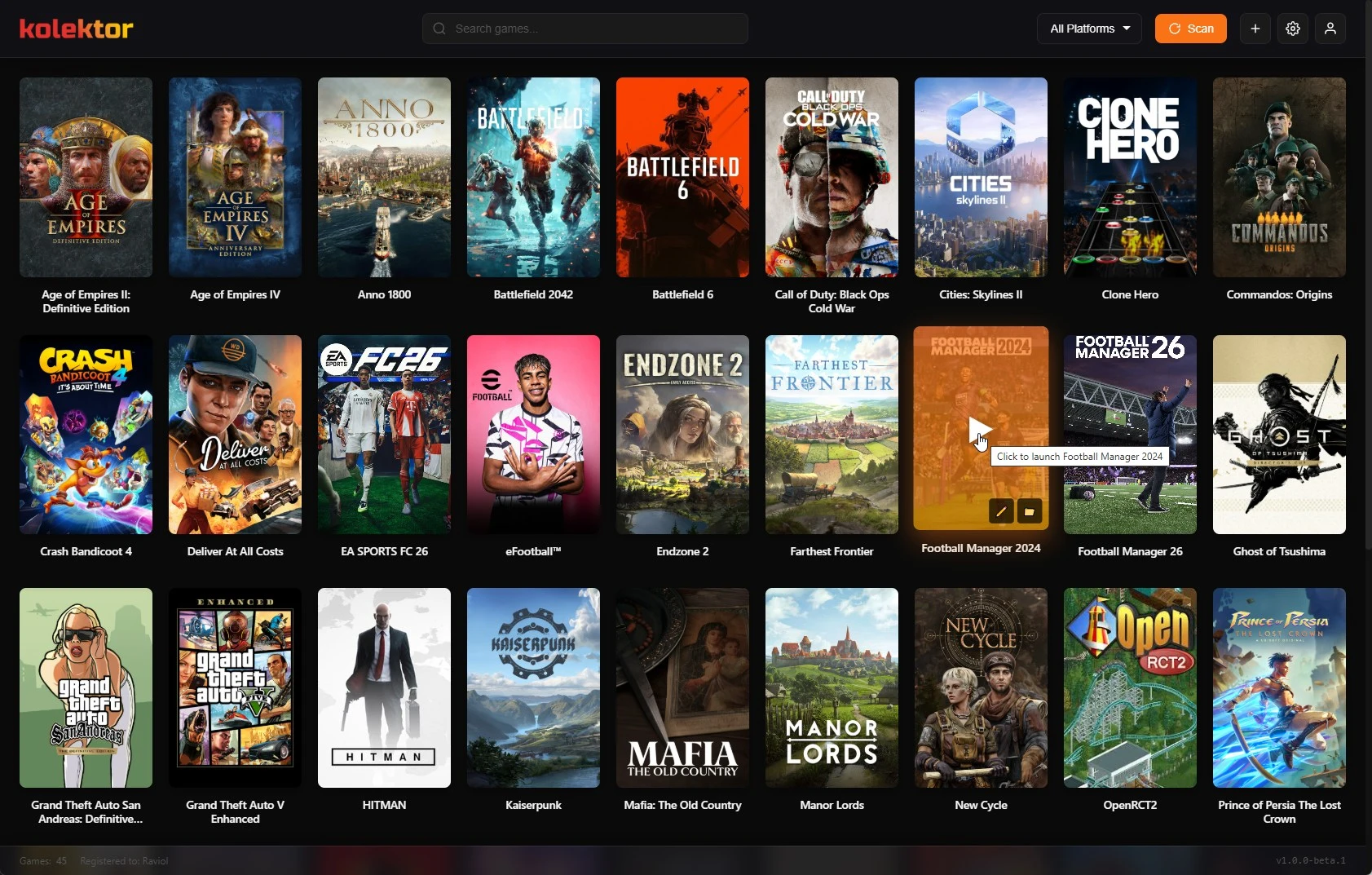
Launching a PC game should start with the game, not with remembering which store owns it. Kolektor is a Windows game launcher that brings installed games into one library, then lets you open them from the game card you already found.
Quick Answer
Quick answer: Use Kolektor when you want one place to find and launch installed PC games across Steam, Epic Games Store, GOG, Ubisoft Connect, EA App, Xbox Game Pass, Battle.net, Amazon Games, and manually added titles. Kolektor supports one-click launch from a unified library, while keeping the original platform boundary visible when a game still needs its store client.
We built Kolektor around a simple daily loop: scan the games already installed on your Windows PC, show them in one visual library, and make the next play session faster to start. The point is not to pretend that every store disappears. The point is to stop making you open several apps just to decide what to play.
That difference matters once your library grows. A game might be installed through a store you have not opened in weeks. Another might be a manually added executable. Another might need its original launcher for account checks or updates. Kolektor keeps those games in one place so the decision happens inside your library, not across a row of separate launchers.
What One-Click Launch Means In Kolektor
One-click launch means the visible game card is the starting point. You browse or search inside Kolektor, choose the game, and launch from there. Kolektor handles the practical route based on how that game is stored and what the platform requires.
This is the workflow:
- Install Kolektor on Windows.
- Scan the supported platforms and local game sources.
- Review the detected games in the visual library.
- Use search, platform filters, cover art, and game details to find the title.
- Launch the game from its card.
- Manually add anything that sits outside normal store detection.
The important part is the order. You do not start by opening a store, checking whether the game is there, switching to another app, and repeating the search. You start from the game library itself.
Want one launch point for installed PC games?
Download KolektorWhen The Original Store Still Matters
A unified launcher should be honest about platform rules. Some games can launch directly from their executable. Some use a store protocol. Some still need the original client for account checks, DRM, online services, cloud saves, updates, or Windows app permissions.
Kolektor is designed to reduce the steps you take before playing, not to break the platform a game depends on. If a title still needs its original launcher, Kolektor keeps that boundary practical: you can still find the game from the same library and start the correct launch path from there.
| Situation | What Kolektor helps with | What may still happen |
|---|---|---|
| Store-installed game | Keep it visible in one library | The store client may open if required |
| Game with direct executable | Launch from the game card | Direct launch depends on the game path |
| Manually added title | Save a custom launch path | You need to pick the right executable |
| Game needing updates | Find and start the game faster | The original platform may update first |
| Subscription or account-bound game | Keep it beside the rest of the library | Account checks may still run through the platform |
This is why one-click launch works best as part of the whole library flow. Detection, metadata, search, and launch are connected. If the game is easy to find, the launch action becomes useful instead of being another shortcut buried somewhere on the desktop.
Start With Installed Games
Kolektor focuses on installed games today. That is a deliberate boundary for the current free launcher experience. Installed games are the titles you can actually launch now, so they are the best starting point for a practical Windows library.
Kolektor supports detection across Steam, Epic Games Store, GOG, Ubisoft Connect, EA App, Xbox Game Pass, Battle.net, and Amazon Games. Those platforms cover the common places where PC games split into smaller shelves. When they appear together, you can search once, filter by platform, and decide what to play without rebuilding the same list by hand.
Full Library Sync is part of the Free work we are building separately. That layer is about seeing broader permanent account libraries, while subscription catalogs and advanced collection states belong to Premium. The current public launcher is strongest when you want a fast, useful view of what is already installed on the machine in front of you.
Why A Visual Library Makes Launching Easier
Launching is not only about the final click. The harder part is often recognition. A text list of executable names, install folders, and store shortcuts can be technically correct and still hard to use.
Kolektor uses cover art, platform context, search, filters, and game details so the library feels closer to a collection. Beta 4 added IGDB integration for cover art and rich metadata, plus a Game Details panel with screenshots and trailers. That context helps you recognize the right game before you press play.
This matters for games with similar names, annual sports releases, remasters, modded builds, and older installs. If two entries look similar, the platform badge, cover, and details help you avoid launching the wrong one. If a game is not obvious by title, search and visual browsing give you another path.
Manual Add Keeps Edge Cases Playable
Automatic detection should cover the common path, but no Windows library is perfectly standard. Some games are standalone installs. Some are fan projects, modded builds, old boxed PC games, private test builds, or local shortcuts. Those games still deserve a place beside the store-installed library.
Kolektor supports manual add for that reason. If a game is outside normal detection, you can keep it in the same visual library and launch it from there. The useful detail is not just that the shortcut exists. It is that the game sits beside everything else, where you can search for it, recognize it, and treat it as part of your library.
For manual games, the launch path matters. Pick the executable that actually starts the game, not a setup tool, updater, crash reporter, or configuration helper. If the game has a separate launcher and game executable, test the path once and keep the one that matches how you play.
A Cleaner Daily Launch Flow
A practical one-library launch flow looks like this:
| Step | What you do | Why it helps |
|---|---|---|
| Open Kolektor | Start from one library | You do not need to remember the store first |
| Search or browse | Find by title, cover, or platform | Recognition happens before launching |
| Check the game card | Confirm the game and platform | You avoid opening the wrong install |
| Launch | Start the game from Kolektor | The library becomes the main play surface |
| Adjust if needed | Use manual add or edit details | Edge cases stay inside the same system |
The result is a smaller habit. Open one library, pick the game, launch. For a small Steam-only library, that may not feel urgent. For a Windows PC with games from several stores, subscription apps, publisher clients, and standalone installs, it removes repeated decisions.
What To Expect After Installing
After installing Kolektor, expect the first useful result to be your installed games. The current Windows download section lists Windows 10 as the minimum OS, with Windows 10 or Windows 11 recommended. The core Game Launcher is free, so you do not need Premium to scan installed games, browse the unified library, or use one-click launch.
If a game does not appear immediately, start with the simple checks: confirm the game is installed locally, confirm the original platform can still see it, run another scan, and use manual add for unusual installs. Detection depends on real local state, so a clean fallback is better than pretending every machine is identical.
Who This Is For
Kolektor fits players who want the game to be the center of the workflow. If you have installed games across several PC platforms, if you forget where a title lives, or if you keep standalone games next to store games, one unified launch point saves daily friction.
It is also useful if you care about the library as a collection. We are building Kolektor beyond a plain launcher, with digital collection tools and physical game cataloging on the roadmap. One-click launch is the daily-use layer: it makes the current installed library easier to use while the broader collection features grow.
FAQ
Can Kolektor launch games from different stores?
Yes. Kolektor supports installed games from Steam, Epic Games Store, GOG, Ubisoft Connect, EA App, Xbox Game Pass, Battle.net, Amazon Games, and manually added titles.
Does one-click launch remove every store launcher?
No. Kolektor can launch from one library, but some games still need their original platform for account checks, DRM, updates, online services, or Windows app behavior.
Is the launch feature free?
Yes. The core Game Launcher is free, including automatic detection, one-click launch, cover art, search, filters, and a unified view of installed games.
What if a game is not detected?
Use manual add for standalone games, unusual installs, modded builds, older PC games, and local shortcuts that do not appear through normal platform scanning.
Related Guides
- Install Kolektor on Windows
- Automatic game detection on Windows
- Add non-Steam games to one PC library
- Bypass game launchers on Windows when possible
- Download Kolektor
Try Kolektor for your PC library
Kolektor Core is free, including automatic detection, one-click launching, cover art, a unified view across major PC game platforms, and Full Library Sync.
Download Kolektor