Hide Games From Your PC Library in Kolektor
Use Kolektor to hide noisy installed games from the visible library, keep them out of scans, and restore them later from Settings.
A good PC game library should show what you actually want to browse and launch. Kolektor lets you hide games from the visible library without uninstalling them, deleting the original store install, or losing the ability to bring them back later.
Why Hide Games Instead Of Deleting Them?
PC game libraries are rarely clean by default. Store launchers can expose tools, editors, test apps, benchmark utilities, duplicate records, or games you simply do not want in the daily view. A unified launcher becomes more useful when the grid reflects the games you are likely to play, not every executable or platform record that happens to exist on the machine.
That is why Kolektor includes a reversible hide flow. Hiding a game is a visibility choice inside Kolektor. It is not the same as uninstalling the game from Windows, removing it from Steam, deleting a GOG install, or changing ownership in the original platform. The game is still on your PC and the original store still manages the install, updates, cloud saves, account checks, and platform-specific features.
Deleting a local entry can be useful in some cases, but it is not the right answer for clutter that may be detected again. If a platform scanner finds that same installed game on the next scan, the entry can return. Hide is better for entries that are real but not useful in the main library.
Use Kolektor to keep installed PC games in one Windows library, then hide entries that do not belong in your daily grid.
Download KolektorWhat Happens When You Hide A Game
When you hide a game in Kolektor, the app marks that entry as hidden by the user and removes it from the visible game list. The main library only loads visible installed games, so the hidden entry stops appearing in the grid, platform views, and normal browsing flow.
The important detail is that Kolektor tracks user-hidden games separately from games that are missing or no longer installed. A game you hid on purpose should not come back just because a scan detects it again. That makes Hide useful for cleaning up recurring clutter: launch helpers, editors, tools, or store-side extras that are technically installed but not the games you want to pick from.
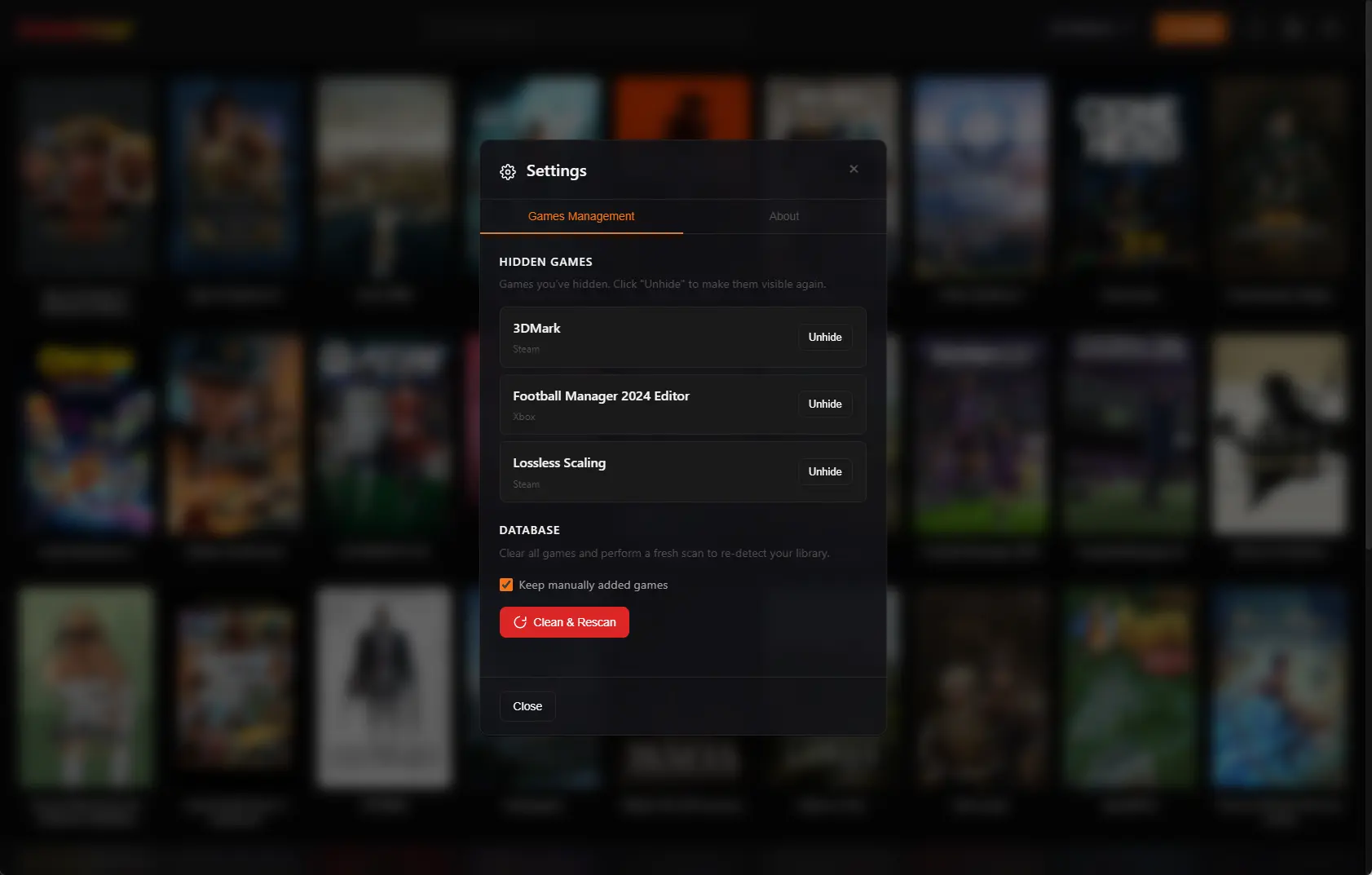
The hidden entry remains recoverable. Kolektor keeps a Hidden Games section in Settings for games you explicitly hid. From there, you can review the hidden list and use Unhide to bring a game back to the visible library.
When Hiding Is The Right Move
Hide a game when the entry is valid, installed, and detectable, but it does not belong in your everyday browsing surface.
Common examples include:
- Benchmark tools or companion utilities that were detected with a store library.
- Game editors, mod tools, or dedicated servers you do not launch like normal games.
- Duplicate-looking records where you know which entry you want to keep visible.
- Old test builds or alternate executables that should not sit beside the main game.
- Games you are not currently playing but do not want to uninstall.
- Manually added entries that you may want to restore later instead of deleting.
Use Delete only when you want to remove the local Kolektor entry and you understand it may be recreated by a future scan if the original platform still reports it. Use uninstall inside the original platform when your real goal is to remove the game files from the PC.
Hide, Delete, Uninstall, Or Clean And Rescan
These actions solve different library problems. Choosing the smaller action first keeps your library changes easier to reverse.
| Action | Best for | What changes |
|---|---|---|
| Hide | Real entries you do not want in the main grid | The game leaves the visible Kolektor library but remains recoverable in Settings |
| Unhide | A game you hid by mistake or want back | The game returns to the visible library if it is still installed |
| Delete | A local entry you want removed from Kolektor | The entry is removed, but a scanner may add it again if the game is still installed |
| Uninstall in the store | A game you want off the PC | The original platform removes the game files and owns that uninstall flow |
| Clean & Rescan | A library that is broadly out of sync | Kolektor rebuilds scanned-game records from the installed platforms |
For most clutter, Hide is the least disruptive option. It keeps the library tidy while preserving a clear path back.
How To Hide A Game In Kolektor
Start from the game you want to remove from the visible library:
- Open Kolektor on Windows.
- Find the game, utility, or duplicate entry in your library.
- Open the game edit screen.
- Choose Hide.
- Confirm that the entry leaves the visible library.
Kolektor removes the game from the local visible list immediately after the hide action succeeds. You do not need to run Clean & Rescan for a single entry, and you do not need to uninstall anything from the original store.
This works best when you treat the library as a playable surface. If a record does not help you choose what to play, hide it. If you later need it, restore it from Settings.
How To Restore A Hidden Game
Hidden games are managed from Settings:
- Open Settings in Kolektor.
- Go to the Game Library area.
- Find the Hidden Games section.
- Review the hidden entries and their platform labels.
- Click Unhide on the game you want back.
After Unhide succeeds, Kolektor removes that game from the hidden list and reloads the main library. If the game is still installed, it can appear in the visible grid again.
The Hidden Games list is intentionally simple. It shows games you chose to hide, not every missing or uninstalled record. That distinction matters because restoring visibility should not require a database reset or a full scan.
What Hidden Games Do Not Change
Hiding a game in Kolektor does not change the original platform. Steam, Epic Games Store, GOG, Ubisoft Connect, EA App, Xbox/Game Pass, Battle.net, Amazon Games, and Windows still control installs, updates, platform accounts, subscription state, DLC, cloud saves, and repairs.
Hiding also does not make a game private outside your PC or remove it from any account library. It is a local organization feature for the Kolektor library view.
That boundary is useful. Kolektor is the place where you decide what should be visible in one Windows launcher. The store remains the place where purchases, installs, updates, and account-specific tasks happen.
A Practical Cleanup Flow
Use this flow when your library feels noisy:
- Scan or refresh the library so Kolektor has the current installed state.
- Search for obvious clutter: tools, editors, duplicate entries, or titles you do not want to browse.
- Hide individual entries that are real but not useful in the main grid.
- Use platform filters and search to confirm the visible library feels cleaner.
- Keep manually added games visible if they are part of your active library.
- Open Settings only when you need to restore a hidden entry.
- Save Clean & Rescan for bigger sync problems, not routine visibility cleanup.
This keeps cleanup proportional. A single noisy entry gets a single hide action. A mistaken hide gets Unhide. A stale platform scan gets a refresh. A badly out-of-sync database gets Clean & Rescan.
Good Fit
Kolektor’s hide flow is a good fit if you want one cleaner Windows library across supported PC platforms but still need control over what appears in the daily grid. It helps players who have games across Steam, Epic Games Store, GOG, Ubisoft Connect, EA App, Xbox/Game Pass, Battle.net, Amazon Games, and manually added entries.
It also helps if you care about the library as a collection surface. A collection view should be honest, but it should not force every tool, duplicate, or irrelevant entry into the front row. Hiding lets the library stay useful without turning cleanup into a destructive action.
FAQ
Does hiding a game uninstall it?
No. Hiding a game only changes whether it appears in Kolektor’s visible library. The original platform still manages the installed files.
Will a hidden game come back after a scan?
Games you hide yourself are tracked as user-hidden entries, so they should stay hidden when scanners find them again.
Where do hidden games go?
They appear in Settings under Hidden Games. That section lists games you hid and includes an Unhide button.
Can I undo a hide action?
Yes. Open Settings, find the game in Hidden Games, and choose Unhide. Kolektor reloads the main library after the restore action succeeds.
Should I hide or delete duplicates?
Use Hide when you may want the entry back or when a scanner might detect it again. Use Delete only when you want to remove the local Kolektor entry and understand it may return if the source platform still reports it.
Related Guides
- Refresh your PC game library in Kolektor
- Search and filter your PC game library
- Edit PC game details in Kolektor
- Automatic game detection on Windows
Try Kolektor for your PC library
Kolektor Core is free, including automatic detection, one-click launching, cover art, a unified view across major PC game platforms, and Full Library Sync.
Download Kolektor