Edit PC Game Details in Kolektor
Use Kolektor's Edit Game screen to fix titles, sort order, covers, launch paths, install folders, and IGDB matches in your PC library.
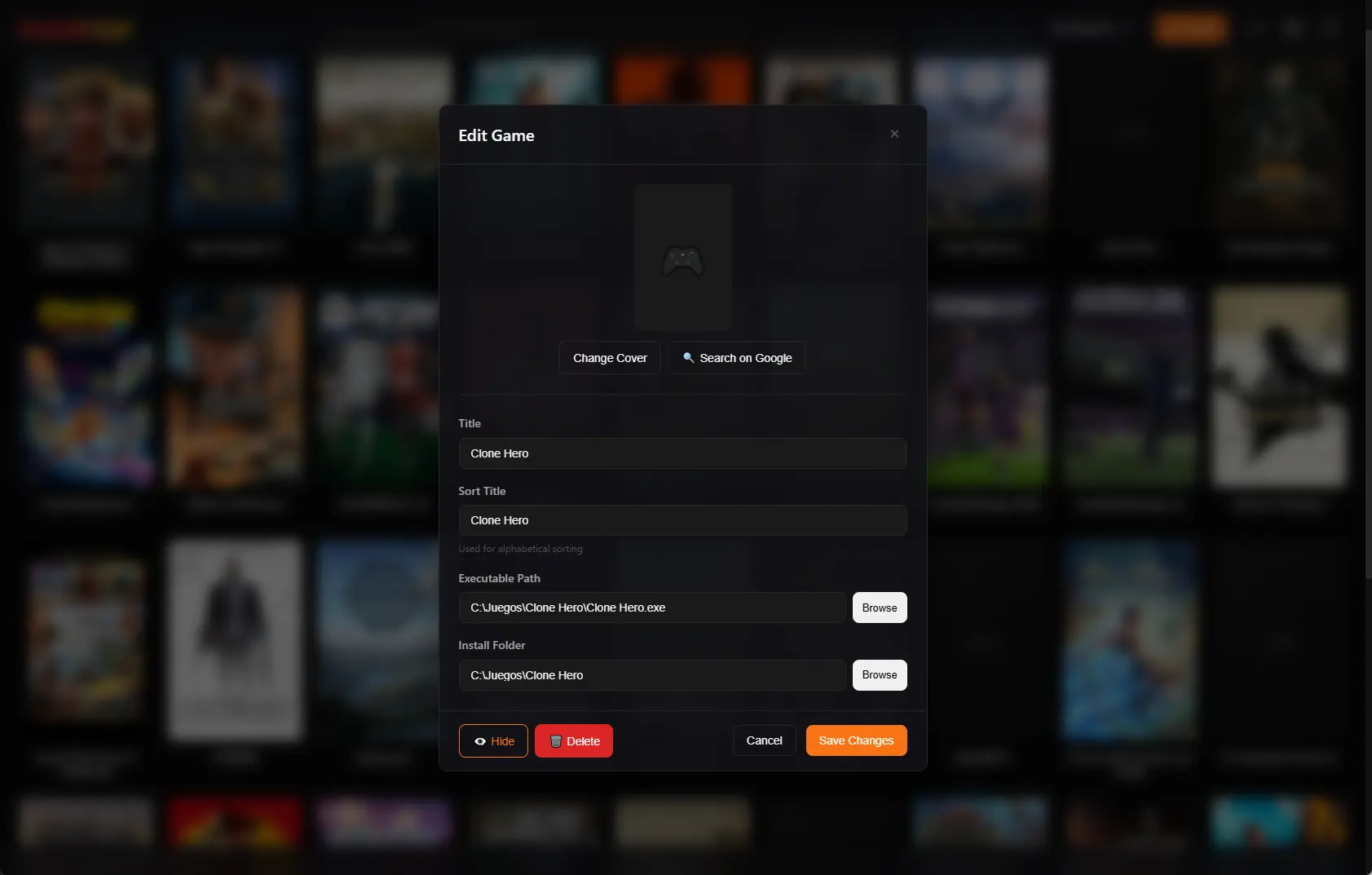
A unified PC game library is only useful if the entries stay accurate. Kolektor includes an Edit Game screen so you can correct titles, covers, sort order, launch paths, install folders, and metadata matches when automatic detection needs a human check.
Why Library Cleanup Matters
PC game libraries get messy for normal reasons. Games move between drives. Store launchers change install folders. A modded build gets its own executable. A title appears with a strange edition name. A metadata source chooses the wrong match. A cover is missing or not the one you would recognize quickly.
Those are not failures of the idea of a unified launcher. They are the everyday edge cases that come with Windows gaming. Kolektor’s automatic detection gives you the first useful library, and the Edit Game screen gives you the control to fix the entries that need attention.
We built the edit flow around practical library maintenance: make the game recognizable, make sure it launches from the right place, and keep the details useful without turning cleanup into a second hobby.
What You Can Edit
Kolektor’s Edit Game modal focuses on the fields that affect everyday use.
| Field or action | What it helps fix | When to use it |
|---|---|---|
| Title | The visible game name | A detected title is messy, too long, or not what you search for |
| Sort Title | Alphabetical order | You want “The Witcher 3” sorted under “Witcher” |
| Cover | Visual recognition | The game is missing art or uses the wrong cover |
| Executable Path | Launch behavior | A manual game, modded build, or moved install needs the right .exe |
| Install Folder | File location context | You want the library entry tied to the folder where the game lives |
| IGDB match | Metadata accuracy | The description, cover, screenshots, or details point to the wrong game |
| Hide or Delete | Library noise | A tool, duplicate, demo, or unwanted entry should stop cluttering the grid |
The goal is not to edit every game. The goal is to quickly correct the few entries that break trust in the library.
Want one library you can clean up as your PC setup changes? Install Kolektor and start from your real installed games.
Download KolektorStart From The Game Details Panel
The normal cleanup path starts from the game itself. Open a game in Kolektor, review the Game Details panel, then use the edit control when something looks wrong.
The details panel keeps the play action close, shows the game cover, source platform, developer, publisher, release information, genre, description, screenshots, and trailers when those details are available. It also gives you quick actions for editing the game, managing the IGDB match, and opening the game folder.
That matters because cleanup should happen in context. If the title, cover, source, or details feel wrong while you are looking at the entry, you should not have to leave the game and hunt through a separate settings screen.
Fix Titles Without Breaking Sorting
The Title field controls what you see in the library. Use it for the name you actually search for and recognize. That might mean removing an edition suffix, correcting capitalization, or naming a manual entry after the version you play.
Sort Title is separate. Kolektor uses it for alphabetical sorting when you need a different order than the visible title. This is useful for titles that start with articles, series names, numbers, punctuation, or subtitle-heavy editions.
For example, you may want the visible title to remain “The Witcher 3: Wild Hunt” while the sort title is “Witcher 3”. The library stays readable, and the grid still lands where you expect when browsing alphabetically.
Repair Launch Paths Carefully
The executable path is the field that decides what runs when you launch a game. It matters most for manually added games, standalone installs, fan projects, older PC titles, and modded versions.
Kolektor validates any executable path you provide against a real .exe file. For manual games, that path is optional: removing it keeps the game in Library but moves it out of Launcher until a valid executable is attached again. That keeps the entry honest without forcing a game you only want to catalog to look installed or playable.
Use the Browse control when possible instead of typing paths from memory. If you moved a game to another drive, changed a modded build, or replaced a shortcut with a direct executable, update the path before judging the launch flow. The install folder can then provide the broader folder context, while the executable path stays focused on the file that starts the game.
Use Covers To Make The Library Scannable
The cover is not just decoration. It is how many players recognize a game before reading the title. In the Edit Game screen, Kolektor lets you add, change, search for, or remove a cover.
Use cover edits when a game is visually hard to identify in the grid. A missing cover, a placeholder, or an incorrect image can make a perfectly playable game feel forgotten. A corrected cover makes browsing faster, especially when your library spans Steam, Epic Games Store, GOG, Ubisoft Connect, EA App, Xbox Game Pass, Battle.net, Amazon Games, and manual entries.
If metadata later provides better art, your settings decide how much provider data can replace manual edits. That is important because some users want automatic cleanup, while others want their hand-edited entries to stay exactly as they set them.
Manage IGDB Matches When Metadata Is Wrong
Kolektor beta 4 added IGDB integration for cover art and rich metadata, plus the Game Details panel. Most of the time, metadata should help the library become more recognizable. Sometimes a game needs a manual match, rematch, or unmatch.
The Manage IGDB Match flow lets you search IGDB titles, review possible matches, filter toward PC-related results, select the correct entry, or remove the current match. If a game was manually unmatched, Kolektor can remember that choice so automatic matching does not immediately bring the same bad match back.
This is useful for regional releases, remasters, demos, fan projects, old executables, and games with names that overlap other titles. Metadata should support your library, not argue with it.
Protect Manual Edits In Settings
Kolektor includes metadata settings for how provider data should merge with your local library. You can choose whether providers fill missing fields or replace provider-owned metadata, and you can control whether metadata refresh is allowed to overwrite manual edits.
There is also a specific setting for whether IGDB can overwrite game names. When manual overwrite protection is off, manually added games keep their names instead of being renamed by an automatic match.
That separation is deliberate. We want Kolektor to automate the boring parts, but we also want the user to stay in control of the entries they have corrected by hand.
When To Hide, Delete, Or Edit
Not every unwanted entry needs the same fix.
| Situation | Best action |
|---|---|
| The game is real but has the wrong title, cover, path, or metadata | Edit it |
| The game is a duplicate, tool, launcher helper, or entry you do not want to see | Hide it |
| The game should be removed from the local database and may reappear if detected again | Delete it |
| The game is installed but the metadata match is wrong | Manage or unmatch IGDB |
| The game is missing from detection but playable | Add it manually, then edit the entry if needed |
This keeps cleanup simple. Edit entries you trust, hide noise you may want to restore later, and delete entries only when removal is the right local database action.
A Practical Cleanup Flow
Use this flow when your library feels slightly off after a scan or after moving games:
- Open Kolektor and scan your installed games.
- Search for the game that looks wrong.
- Open the Game Details panel.
- Check the title, cover, source, metadata, and launch behavior.
- Use Edit Game to correct the title, sort title, cover, executable path, or install folder.
- Use Manage IGDB Match if the metadata points to the wrong game.
- Save changes, then launch the game once to confirm the entry does what you expect.
You should not need to clean the entire library at once. Fix the entries that cause friction, then keep playing.
FAQ
Can I edit games that Kolektor detected automatically?
Yes. The Edit Game screen is available for library entries, not only for manually added games. Use it when a detected game needs a better title, cover, path, or metadata match.
Does changing a title change the original store game?
No. Kolektor edits the local library entry. Your original store, purchase, account, updates, and cloud saves stay with the platform that owns them.
Can I fix a wrong IGDB match?
Yes. Use Manage IGDB Match to search for another result, rematch the game, or unmatch it when metadata should be removed.
Do manual edits get overwritten?
Kolektor includes metadata settings that control whether provider refreshes can overwrite manual edits. Keep overwrite protection off when you want hand-edited entries to stay stable.
Related Guides
- Game cover art and metadata
- Add non-Steam games to one PC library
- Automatic game detection on Windows
- Download Kolektor
Try Kolektor for your PC library
Kolektor Core is free, including automatic detection, one-click launching, cover art, a unified view across major PC game platforms, and Full Library Sync.
Download Kolektor