Update Kolektor on Windows
Keep the Kolektor Windows app current with the built-in update prompt, manual update checks, release notes, and the correct fallback path.
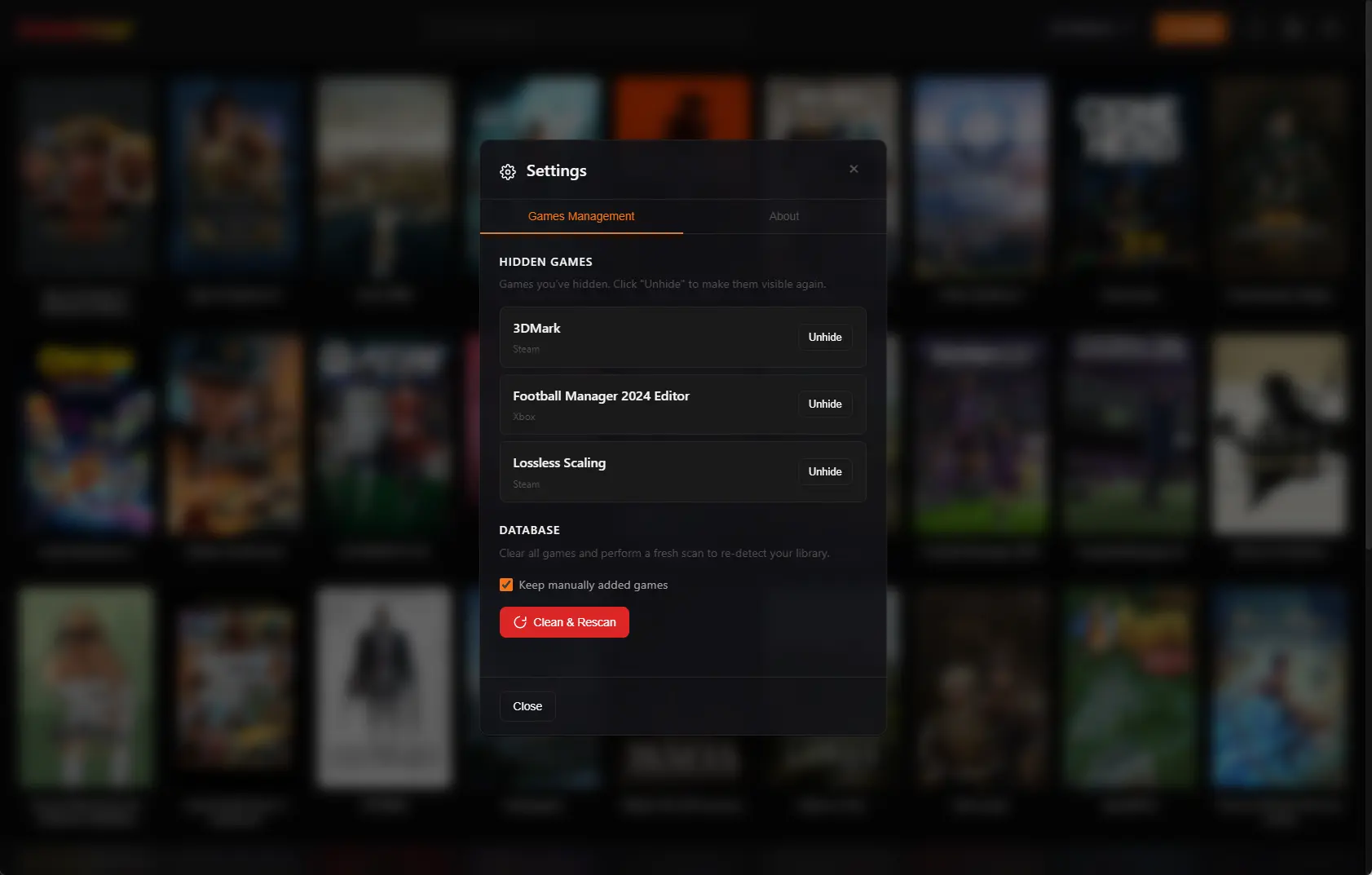
Kolektor includes an update flow for the Windows desktop app, so you can keep the launcher current without rebuilding your library from scratch. When a new version is available, Kolektor can show an update prompt, download the update, and restart the app to install it.
Quick Answer
To update Kolektor on Windows, open the desktop app and use the update prompt when it appears. You can also open Settings, go to About, and choose Check for Updates. If an update is available, Kolektor shows an Update Available window with Update Now and Later actions.
Updating the Kolektor app is separate from refreshing your PC game library. App updates keep Kolektor itself current. Library scans keep your installed games, covers, metadata, and platform entries aligned with what is on your PC.
What The Update Flow Does
Kolektor supports app updates through the desktop app. The current update flow is built around three user-visible steps:
| Step | What you see | What it means |
|---|---|---|
| Check | Kolektor checks whether a newer app version exists | The app contacts the update feed used by packaged Windows builds |
| Download | The update modal shows download progress | The update is being downloaded after you choose to update |
| Install | The modal says the app is restarting | Kolektor restarts and installs the downloaded version |
We built this so updates stay close to the app experience. You do not need to delete your current app, clear your game database, or rebuild your library just because a Kolektor app update is available.
The important distinction: an app update changes Kolektor itself. It does not replace Steam, Epic Games, GOG, Xbox, EA App, Ubisoft Connect, Battle.net, Amazon Games, or the original store clients that own installation, entitlement, cloud saves, and game patching.
Where To Check For Updates Manually
If you want to check on demand, use the desktop app:
- Open Kolektor on Windows.
- Open Settings.
- Select the About section.
- Look for the Version area.
- Click Check for Updates.
When there is no update, Kolektor can show that you are running the latest version. When the check fails, the app shows a message instead of pretending the update succeeded. The most common reason is a temporary connection problem, so retrying after your internet connection is stable is the right first step.
This manual check is useful when you have just seen a changelog entry, joined after a beta release, or want to confirm that your installed app is current before reporting a bug.
What Happens When A New Version Is Available
When Kolektor finds a new version, it opens an update modal inside the desktop app. The modal names the available version and gives you two choices:
| Choice | Use it when | Result |
|---|---|---|
| Update Now | You are ready to close and restart Kolektor | Kolektor downloads the update, shows progress, and restarts to install |
| Later | You are in the middle of organizing or launching games | The modal closes so you can keep using the current version |
Choosing Later is fine. You can finish what you are doing and check again from Settings when you are ready.
Choosing Update Now starts the download. During download, Kolektor shows progress in the update window. After the download completes, the app moves into the install step and restarts. Save any work in other apps before you update if you are about to launch or edit games.
What Updates Can Include
Kolektor release notes live in the changelog, and the website currently lists the Windows app as 1.0.0-beta.4-hotfix. Recent releases have included fixes, scanner improvements, metadata work, UI improvements, and update-flow fixes.
For example, recent changelog entries include:
| Area | Examples from recent releases |
|---|---|
| Platform support | Amazon Games integration, improved Battle.net, Ubisoft, and EA scanners, Xbox fix work |
| Library experience | IGDB integration, Game Details panel, screenshots and trailers, improved cover detection |
| Settings and update flow | Startup settings, What’s New screen after updates, check-for-updates fixes |
| Core launcher behavior | Automatic game detection, one-click launch, auto-update system |
We use the changelog for human-readable release context. If you are deciding whether to update before troubleshooting an issue, start there:
App Updates vs Library Refresh
It is easy to mix up two different maintenance tasks:
| Task | Where it happens | Use it for |
|---|---|---|
| Updating Kolektor | Settings > About or the update prompt | Getting a newer version of the Windows app |
| Checking the changelog | Website changelog | Seeing what changed in each release |
| Refreshing your library | Settings > Game Library and startup scan settings | Re-detecting installed games and cleaning stale entries |
| Refreshing metadata | Settings > Game Metadata | Re-running cover, description, screenshot, and trailer metadata providers |
If a newly installed game does not appear, you probably need a library scan, not an app update. If a game has the wrong cover, title, screenshot, or trailer, you probably need a metadata refresh or an IGDB match fix. If Kolektor itself has an older feature set or a known bug that was fixed in a newer release, then update the app.
For the library side, use these guides:
- Refresh your PC game library in Kolektor
- Keep your PC game library updated automatically
- Fix wrong IGDB metadata in Kolektor
A Practical Update Routine
Most users do not need a complicated update routine. We recommend this:
- Let Kolektor check during normal app use.
- Read the changelog when a release mentions a feature or fix you care about.
- Use Update Now when you are ready for the app to restart.
- After the update, open Kolektor and confirm your library loads normally.
- If the update included scanner or metadata improvements, run a scan or metadata refresh only if you need it.
This keeps the app current without turning every release into a full maintenance session. Kolektor stores your library data separately from the installer, so a normal update should not require you to re-add every game.
If The Update Check Fails
If the update check cannot complete, try these steps:
| Symptom | What to try |
|---|---|
| The button keeps saying it could not check | Confirm your internet connection, then try again |
| You are not in the desktop app | Open the installed Windows app, not only the website |
| The update modal appears but download fails | Try again later, especially if the connection is unstable |
| The app still looks outdated | Check the Version area in Settings and compare it with the changelog |
| You cannot get the updater to work | Download the current Windows installer again from the website |
The fallback path is simple: go to the Kolektor website and download the Windows installer again. That gives you the current public installer without touching guide content, browser pages, or your game store accounts.
Need the current Windows installer instead of waiting for the in-app updater?
Download KolektorWhat An Update Does Not Do
Kolektor app updates do not install game patches for you. Store clients still handle game downloads, ownership checks, cloud saves, achievements, DLC, and platform-specific services.
Kolektor also does not use an app update as a replacement for manual library cleanup. If you hid games, changed launch paths, edited covers, or blocked a bad IGDB match, those are library decisions. App updates are for the Kolektor application itself.
This separation is intentional. We want the launcher to keep improving without surprising you by changing every local library decision whenever a new version ships.
Good Fit
This guide is for you if:
- You already installed Kolektor on Windows.
- You want to know how the update prompt works.
- You saw a changelog entry and want to move to the current app version.
- You are troubleshooting and want to make sure you are not using an older build.
- You want to understand the difference between updating Kolektor and refreshing your game library.
If you have not installed Kolektor yet, start with the Windows install guide first. If your app is already current but your game list looks stale, use the library refresh guide instead.
FAQ
Does Kolektor update games from Steam, Epic, GOG, or Xbox?
No. Kolektor updates the Kolektor app. Game updates still happen through the original store or launcher that installed the game.
Where do I find the current version?
Open Settings in the Kolektor desktop app and go to About. The Version section shows the installed app version and includes the manual update check.
Do I need to reinstall Kolektor for every update?
No. Use the in-app update prompt when it is available. If the updater cannot complete, downloading the current Windows installer from the website is the fallback.
Will updating Kolektor erase my library?
A normal app update should not require you to rebuild your library. Your game database and covers are handled separately from the installer. If your library itself needs cleanup, run a library scan or Clean & Rescan from Settings.
Why does the app restart after downloading an update?
Kolektor restarts so the downloaded app update can be installed cleanly. The update modal shows the download and install steps before the restart.
Related Guides
- Install Kolektor on Windows
- Keep your PC game library updated automatically
- Refresh your PC game library in Kolektor
- Launch PC games from one Windows library
Try Kolektor for your PC library
Kolektor Core is free, including automatic detection, one-click launching, cover art, a unified view across major PC game platforms, and Full Library Sync.
Download Kolektor