Keep Your PC Game Library Updated Automatically
Use Kolektor startup scans and metadata refresh to keep installed Windows games, covers, and details aligned with your PC library.
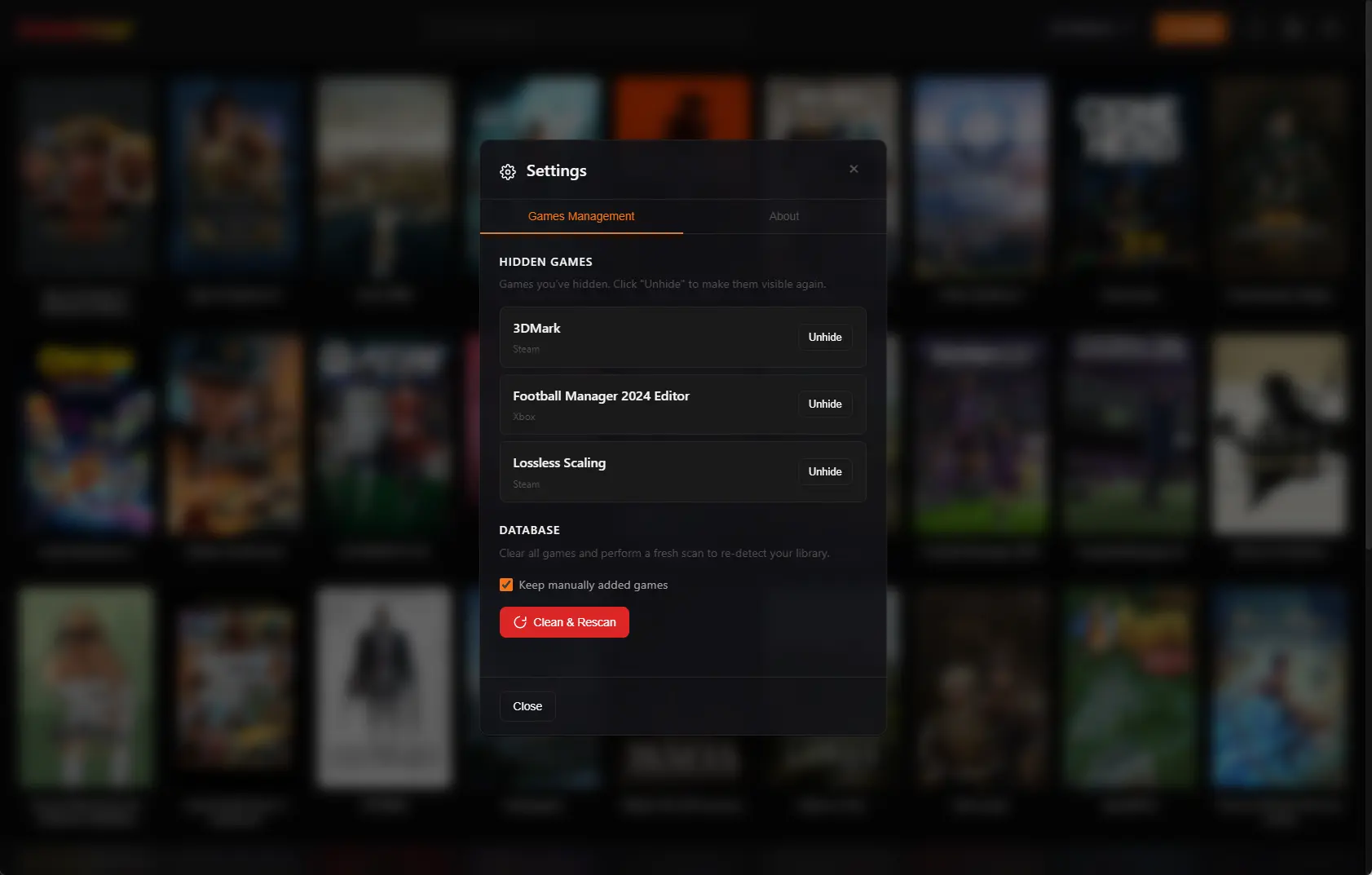
A Windows game library changes even when you are not thinking about library management. You install games, uninstall old ones, move folders, add manual entries, and refresh metadata. Kolektor includes startup scan and metadata settings so the library can keep itself closer to the real state of your PC.
Why Automatic Library Maintenance Matters
Most PC libraries are not static collections. They are working shelves. A game you installed last weekend may not be the game you want tonight. A large title may be uninstalled to free space. A DRM-free build might sit outside a store folder. A subscription game may appear through Xbox/Game Pass. An old favorite may need a manual executable path because it does not behave like a modern store install.
If a launcher only works on the first scan, it slowly stops matching the computer in front of you. That is why we built Kolektor around recurring local checks, not just a one-time import. The goal is simple: when you open Kolektor, the app should be able to review supported platforms, clean up local state, and keep the library useful for launching.
Kolektor supports Steam, Epic Games Store, GOG, Ubisoft Connect, EA App, Xbox/Game Pass, Battle.net, Amazon Games, and manually added games. Automatic maintenance helps those sources stay in one practical Windows library instead of turning into a stale copy of what used to be installed.
Download Kolektor and keep your installed PC games visible from one Windows library.
Download KolektorWhat Kolektor Can Run On Startup
In Kolektor Settings, the General tab includes Startup Settings. The current controls are:
| Setting | What it does | When to keep it on |
|---|---|---|
| Automatic startup library scan | Runs a full startup library scan automatically after opening the app, including cleanup | Keep it on if your installed games change often |
| Automatic startup metadata scan | Runs metadata refresh automatically after the startup library scan | Keep it on if you want covers, descriptions, screenshots, trailers, and details to stay fresh |
Both settings are enabled by default in the current app settings service. You can turn either one off if you prefer to control scans manually, but the default is designed for players who want Kolektor to stay useful without a maintenance habit.
The startup library scan checks supported platform scanners and reconciles the local Kolektor database with what those scanners find. The metadata scan is separate. That separation matters because detection answers “what is installed?” while metadata answers “what useful information can we show about it?”
The Startup Scan Flow
When a logged-in user opens Kolektor and startup scanning is enabled, the app runs the same full library scan path used by manual scans. The flow includes cleanup, platform scanning, and saving detected games back into the local library.
That means Kolektor can:
- Check whether known installed games still have valid local evidence.
- Scan enabled platform sources such as Steam, Epic Games, GOG, Ubisoft, EA, Xbox, Battle.net, and Amazon.
- Add newly detected installed games.
- Reconcile existing records when platform identity or install data is updated.
- Keep user-hidden games hidden instead of forcing them back into the grid.
- Report scan progress while platforms are checked.
This is local library maintenance, not store account management. Kolektor does not buy games, uninstall games, patch games, change cloud saves, or replace the original platform app. The original platform still owns those jobs. Kolektor’s job is to keep one launcher view aligned with the installed state it can detect.
What Cleanup Means During A Scan
Cleanup is part of the startup library scan. For most scanned games, Kolektor checks whether the executable path still points to an existing .exe. If a game no longer has valid local evidence, it can be moved out of the visible installed library instead of staying as a dead launch target.
There are platform-specific limits. Xbox/Game Pass entries can use shell app identities instead of normal executable paths, so Kolektor treats those differently from platforms that expose direct executable files. That is a practical Windows boundary, not a missing cleanup step.
The result should feel more honest. If a game is installed and detectable, it should be visible. If a game was removed from disk, it should not sit in the main grid pretending it is ready to launch. If a game was hidden by you, it should not come back just because a scanner found it again.
Metadata Refresh Is A Separate Layer
Detection gets games into the library. Metadata makes the library easier to browse.
Kolektor beta 4 added IGDB integration, the Game Details panel, screenshots, and trailers. The startup metadata setting lets Kolektor queue metadata refresh after the startup library scan, so detected games can receive richer details through the metadata provider flow.
That metadata layer can help with:
- Covers and visual recognition.
- Descriptions and genres.
- Release details.
- Screenshots and trailers in the Game Details panel.
- Better browsing when you forgot what a game is.
Metadata refresh follows your metadata settings. In Settings, you can configure providers, provider order, merge behavior, manual edit protection, whether IGDB can overwrite names, screenshot limits, and blocked IGDB matches. That means automatic refresh can still respect the level of control you want over hand-edited entries.
When To Leave Startup Scans Enabled
The default startup settings are useful for most Kolektor users because PC libraries tend to shift in small ways. Leave startup scanning enabled if any of these are true:
- You install and uninstall games often.
- You use multiple stores on the same Windows PC.
- You claim games from one platform and forget where they landed.
- You want the library to clean up stale installed entries over time.
- You want metadata refresh to run without remembering a separate action.
- You use Kolektor as the first place you look before deciding what to play.
This does not mean you need to stare at a maintenance screen. The best case is that Kolektor opens, checks the library, updates what changed, and leaves you with a cleaner grid.
When To Turn Startup Scans Off
Automatic maintenance is useful, but control still matters. You may want to disable startup scans when you are troubleshooting a platform install, testing a specific library state, using a very slow drive, or temporarily working offline.
You can also split the behavior. For example, you might keep automatic startup library scan enabled but turn off automatic startup metadata scan if you want detection to stay current while metadata updates run only when you choose. Or you might disable the library scan but keep metadata refresh available for an existing library.
The important part is that these are settings, not hidden behavior. Open Settings, review the General tab, and choose the startup behavior that matches how you use the app.
Automatic Scan vs Clean & Rescan
Do not treat Clean & Rescan as the everyday maintenance button. Startup scanning is the normal path. Clean & Rescan is the stronger reset.
| Situation | Better action | Why |
|---|---|---|
| You installed a new game | Startup scan or normal scan | Kolektor can detect new installed games without clearing the library |
| You uninstalled a game | Startup scan or normal scan | Cleanup can move stale entries out of the visible grid |
| One game has the wrong details | Edit Game or Manage IGDB Match | A single-entry fix should not rebuild the whole library |
| Many scanned entries feel wrong | Clean & Rescan | A fresh local rebuild can be useful after broad library drift |
| Manual games are important | Keep manually added games enabled during Clean & Rescan | Manual entries may not be recreated by platform scanners |
That proportional approach keeps Kolektor from becoming another setup chore. Let startup scans handle normal drift. Use Edit Game for one-entry corrections. Use Clean & Rescan only when the local library needs a stronger rebuild.
A Practical Weekly Workflow
If you want Kolektor to stay organized with minimal work, use this routine:
- Keep Automatic startup library scan enabled.
- Keep Automatic startup metadata scan enabled unless you prefer manual metadata updates.
- Open Kolektor after installing or uninstalling games.
- Use search or platform filters to check the changed games.
- Open Game Details when a title needs metadata review.
- Use Edit Game for a bad title, cover, executable path, install folder, or IGDB match.
- Use Settings only when you need to unhide games, adjust startup behavior, or run Clean & Rescan.
This is intentionally ordinary. We built Kolektor so maintaining the library feels like using the launcher, not managing a database.
Good Fit
Kolektor is a good fit if you want your Windows game launcher to keep up with a real installed library. The startup scan is there for the common case: games change, and the launcher should check. The metadata scan is there for the next layer: a library is easier to use when games are visual, searchable, and understandable.
Use Kolektor when you want installed PC games from supported platforms and manual entries in one place, with automatic checks available when the app opens. Keep the original stores for installs, updates, purchases, and account-specific features. Use Kolektor as the practical library and launch surface above them.
FAQ
Does Kolektor scan my game library automatically?
Yes. Kolektor includes an Automatic startup library scan setting that runs a full startup library scan after opening the app when enabled.
Does the startup scan include cleanup?
Yes. The startup library scan runs the full library scan path, including cleanup for stale installed entries where Kolektor can safely check local evidence.
Does metadata refresh run at startup too?
It can. Kolektor includes an Automatic startup metadata scan setting that queues metadata refresh after the startup library scan when enabled.
Can I turn automatic scans off?
Yes. Open Settings and use the Startup Settings controls in the General tab to change automatic library scan and metadata scan behavior.
Does Kolektor replace Steam, Epic, GOG, or other stores?
No. Kolektor keeps a unified library and launch surface. The original platforms still handle installs, updates, purchases, account features, cloud saves, and subscription rules.
Related Guides
- Automatic game detection on Windows
- Refresh your PC game library in Kolektor
- Search and filter your PC game library
- View PC game details in Kolektor
Try Kolektor for your PC library
Kolektor Core is free, including automatic detection, one-click launching, cover art, a unified view across major PC game platforms, and Full Library Sync.
Download Kolektor