Refresh Your PC Game Library in Kolektor
Use Kolektor Settings to restore hidden games, keep manual entries, and run Clean & Rescan when your Windows library changes.
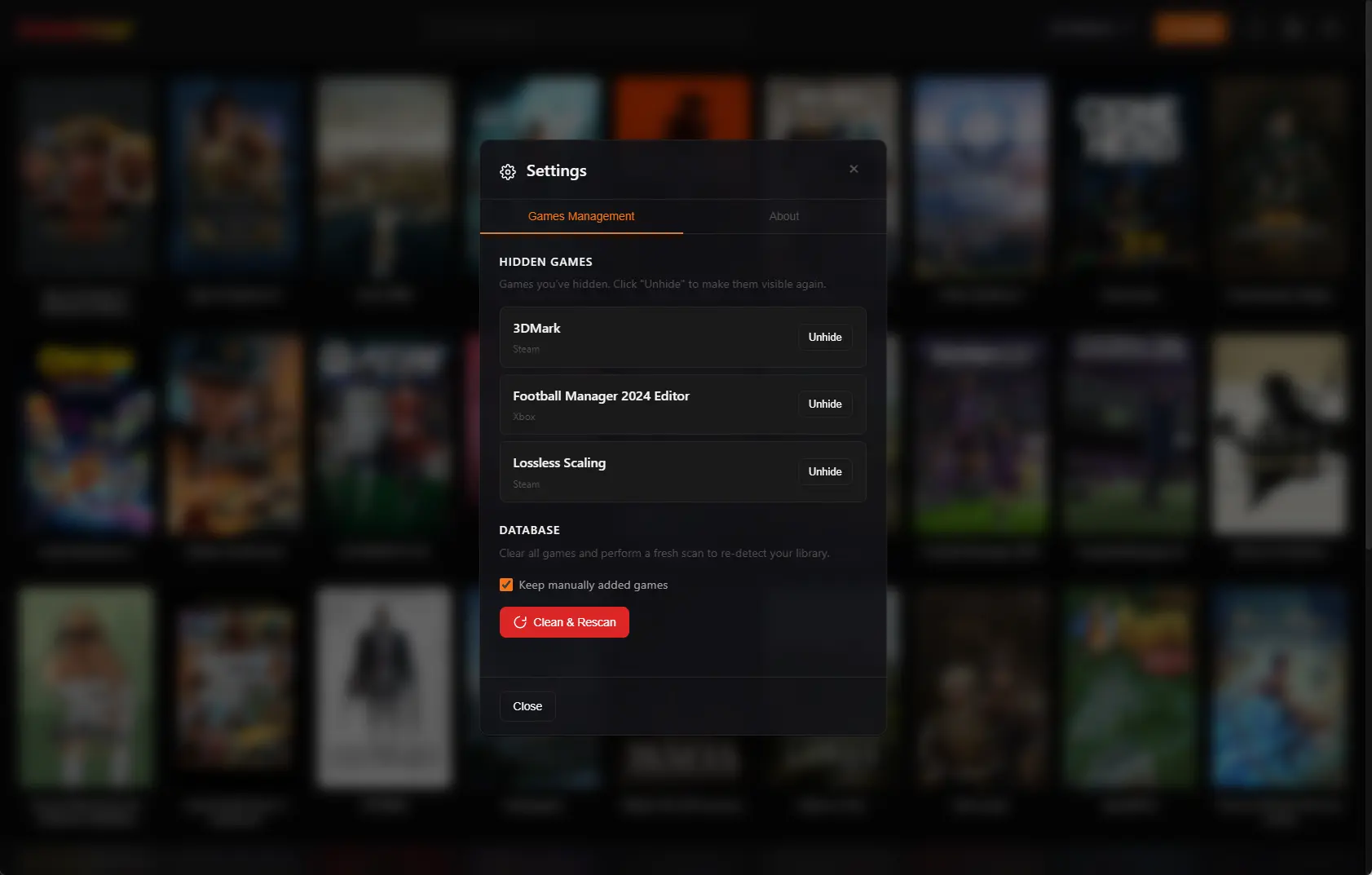
A PC game library is not something you scan once and forget forever. Games get installed, moved, hidden, uninstalled, and manually added over time. Kolektor includes Settings tools that help you refresh the local library when the visible grid no longer matches the Windows PC in front of you.
When A Library Needs A Refresh
A unified game launcher has to reflect real local state. If you install three new games, uninstall one old game, move a folder to another drive, hide a utility entry, or add a standalone executable by hand, the library should keep up without forcing you to rebuild everything manually.
Kolektor supports automatic detection for major PC platforms and manual entries for games outside store detection. That gives you a strong starting point, but Windows game libraries still change in messy ways. Store manifests can lag behind reality. A game might be removed from disk while a local record still exists. A tool or duplicate may be hidden because it is not useful in the daily grid. A manually added game may be the one entry you do not want to lose during cleanup.
That is why we built library refresh controls into Settings instead of treating cleanup as a separate maintenance project.
Download Kolektor and keep installed PC games visible from one Windows library.
Download KolektorNormal Scan vs Clean & Rescan
Kolektor has more than one refresh path because not every library issue needs the same action.
| Situation | Use this action | What it does |
|---|---|---|
| You installed new games | Run a scan | Kolektor scans supported platforms and adds newly detected installed games. |
| You uninstalled games | Run a scan | The scan cleanup checks whether known executables still exist and removes stale installed entries from the visible library. |
| The library feels badly out of sync | Clean & Rescan | Kolektor clears scanned-game records from its local database, then performs a fresh scan. |
| You have standalone or custom games | Keep manually added games | The refresh keeps Manual entries instead of removing them with scanned games. |
| You hid a game by mistake | Unhide it in Settings | The game returns to the visible library if it is still installed. |
Start with a normal scan for everyday changes. Use Clean & Rescan when you want a stronger reset of Kolektor’s local view, especially after a large uninstall session, duplicate entries from older versions, moved folders, or platform scanner changes.
What Clean & Rescan Does
Clean & Rescan is in the Game Library area of Kolektor Settings. Before it runs, Kolektor shows a confirmation so you can see what will happen.
The current flow is:
- Kolektor asks for confirmation.
- Kolektor clears scanned games from the local app database.
- If “Keep manually added games” is enabled, Manual entries stay in place.
- Kolektor clears local cover and metadata cache records for entries it removed.
- Kolektor closes Settings and starts a fresh scan.
- The library reloads after the scan completes.
This does not uninstall your games from Steam, Epic Games Store, GOG, Ubisoft Connect, EA App, Xbox/Game Pass, Battle.net, Amazon Games, or Windows. It refreshes Kolektor’s local library records. The original platform still owns installs, account checks, updates, cloud saves, purchases, and subscription state.
That boundary matters. We built Clean & Rescan to make Kolektor’s view honest again, not to replace the tools that install or patch your games.
Keep Manually Added Games
Manual entries are different from automatically detected store games. They may point to older PC games, DRM-free builds, fan projects, modded versions, local shortcuts, or executables that do not belong to a standard launcher.
The Settings screen includes a “Keep manually added games” toggle for Clean & Rescan. Leave it enabled when your manual entries are still valid and you only want to rebuild the detected store side of the library. Turn it off only when you deliberately want the local Kolektor library to start over, including Manual entries.
For most users, keeping manual entries is the safer choice. It protects the work you did to add custom paths, names, covers, and metadata for games that automatic detection cannot fully recreate.
Restore Hidden Games
Hiding a game is useful when a detected entry is real but not useful in the main grid. Some libraries include tools, launch helpers, benchmark utilities, duplicate entries, test builds, or items you do not want to see every day.
Kolektor tracks user-hidden games separately from games that are simply no longer installed. In Settings, the Hidden Games section lists games you hid yourself and includes an Unhide action. When you unhide a game, Kolektor removes it from the hidden list and reloads the main library.
Use that before running a bigger cleanup if the issue is just visibility. A hidden game does not need a full reset. It needs the restore action.
A Practical Refresh Workflow
Use this flow when your Kolektor library feels stale after installs, uninstalls, or folder moves:
- Open the original store app first if you need to confirm whether a game is actually installed.
- Open Kolektor and run a normal scan.
- Search or filter the library to check whether the changed games now look right.
- If the issue is a hidden game, open Settings and use Unhide.
- If the issue is one bad record, open the game and use Edit Game instead of resetting the library.
- If many scanned entries are wrong, open Settings, keep manual games enabled, and run Clean & Rescan.
- After the fresh scan, review platform filters and search results to confirm the visible library matches your PC.
That keeps cleanup proportional. The everyday answer is a scan. The targeted answer is edit or unhide. The stronger answer is Clean & Rescan.
What Happens To Covers And Metadata
When Clean & Rescan removes scanned-game records, Kolektor also cleans related local cover files and metadata state for those removed entries. That helps avoid stale artwork or old metadata being attached to a refreshed library record.
After the scan, metadata can be refreshed again through the app’s metadata flow. Kolektor beta 4 added IGDB integration, the Game Details panel, screenshots, and trailers, so a refreshed library can become visual and useful again after detection has rebuilt the base records.
If you hand-edited specific games, use the manual-entry toggle carefully. Keeping Manual entries preserves those local records while the scanned platform side is rebuilt.
When Not To Use Clean & Rescan
Do not use Clean & Rescan for every small correction. It is useful, but it is still a broad local database action.
Use a narrower action when:
- One game has the wrong title, cover, executable path, install folder, or IGDB match.
- A game is visible but should be hidden from the grid.
- A hidden game should simply come back.
- A manual game needs a corrected
.exepath. - One platform needs troubleshooting in its original launcher.
For those cases, edit the game, hide or unhide it, confirm the install in the original platform, or run a normal scan. Clean & Rescan is best when the library state itself needs to be rebuilt.
Good Fit
Kolektor’s refresh tools are a good fit if:
- You install and uninstall games often.
- Your games live across several PC platforms.
- You use manually added games alongside store games.
- You want hidden entries to be reversible.
- You prefer one library that can be cleaned up without becoming a setup project.
Kolektor supports Steam, Epic Games Store, GOG, Ubisoft Connect, EA App, Xbox/Game Pass, Battle.net, Amazon Games, and manually added games in one Windows library. The refresh tools help that library stay aligned with the real installed state of your PC.
FAQ
Does Clean & Rescan delete my installed games?
No. Clean & Rescan refreshes Kolektor’s local library records. It does not uninstall games from your PC or remove them from the original store account.
Should I keep manually added games?
In most cases, yes. Keep manually added games when you have custom entries, standalone games, older executables, or modded builds that automatic platform detection may not recreate.
Can I restore a hidden game?
Yes. Open Settings, go to the Hidden Games section, and use Unhide. Kolektor then removes that game from the hidden list and reloads the visible library.
When should I run a normal scan instead?
Run a normal scan after everyday installs and uninstalls. It detects new games and checks whether known executables still exist, which is enough for most library changes.
What if one game has the wrong details?
Use Edit Game for one-entry problems. You can correct the title, sort title, cover, executable path, install folder, and IGDB match without rebuilding the whole library.
Related Guides
- Automatic game detection on Windows
- Edit PC game details in Kolektor
- Add non-Steam games to one PC library
- Search and filter your PC game library
Try Kolektor for your PC library
Kolektor Core is free, including automatic detection, one-click launching, cover art, a unified view across major PC game platforms, and Full Library Sync.
Download Kolektor