Install Kolektor on Windows: What To Expect
Install Kolektor on Windows, understand the SmartScreen warning, and see what happens when the launcher scans your installed PC games.
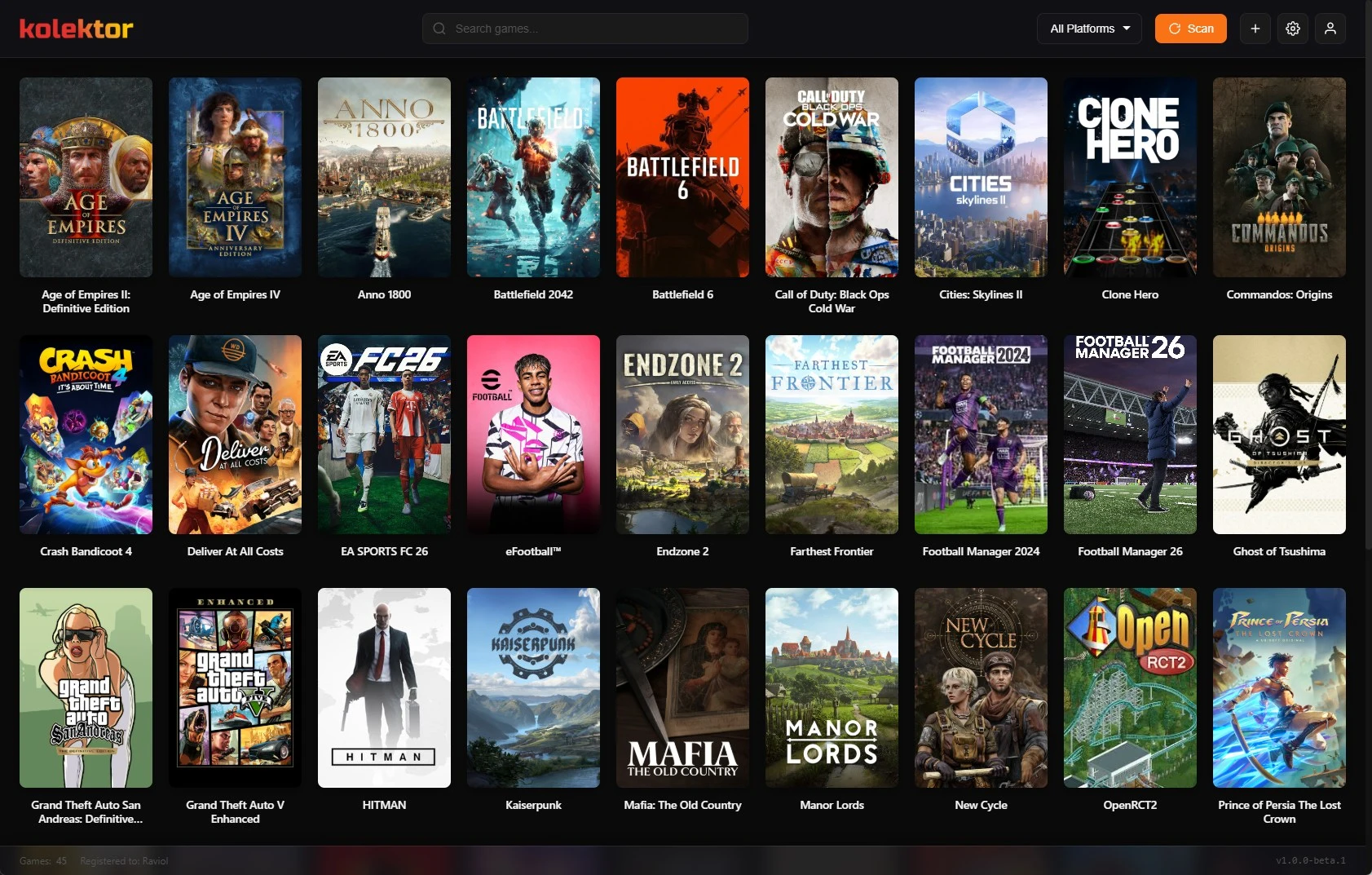
Kolektor is available for Windows players who want one launcher for installed PC games. This guide explains where to download Kolektor, what the Windows installer flow looks like, why SmartScreen may appear, and what the app does after installation.
Quick Answer
To install Kolektor on Windows, use the official download button on gamekolektor.com, run the installer, and follow the normal Windows prompts. If Windows shows “Windows protected your PC”, choose “More info” and then “Run anyway” when you trust that the installer came from the official Kolektor download. After launch, Kolektor scans supported PC platforms and builds one library view for installed games.
Before You Install
Kolektor supports Windows today. The current minimum requirement listed on our download section is Windows 10, 4 GB RAM, and 200 MB of storage. We recommend Windows 10 or Windows 11, 8 GB RAM, and an SSD for a smoother experience.
The core Game Launcher is free. Premium collection features are planned separately, but you do not need Premium to install Kolektor, scan installed games, use the unified launcher, or start browsing your detected library.
Use the official Kolektor website for the installer. The download button on gamekolektor.com points to the Kolektor download service at https://api.gamekolektor.com/download, so you do not need to hunt for a separate mirror or third-party package page.
Why Windows May Show A SmartScreen Warning
Windows may show a security warning that says “Windows protected your PC” because Kolektor is new. That warning can appear for new Windows apps before reputation signals build up, even when the app is the one you meant to install.
When that screen appears, the expected path is:
| Step | What You See | What To Do |
|---|---|---|
| 1 | Windows protected your PC | Confirm you downloaded Kolektor from gamekolektor.com |
| 2 | More info | Click it to reveal the run option |
| 3 | Run anyway | Continue only if the installer source is correct |
We include this note directly in the download section because it is a real part of installing a new Windows app. The practical rule is simple: download Kolektor from our official site, avoid reposted installers, and do not continue if the file came from a source you do not recognize.
What Happens After Installation
The first useful thing Kolektor does is look for installed games from supported PC platforms. The current launcher supports Steam, Epic Games Store, GOG, Ubisoft Connect, EA App, Xbox/Game Pass, Battle.net, and Amazon Games. The point is to reduce setup work: install the app, open it, and let Kolektor build the first view of your library.
Kolektor currently starts with installed games, while Free Full Library Sync is in progress to add owned games that are not installed from supported local account libraries. The current Windows launcher remains strongest when you want to see and open what is already installed.
Once the scan completes, your games appear in a visual grid. Kolektor supports cover art, platform badges, search, filters, and one-click launch, so the first session should feel like a usable launcher rather than a blank catalog you have to build by hand.
The First-Run Flow
Use this sequence when you install Kolektor for the first time:
| Stage | What Kolektor Does | What You Check |
|---|---|---|
| Download | Opens the Windows installer from the official download service | The URL starts from gamekolektor.com |
| Install | Adds Kolektor to your Windows PC | Windows completes the installer prompts |
| Open | Starts the launcher interface | The app loads the library view |
| Scan | Detects supported installed games | Steam, Epic, GOG, Ubisoft, EA, Xbox/Game Pass, Battle.net, or Amazon titles appear when installed |
| Review | Shows covers, names, and platform context | Missing games can be handled manually |
| Launch | Opens games from one place | Store launchers may still be required for DRM or updates |
This flow is deliberately short. We built Kolektor so players with messy PC libraries do not have to install a plugin for every store before they can see their games.
If A Game Does Not Appear
Automatic detection depends on what is installed locally and where the original platform stores its data. If a game does not appear after the first scan, start with the practical checks:
- Make sure the game is installed on this Windows PC.
- Open the original store once if it has not finished setup or updates.
- Check whether the game belongs to one of the supported platforms.
- Use manual add for games that sit outside normal store detection.
Manual add matters for standalone games, older installers, modded builds, and local shortcuts that are not owned by a store launcher. Kolektor supports manually added games so your library does not have to split between detected store games and everything else.
What Kolektor Does Not Replace
Kolektor gives you one place to browse and launch installed PC games, but it does not remove the original stores from your machine. Some games still need their store launcher for sign-in, DRM, cloud saves, anti-cheat, updates, or platform services.
For games where direct launching is supported, Kolektor can help you get to the game faster. For games that require the original launcher, Kolektor still keeps the title visible in one library so you do not have to remember which store owns it.
That boundary is important. We want Kolektor to simplify the daily launch flow without pretending every PC game can ignore the platform it came from.
Keep The Installer And App Updated
Kolektor includes an auto-update system and an in-app check-for-updates flow. The current public changelog lists beta updates that added features such as IGDB metadata, a Game Details panel, screenshots and trailers, startup settings, and scanner improvements for Battle.net, Ubisoft, and EA.
After installation, the changelog is the best place to see what changed in the latest build. If an update becomes available, use the in-app update flow or return to the official download button on gamekolektor.com.
Who This Setup Works Best For
Kolektor is a good fit if you have installed games spread across multiple PC stores and want one clean launcher view. It is especially useful when your actual problem is not buying more games, but remembering what is already installed and opening it without bouncing through several launchers first.
It is also useful if you are starting with a smaller library. You do not need hundreds of games to benefit from one interface; even a few Steam, Epic, GOG, and Xbox/Game Pass installs can become easier to browse when they are shown together.
If you mainly want to catalog every owned game across every account, including uninstalled games, we are working on broader collection tools for that. The Windows launcher available now is the practical first step: detect installed games, make them visible, and launch them from one place.
FAQ
Is Kolektor available for Windows 11?
Yes. The current download section recommends Windows 10 or Windows 11, with Windows 10 listed as the minimum OS.
Is the Kolektor launcher free?
Yes. The core Game Launcher is free. Premium collection features are planned separately, but the current launcher features are available without a Premium subscription.
Why did Windows show “Windows protected your PC”?
Windows can show SmartScreen warnings for new apps. If you downloaded Kolektor from gamekolektor.com, click “More info” and then “Run anyway” to continue.
Does Kolektor import every game I own?
Not yet in the current public build. Free Full Library Sync for owned, uninstalled account-library games is in progress.
Can I add games manually?
Yes. Kolektor supports manual add for games that are not detected through supported store scans.
Related Guides
- Free game launcher for Windows
- Automatic game detection on Windows
- Add non-Steam games to one PC library
- Bypass game launchers on Windows when possible
Try Kolektor for your PC library
Kolektor Core is free, including automatic detection, one-click launching, cover art, a unified view across major PC game platforms, and Full Library Sync.
Download Kolektor