Replace Desktop Shortcuts With One Game Library
Use Kolektor to replace scattered Windows game shortcuts with one installed-game library for scanning, manual add, search, and launch.
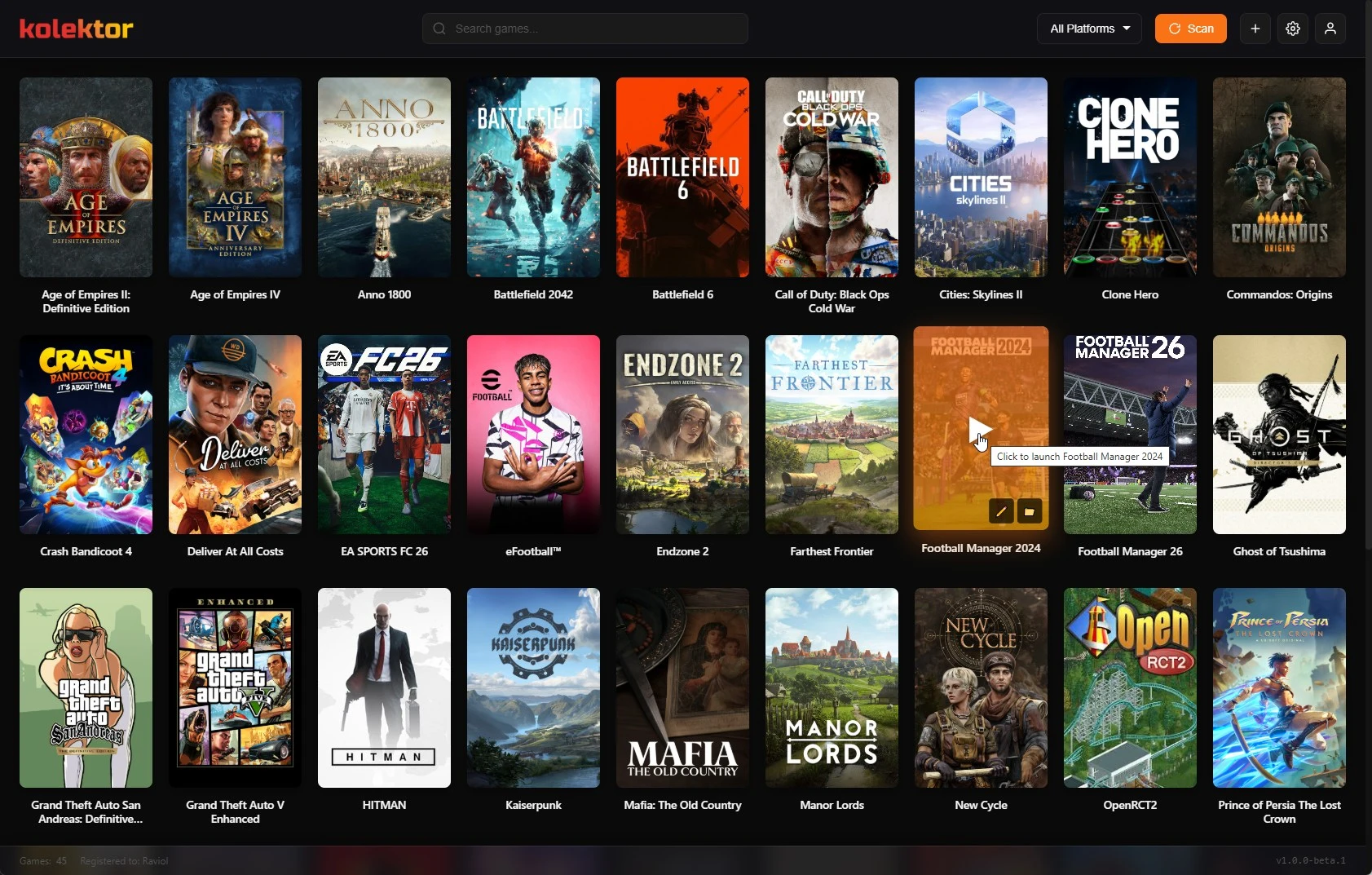
Desktop shortcuts are useful when a PC game library is small. They start to break down when games come from several stores, folders, launchers, and drives. Kolektor gives Windows players a cleaner path: scan installed games, keep them in one visual library, add anything that is missing, and launch from the game card instead of hunting through shortcuts.
Quick Answer
The point is not to delete every shortcut immediately or pretend the original stores disappear. The point is to move the daily play habit into one library. Open Kolektor, search or browse, confirm the right game, and launch from there.
Why Desktop Shortcuts Stop Scaling
A shortcut is a pointer, not a library. It can open one game, but it does not tell you where the game came from, whether it is still installed, what platform owns it, whether the cover art is right, or whether another version exists somewhere else on the PC.
That is fine for a few games. It becomes messy when the desktop starts mixing store shortcuts, standalone games, modded builds, older installers, subscription titles, launchers, updater tools, and folders named after whatever Windows happened to create during setup.
The problem usually looks like this:
- You know a game is installed, but not which platform owns it.
- You keep a shortcut because otherwise you forget the game exists.
- The desktop has old shortcuts for games that moved, updated, or uninstalled.
- Similar game names, editions, or modded builds are hard to tell apart.
- Standalone games sit outside the store apps and never show up when you browse.
- Launchers and game executables sit beside each other with no useful context.
Kolektor is built for the moment when the shortcut habit starts hiding the collection instead of helping it.
What A Real Game Library Adds
A game library should do more than open files. It should help you recognize what is installed, understand where it belongs, and get to the next play session without rebuilding the same mental map every time.
| Desktop shortcut habit | Kolektor library habit |
|---|---|
| One icon per game, with little context | One visual library with covers and platform context |
| Easy to forget games that are not on the desktop | Detected and manually added games live together |
| Shortcuts can point to old or wrong paths | Game records can be edited when paths change |
| Store source is not always obvious | Platform badges and filters keep source visible |
| Searching depends on Windows or folder names | Kolektor search checks useful game fields |
| Standalone games need their own shortcut system | Manual add keeps local games inside the same launcher |
Kolektor supports the daily parts of that workflow now: automatic detection, search and filters, one-click launch, manual add, cover art, and game details. Beta 4 also added IGDB integration for cover art and rich metadata, plus a Game Details panel with screenshots and trailers.
Start With Automatic Detection
The cleanest shortcut cleanup starts with a scan, not with manual work. Install Kolektor on Windows, open the app, and let it detect the games it can find from supported platforms.
Kolektor supports installed games from Steam, Epic Games Store, GOG, Ubisoft Connect, EA App, Xbox Game Pass, Battle.net, and Amazon Games. Those are the places where many PC libraries fragment first. When they appear together, you can stop treating the desktop as a map of which app to open.
This order matters:
- Let Kolektor scan supported platforms first.
- Review the detected games in the main library.
- Use search and platform filters to check what appeared.
- Keep the original store apps installed for updates, account checks, cloud saves, and platform services.
- Add the games that still belong outside the scan.
That keeps the setup practical. You are not rebuilding your entire library by hand. You are letting automatic detection handle the common path, then using manual add for the real edge cases.
Ready to move game launching out of desktop shortcuts?
Download KolektorWhat To Move Into Kolektor
Not every desktop item deserves to become a game entry. A clean library is selective. Add playable games, not every helper program related to a game.
Good candidates include:
- Store games that Kolektor detects automatically.
- Standalone games that launch directly from a folder.
- DRM-free games installed outside a store launcher.
- Older PC games that still run from a local executable.
- Fan games, small indie games, and portable builds.
- Modded versions with their own launch path.
- Local shortcuts you keep only because the game would otherwise be forgotten.
Poor candidates include:
- Installers you have not run yet.
- Updaters, crash reporters, benchmarks, setup tools, and uninstallers.
- Store apps themselves when the game can be detected separately.
- Duplicate shortcuts that open the same version the same way.
- Temporary files from Downloads.
The useful test is simple: if you would click it to start playing, it belongs in the library. If it only installs, patches, configures, or removes the game, it probably belongs outside the library.
Use Manual Add For The Leftovers
Automatic detection should cover the normal store path, but no Windows setup is perfectly standard. Some playable games do not live where platform scanners expect them. Some games are old, modded, restored from a backup, copied from another drive, or installed from a standalone package.
Kolektor supports manual add so those games can live beside the detected library. The important detail is the launch path. Choose the executable or shortcut that actually starts the game, not a setup program or support tool.
For each manually added game, focus on the fields that make future launching easier:
- Use the title you would search for later.
- Choose the executable that matches how you actually play.
- Keep the install folder tied to the real location on disk.
- Add or fix cover art when visual recognition matters.
- Edit details when metadata makes the game easier to identify.
Manual add is not busywork when it replaces a messy desktop. It turns a shortcut into a proper library entry that can be searched, recognized, edited, and launched from the same place as the rest of the collection.
Keep Platform Context Instead Of Hiding It
A unified launcher should not hide the fact that PC games still depend on their original platforms. Some titles need a store client for sign-in, DRM, cloud saves, updates, online services, or Windows app behavior. That does not make the unified library less useful. It just means the library should be honest about where each game belongs.
Kolektor keeps platform context visible while reducing the number of places you have to check before playing. You can browse one library, filter by platform, and launch the right game without opening several store apps just to remember where it lives.
That is the difference between replacing the desktop shortcut habit and replacing every platform feature. Kolektor helps with visibility and launch flow. The original platforms still handle the jobs they own.
A Practical Cleanup Flow
If your desktop is already full of game shortcuts, use a staged cleanup instead of deleting everything at once.
| Step | What to do | Why it helps |
|---|---|---|
| 1 | Install Kolektor and run the first scan | Let supported platforms populate the library automatically |
| 2 | Search for the games you expect | Confirm the main library covers your real installed games |
| 3 | Filter by platform | Check whether one store or app needs attention |
| 4 | List shortcuts that did not appear | Find standalone, modded, older, or unusual games |
| 5 | Use manual add for playable leftovers | Keep edge cases in the same library |
| 6 | Launch a few entries from Kolektor | Test that the right path opens the game |
| 7 | Remove or archive desktop shortcuts gradually | Avoid deleting a shortcut before its library entry works |
This flow keeps the cleanup reversible. A game should earn its place in the Kolektor library by launching correctly. Once that is true, the desktop shortcut is no longer the source of truth.
When To Keep A Shortcut Anyway
Some shortcuts are still useful. You may want a temporary desktop icon for a game you are playing every night. You may keep a shortcut for a mod manager, dedicated server, benchmark, or tool that is not really a game entry. You may want a fallback while testing a new manual path.
That is fine. Kolektor does not need to own every Windows shortcut. It should own the library habit: the place you go when you want to decide what to play, find a game by name or platform, and launch from a clean game record.
Use the desktop for temporary convenience. Use Kolektor for the durable library.
What Changes Day To Day
After the cleanup, the daily flow becomes smaller:
- Open Kolektor.
- Search, filter, or browse the library grid.
- Confirm the game by cover, title, platform, or details.
- Launch from the game card.
- Edit or manually add only when something is missing.
That flow matters most for mixed libraries. If every game came from one platform and you only play the same two titles, desktop shortcuts may feel good enough. If your Windows PC has Steam games, Epic games, GOG classics, Xbox/Game Pass installs, publisher-platform titles, Amazon Games, and standalone folders, one library gives the collection a stable home.
Kolektor currently focuses on installed games. Full Library Sync for broader account libraries is in progress, but the current launcher is already useful for the games you can actually open from this PC today.
Good Fit
Kolektor is a good fit if your desktop has become a reminder board for installed games. It is especially useful when you have a mix of detected platform games and local games that need manual add.
It is also a good fit if you care about visual recognition. Covers, platform badges, search, filters, and game details give you more context than a folder of icons can provide. The goal is not a prettier desktop. The goal is a library that makes installed games easier to find, inspect, and launch.
FAQ
Can Kolektor replace my desktop game shortcuts?
Yes, for the daily launch flow. Kolektor can become the main place where you browse, search, filter, and launch installed PC games. You can still keep temporary or special-purpose shortcuts when they are useful.
Does Kolektor delete my existing shortcuts?
No. Kolektor does not need to delete desktop shortcuts to build your library. A cautious cleanup is better: confirm the game launches from Kolektor first, then remove old shortcuts only when you no longer need them.
What if a shortcut opens a standalone game?
Use manual add. Choose the executable or shortcut that actually starts the game, give the entry a clear title, and keep it in the same library as your detected platform games.
Do store launchers still matter?
Yes. Store apps may still handle sign-in, DRM, updates, cloud saves, online services, and platform-specific features. Kolektor helps you find and launch installed games from one place while preserving that platform boundary.
Is this useful for a small library?
It can be, but it becomes more valuable as your PC library spreads across platforms, folders, and manual installs. The more places you currently check before playing, the more useful one library becomes.
Related Guides
- Automatic game detection on Windows
- Launch PC games from one Windows library
- Add non-Steam games to one PC library
- Search and filter your PC game library
- Download Kolektor
Try Kolektor for your PC library
Kolektor Core is free, including automatic detection, one-click launching, cover art, a unified view across major PC game platforms, and Full Library Sync.
Download Kolektor