Add Non-Steam Games to One PC Library
Use Kolektor to keep standalone PC games, store games, and manually added titles in one Windows library without losing where each game belongs.
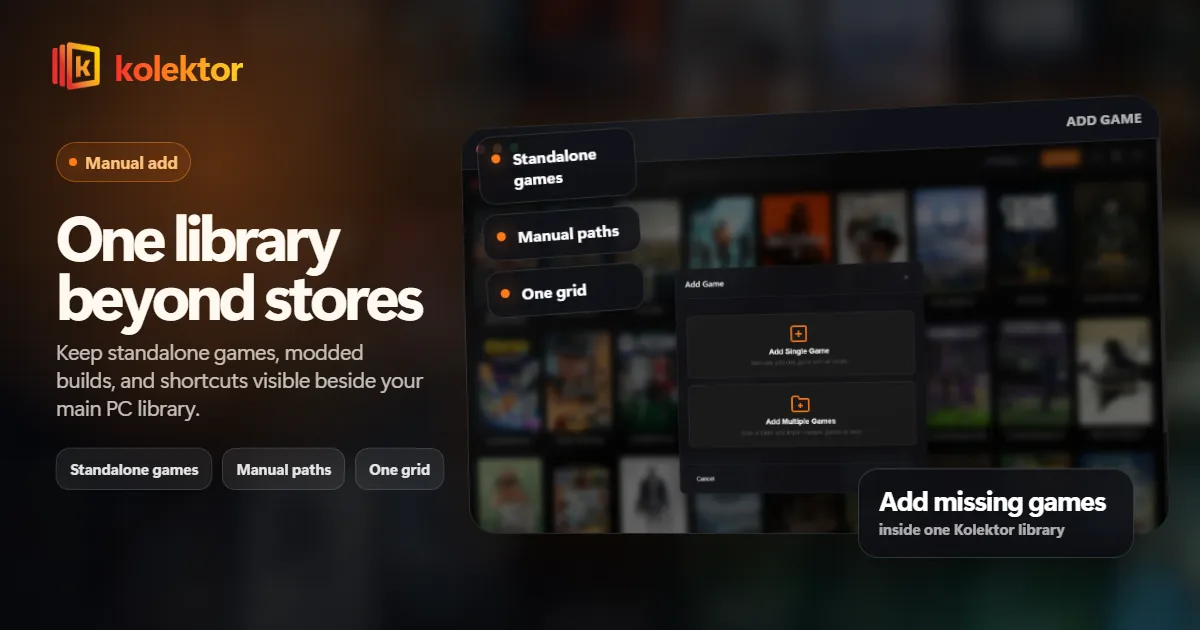
A good PC game library should handle more than one store. Kolektor automatically detects installed games from major PC platforms, and manual add gives you a way to keep standalone games, older installs, and unusual shortcuts in the same library view.
Why Non-Steam Games Get Lost
Steam is easy to remember because it becomes the default library for many PC players. The problem starts when the rest of the collection grows around it. You install an Epic game during a free claim, a GOG classic from an offline installer, a modded game in its own folder, a fan patch, a DRM-free executable, or a small indie game that never came from a store launcher.
Those games are playable, but they are easy to forget. They may live on the desktop, inside Downloads, in a folder named after an old installer, or behind a shortcut you only notice when Windows search finds it. A library manager is useful when it stops that fragmentation from becoming permanent.
Kolektor is built around the same idea: the launcher should show the games you can play, not just the games that belong to one store.
What One Library Needs To Handle
Manual add is not a replacement for automatic detection. It is the safety net that keeps the edge cases from becoming invisible.
| Library need | Why it matters | How Kolektor helps |
|---|---|---|
| Store games | Most installed games come from known platforms | Kolektor detects major PC stores automatically |
| Standalone games | Some games launch directly from a folder | Manual add keeps them in the same library |
| Older installs | Classic PC games may not register cleanly | Add the executable and keep the game visible |
| Modded versions | A modded build may need its own shortcut | Keep the custom launch path separate |
| Visual browsing | A folder path is not a good library | Covers and metadata make games easier to recognize |
Start With Automatic Detection
The cleanest flow is to let Kolektor do the broad scan first. On Windows, Kolektor supports Steam, Epic Games Store, GOG, Ubisoft Connect, EA App, Xbox Game Pass, Battle.net, and Amazon Games. If most of your installed games come from those platforms, they should form the base of your library.
That matters because manual add should not become busywork. The goal is not to rebuild your collection by hand. The goal is to let automatic detection handle the obvious games, then manually add the few titles that live outside standard platform detection.
Want to see what Kolektor detects before adding anything manually? Install it, run the first scan, and review the library grid.
Download KolektorWhen To Use Manual Add
Use manual add when the game is playable on your PC but does not appear after the normal scan. Common cases include standalone games, older PC releases, fan games, emulators launched as individual shortcuts, local builds, modded executables, and games installed outside a store folder.
The useful test is simple: if you would otherwise keep a shortcut on your desktop so you remember the game exists, it probably belongs in your Kolektor library.
Manual add is also useful when you want to keep two versions of a game visible. For example, you may have the normal store version plus a modded executable with a separate launch path. A single-store library often hides that distinction. A personal library should let you keep the version you actually play.
A Practical Workflow
Use this flow when you are cleaning up a messy PC game setup:
- Install Kolektor on Windows.
- Let it scan supported platforms first.
- Open the library grid and search for the games you expected to see.
- Make a short list of playable games that did not appear.
- Use manual add for each missing standalone or unusual game.
- Keep the original install location where it is unless you have a reason to move it.
- Launch from Kolektor so the game stays part of the same habit.
That flow keeps the setup simple. You are not reorganizing your entire drive. You are making your playable library visible.
What To Add To Each Manual Game
The title is the only required field in Add Single Game. You can create a Library entry first and attach an executable later. A title-only entry stays visible in Library but does not appear in Launcher until it has a valid launch path.
Think of manual add as creating a proper library card:
- The game title should be the name you would search for.
- If you want to launch it now, the optional launch path should point to the executable or shortcut you actually use.
- The cover should make the game easy to spot visually.
- The platform or source should help you remember where the game came from.
- Notes or details should be useful only if they help you launch or identify the game later.
Kolektor’s beta 4 work around game details, cover art, screenshots, trailers, and IGDB metadata is important here. A unified library is not just a list of file paths. It should look and feel like a collection.
Keep Store Features In The Original Store
Adding a game to Kolektor does not mean you should stop using the original store. Steam, Epic, GOG, Xbox, Ubisoft, EA, Battle.net, and Amazon still own installs, updates, purchases, cloud saves, accounts, and platform-specific features.
Kolektor’s job is different. It gives you one place to find and launch the games that are already installed. If a game needs an update, account login, DLC management, or store-specific configuration, use the original platform for that job.
This separation keeps the workflow clean: stores manage ownership and updates; Kolektor manages visibility and launching.
How To Avoid A Messy Manual Library
Manual add works best when you are selective. If you add every installer, config tool, launcher helper, and old shortcut, your library becomes noisy again.
Use these rules:
- Add playable games, not every related utility.
- Do not add duplicate shortcuts unless they launch meaningfully different versions.
- Use clear titles so search works later.
- Keep manually added games tied to the path you actually use.
- Review old manual entries when you uninstall or move games.
The goal is not to create a perfect database. The goal is to make the next game easier to find.
Who This Is For
This guide is for Windows players with a mixed PC setup: store games, standalone games, older titles, modded builds, and shortcuts that do not fit neatly into one platform. It is also useful for players who have already tried to keep a desktop folder of shortcuts and found that it does not scale.
Kolektor is strongest when automatic detection handles most of your library and manual add handles the exceptions.
FAQ
Can Kolektor add games that are not from Steam?
Yes. Kolektor supports major PC platforms automatically and includes manual add for games outside normal store detection.
Should I move my game files before adding them?
Usually no. If the game already launches correctly, add the path you use now. Move files only if you are intentionally reorganizing your drive.
Does manual add replace platform detection?
No. Automatic detection should handle the common store games first. Manual add is for standalone games, unusual installs, and edge cases.
Can I keep modded versions separate?
Yes. If a modded version uses a separate executable or shortcut, manual add can keep that version visible as its own launch entry.
Related Guides
- Automatic game detection on Windows
- Game cover art and metadata
- Free game launcher for Windows
- Download Kolektor
Try Kolektor for your PC library
Kolektor Core is free, including automatic detection, one-click launching, cover art, a unified view across major PC game platforms, and Full Library Sync.
Download Kolektor