Organize Your Epic Games Library on Windows
Use Kolektor to organize installed Epic Games Store titles on Windows with automatic scanning, search, metadata, and launch controls.
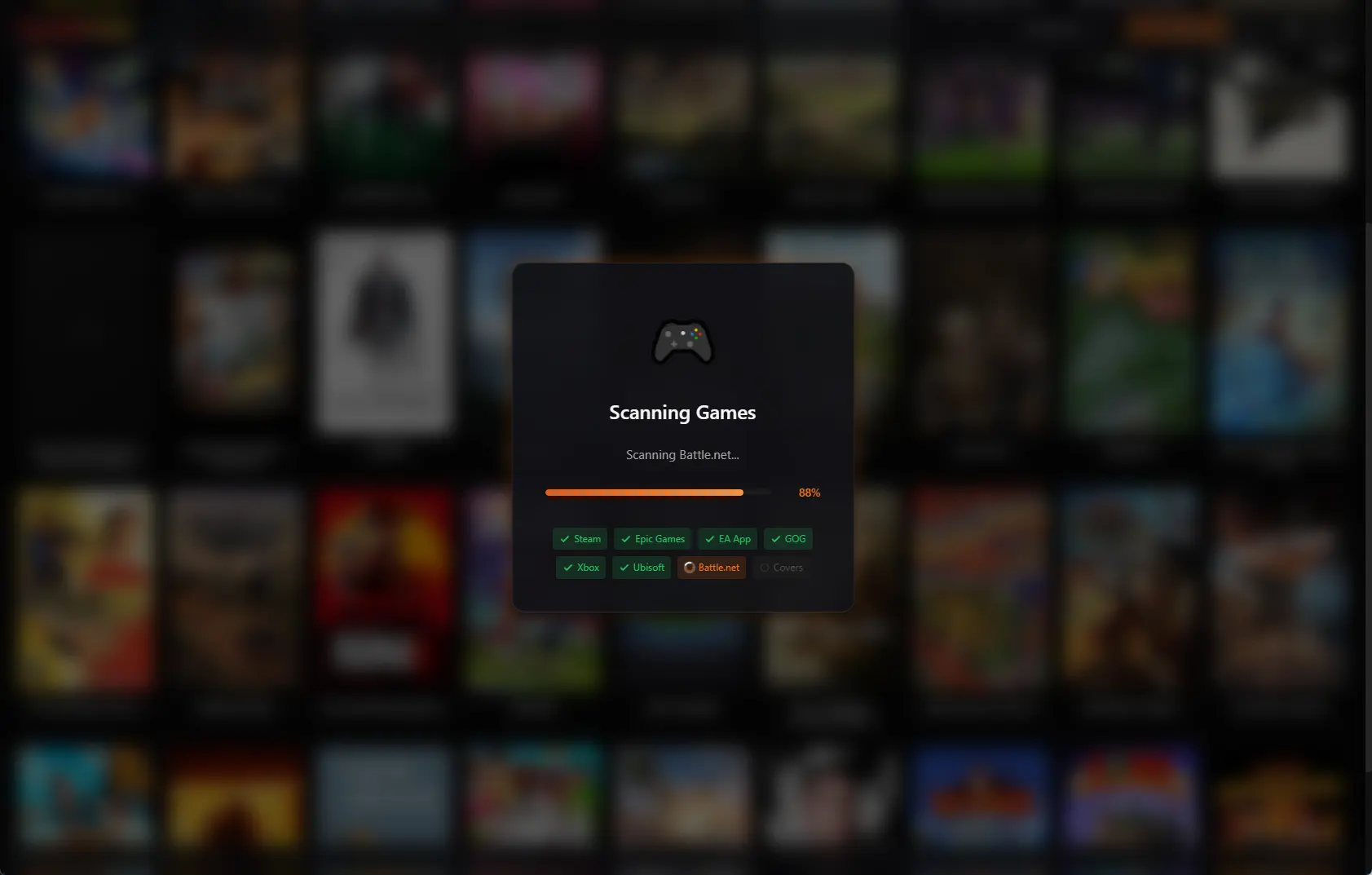
Epic Games Store libraries can grow quickly through free claims, exclusives, and installs that sit outside a Steam-first habit. Kolektor supports Epic Games Store on Windows so installed Epic games can appear beside Steam, GOG, Ubisoft Connect, EA App, Xbox Game Pass, Battle.net, Amazon Games, and manually added PC games in one searchable library.
Why Epic Libraries Become Hard To Use
Epic Games Store is easy to add to a PC library one game at a time. You claim a weekly free game, install an exclusive, try a sale purchase, or keep a title because friends are playing it. Over time, the library becomes another place you have to remember before deciding what to play.
That is the problem Kolektor is built to reduce. The daily question is often not “which store owns this game?” It is “what can I play on this Windows PC right now?”
Kolektor starts from the installed state of the machine. When Epic games are installed normally through the Epic Games Launcher, Kolektor can scan the local Epic install data and bring those games into the same visual library as the rest of your installed collection.
What Kolektor Does With Epic Games
Kolektor supports Epic Games Store as one of its built-in PC platforms. Epic games appear with a platform source, can be searched with the rest of the library, and can use the same game details and cleanup workflow as other detected games.
| Epic library need | How Kolektor handles it |
|---|---|
| Installed game detection | Reads Epic Games Store install manifests on Windows |
| Old or removed installs | Skips entries when the recorded install folder is no longer present |
| Visual browsing | Shows Epic games in the same cover grid as other platforms |
| Search and filtering | Lets you find games by title, platform, and metadata when available |
| Launching | Supports Epic as a configurable launch platform with client and direct options |
| Cleanup | Works with edit, hide, details, metadata refresh, and library rescan tools |
Kolektor is not trying to replace Epic Games Store. Keep Epic for buying games, claiming free titles, installing, patching, account features, friend and store surfaces, cloud saves, and platform-specific actions. We built Kolektor to be the unified library and launch surface after games are already on the PC.
If Epic is only one part of your PC library, install Kolektor and scan your real Windows setup.
Download KolektorA Practical Epic Games Workflow
Use this flow when Epic Games Store is one shelf in a larger PC collection:
- Keep Epic Games Launcher installed for store, account, install, and update work.
- Install the Epic games you actually want available on the PC.
- Open Kolektor and run Scan.
- Use the platform filter when you want to focus on Epic games.
- Use search when you remember the game but not the platform.
- Open the Game Details panel when you want source, metadata, screenshots, trailers, folder actions, or launch controls.
- Use Refresh metadata or Manage IGDB Match when covers or details need cleanup.
The result is a cleaner starting point. You can still return to Epic whenever a game needs platform-specific management, but you do not have to open Epic first just to remember whether an installed title exists.
How Epic Detection Works In Kolektor
Epic stores installed-game information in local manifest files on Windows. Kolektor’s Epic scanner reads the Epic Games Store manifest folder, parses the .item files Epic keeps there, and converts valid records into game entries.
Kolektor also checks that the recorded install location still exists. That matters because Epic can leave local records behind after a move, uninstall, or repair. A launcher should not fill your daily library with dead entries when the install folder is gone.
When Epic provides launch executable information, Kolektor tries to use it. When that exact path is not available, Kolektor looks for a reasonable executable inside the installed game folder. This is useful because not every Epic install records executable paths in the same way.
| Detection detail | Why it matters |
|---|---|
Epic .item manifests | Provide the installed game’s display name, app information, install folder, and version data |
| Install folder check | Helps avoid showing Epic games that are no longer actually installed |
| Executable lookup | Supports direct launch when a usable executable can be found |
| External game ID | Supports Epic client launch paths when the platform route is needed |
You do not need to understand those files to use the app. The useful part is that Kolektor reads the normal local Epic state and turns it into a playable library view.
Launch Preferences For Epic Games
Epic Games Store is one of the configurable platforms in Kolektor’s Launch Preferences. That means you can choose the launch behavior that fits your setup instead of treating every Epic game the same forever.
The default path uses the platform client route. That is the safest starting point for Epic games because the Epic Games Launcher still owns account checks, updates, cloud save behavior, and platform startup requirements.
Direct Launch is available when Kolektor has a usable executable path. It can reduce extra screens for games that work cleanly from their executable, but it is not a promise that every Epic game can skip the Epic Games Launcher. Some games still need the client because of DRM, online services, or game-specific startup behavior.
If reliability matters most, start with Open Client. If a game has a clean executable path and does not need extra platform steps, try Direct Launch and keep the behavior that works best on your PC.
What To Do When An Epic Game Is Missing
Automatic detection should handle normal Epic installs, but Windows game libraries are not always normal. If an Epic game does not appear in Kolektor after scanning, check the simple cases first:
- Confirm Epic Games Launcher is installed.
- Confirm the game is installed, not only claimed in your account.
- Open the game from Epic once to make sure the install is healthy.
- Run Scan again after installing, moving, or repairing the game.
- Use manual add for standalone executables, unusual installs, modded builds, or games outside normal platform detection.
Manual add is intentionally part of Kolektor. A unified library should cover both supported platform scans and the edge cases that happen on real PCs. If an Epic title has been moved into an unusual folder or behaves more like a standalone game, adding it manually keeps it visible.
Covers, Metadata, And Details
Epic installs become easier to browse when they look like games, not just filenames. Kolektor supports automatic cover art, and beta 4 added IGDB integration for richer metadata, the Game Details panel, screenshots, and trailers.
The scan and metadata steps solve different problems. Scan answers which games are installed. Metadata refresh fills in covers, descriptions, genres, developers, publishers, screenshots, and trailers when data is available. In practice, you may scan first, then refresh metadata when a visible game needs better context.
Kolektor also supports manual corrections. If a title, sort title, cover, executable path, install folder, or IGDB match needs adjustment, you can edit the game instead of accepting a bad library record.
That matters for Epic collections because claimed games are easy to forget. A cover grid, platform badge, and details panel make the installed games easier to recognize when you are deciding what to play.
Epic Games In A Multi-Platform Library
A dedicated Epic view is useful, but the real value appears when Epic is not alone. Many Windows players have Steam as the main habit, Epic for free claims and exclusives, GOG for DRM-free classics, Xbox Game Pass for subscriptions, publisher launchers for individual franchises, and standalone games that never came from a store.
Kolektor supports that mixed setup. Epic games can sit beside the other major PC platforms we cover, so the source platform becomes a filter instead of a memory burden.
This is especially useful when you know the game but not the store. Instead of opening Epic, Steam, GOG, and Xbox one by one, start in Kolektor, search the game title, and launch from the matching entry.
When Kolektor Is The Right Fit
Kolektor is a good fit if Epic Games Store is part of a broader Windows library and you want a clean daily launcher for installed games. It works best when you want one visual front door for browsing, searching, launching, and keeping game details tidy.
It is also a good fit if you want a lower-setup approach. Kolektor includes built-in platform support for major PC launchers, so the first scan is designed to be useful without hunting for separate platform plugins.
Kolektor is not yet the right tool if your main need is to manage every game you have ever claimed in your Epic account, including uninstalled titles. Kolektor Free focuses on installed games in the current public build. We are working on Full Library Sync as a Free feature for seeing broader permanent account libraries, not only what is currently installed.
FAQ
Does Kolektor support Epic Games Store?
Yes. Kolektor supports Epic Games Store as one of its built-in Windows game platforms.
Does Kolektor show every Epic game I claimed?
Kolektor Free focuses on installed games today. If a game is only claimed in your Epic account and not installed on the PC, it is outside the current free launcher scan.
Does Kolektor replace Epic Games Launcher?
No. Use Epic Games Launcher for purchases, claims, installs, updates, cloud saves, and account work. Use Kolektor to browse and launch installed Epic games beside the rest of your PC library.
Can Kolektor launch Epic games directly?
Epic Games Store is configurable in Kolektor’s Launch Preferences. You can use the client route for reliability or Direct Launch when Kolektor has a usable executable path and the game works cleanly that way.
What if an Epic game does not appear after scanning?
Confirm the game is installed and launches from Epic, then run Scan again. If the install is unusual or the executable lives outside normal Epic detection, use manual add.
Related Guides
- Automatic game detection on Windows
- Organize Steam, Epic, and GOG games
- Search and filter your PC game library
- Refresh your PC game library
- Download Kolektor
Try Kolektor for your PC library
Kolektor Core is free, including automatic detection, one-click launching, cover art, a unified view across major PC game platforms, and Full Library Sync.
Download Kolektor