Organize Steam, Epic, and GOG Games in One Library
Steam, Epic, and GOG libraries get messy fast. Kolektor gives Windows players one place to browse and launch installed PC games.
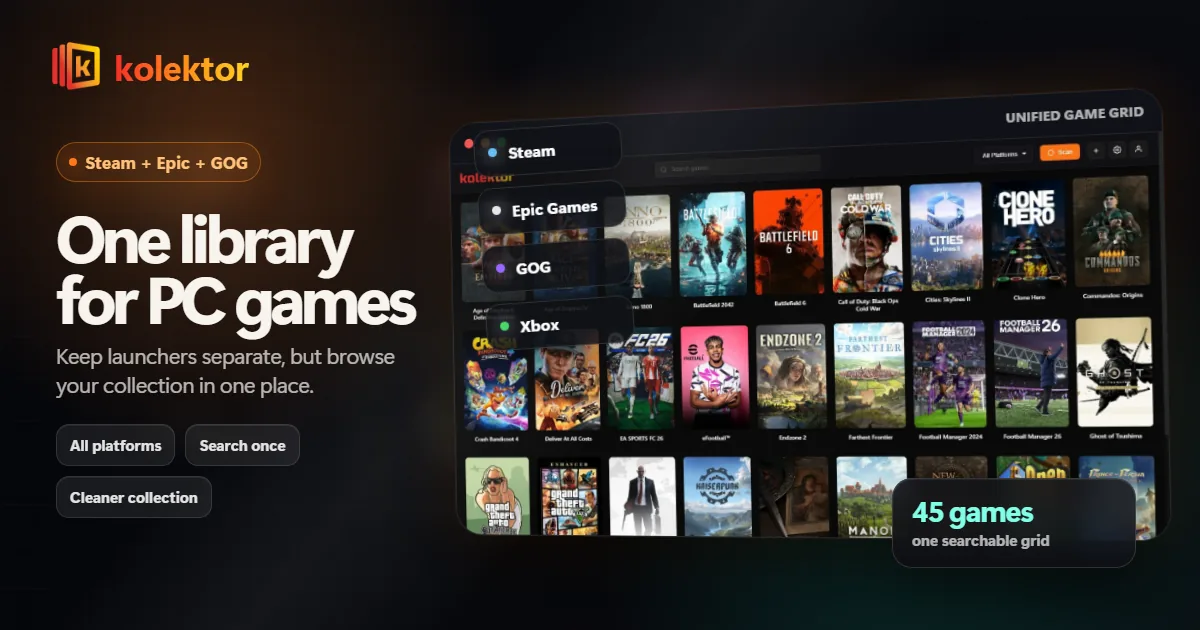
The easiest way to organize Steam, Epic, and GOG games is to keep each store installed but stop using every store as your main library view. Kolektor gives Windows players one place to browse and launch installed games across those platforms and more.
Why These Libraries Get Messy
Steam is usually the main library. Epic adds free claims and exclusives. GOG adds DRM-free games and older PC titles. After a few years, the problem is not owning games. The problem is remembering where each game lives.
That creates three habits that slow people down:
- Opening several launchers before deciding what to play.
- Forgetting installed games because they are buried in another store.
- Searching store by store when one library view would be faster.
Use One Library View
Kolektor works best as the front door to your installed PC library:
- Keep Steam, Epic, GOG, and other stores installed.
- Install the games you want available on this PC.
- Open Kolektor and let it detect supported platforms.
- Browse, search, and launch from the Kolektor grid.
- Return to the original store only when you need store-specific features.
This does not replace the stores. It reduces the number of places you check before playing.
What One Library Should Show
| Library need | Why it matters | How Kolektor handles it |
|---|---|---|
| Store identity | You still need to know where a game came from | Games remain tied to their original platforms |
| Cover art | Browsing is faster visually | Kolektor builds a visual grid with covers |
| Search | Large libraries need quick lookup | Search once instead of checking each store |
| Manual add | Not every game comes from a store | Add standalone games when detection is not enough |
| Metadata | Details help you choose what to play | Beta 4 includes game details, screenshots, trailers, and cover art |
Beyond Steam, Epic, And GOG
Kolektor supports Steam, Epic Games Store, GOG, Ubisoft Connect, EA App, Xbox Game Pass, Battle.net, and Amazon Games. Steam, Epic, and GOG are a common starting point, but the value grows when your PC has more than three launchers installed.
Have games split across Steam, Epic, and GOG? Use Kolektor to check your installed library from one screen.
Download KolektorKeep Store Features Where They Belong
A unified launcher should not pretend every store feature belongs inside one app. You may still use Steam for Workshop items, Epic for claims, GOG for offline installers, Xbox for subscription management, or publisher launchers for account-specific updates.
Kolektor’s job is different: make the playable library easier to see.
A Cleaner Weekly Habit
Use Kolektor as the place you start when you want to play something:
- Open Kolektor instead of opening three store launchers.
- Search for the game once.
- Browse covers when you are undecided.
- Launch from the grid.
- Only open the original store when that store has a specific job to do.
That small habit is what keeps a multi-store PC library from feeling scattered.
FAQ
Can I organize uninstalled Steam, Epic, and GOG games?
Kolektor Free currently focuses on installed games in the public build. Full Library Sync for owned, uninstalled games is also being built as a Free feature; subscription catalogs and bulk manual import remain Premium.
Does Kolektor move or modify my games?
No. Kolektor acts as a launcher and library view. You still install and update games through their original platforms.
Does this work if I use more than Steam, Epic, and GOG?
Yes. Kolektor supports Steam, Epic Games Store, GOG, Ubisoft Connect, EA App, Xbox Game Pass, Battle.net, and Amazon Games.
What if a game is not detected?
Kolektor includes manual add, so games outside standard store detection can still be added manually.
Related Guides
Try Kolektor for your PC library
Kolektor Core is free, including automatic detection, one-click launching, cover art, a unified view across major PC game platforms, and Full Library Sync.
See Your Library in Kolektor