Bypass Game Launchers on Windows When Possible
Use Kolektor to launch installed PC games from one Windows library, choose Direct Launch where supported, and understand when a store launcher is still required.
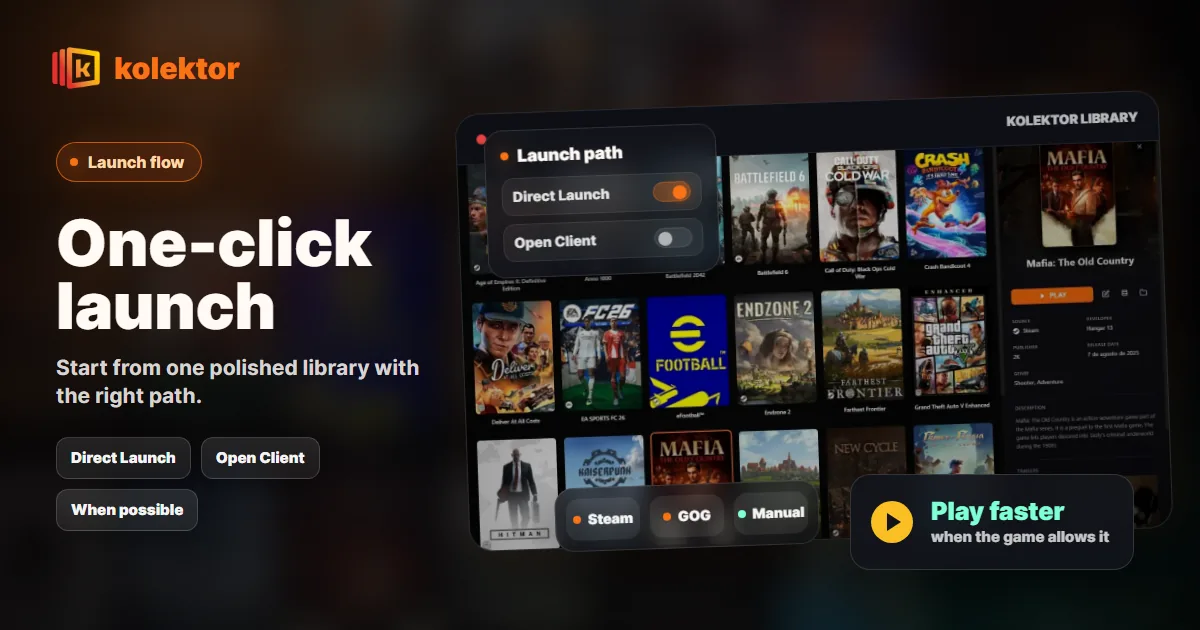
Bypassing a launcher should mean less waiting, not breaking the way a PC platform works. Kolektor supports one-click launch from a unified Windows library and uses Direct Launch where a game can start from its executable. When a platform still needs its own client for account, online, or Windows app reasons, Kolektor keeps that boundary visible.
What “Bypass Launchers” Means In Kolektor
Kolektor includes “Bypass Launchers” on the roadmap because the daily PC gaming problem is simple: you know the game you want, but you still have to remember which app owns it, open that app, wait for it, find the game again, and then press play.
We built Kolektor to reduce that loop. The launcher gives you one visual library first, then tries the right launch path for each game. Sometimes that means Direct Launch through the game’s executable. Sometimes that means opening the platform client or protocol because the game needs it.
That “when possible” part matters. A Windows game launcher should not pretend it can remove account checks, platform updates, online services, or client requirements that belong to the original store. Kolektor is the place you start from. The original platform still owns purchases, installs, updates, cloud saves, subscriptions, and platform-specific repair work.
The Clean Launch Goal
The cleanest experience is:
- Open Kolektor.
- Search or browse the unified library.
- Press play once.
- Let Kolektor use the best available launch method.
- Return to the original platform only when platform-specific work is needed.
That is different from trying to uninstall every store launcher. Most PC libraries are tied to store accounts, game services, and install managers. Kolektor does not need to replace all of that to be useful. It needs to make the decision point cleaner: “What do I want to play right now?”
Use Kolektor as the starting point for your installed PC games, then choose Direct Launch where your platforms and games support it.
Download KolektorOpen Client vs Direct Launch
Kolektor’s Settings area includes a Game Launcher tab with Launch Preferences. The two user-facing modes are:
| Launch mode | What it does | When it fits |
|---|---|---|
| Open Client | Uses the platform’s app or launch protocol | Games that need the original launcher, account state, DRM, updates, or online features |
| Direct Launch | Runs the game executable directly | Games with a usable executable path where the platform does not need to take over first |
This choice keeps the feature practical. Direct Launch is useful when it avoids an unnecessary launcher screen. Open Client is useful when the platform app is part of the game starting correctly.
The important detail is that Kolektor does not make every platform configurable. Some platforms only support one reliable method. That is better than presenting a fake toggle that fails later.
Platform Behavior At A Glance
Use this table as the honest launch model for the current Windows app:
| Platform or source | Kolektor behavior | What to expect |
|---|---|---|
| Steam | Configurable | Choose Open Client or Direct Launch; Kolektor can fall back when the preferred path is not available |
| Epic Games Store | Configurable | Use Direct Launch when an executable path works, or Open Client when the platform path is needed |
| GOG | Configurable | Direct Launch can fit DRM-free installs; the GOG client path can still be used when needed |
| Ubisoft Connect | Configurable | Direct Launch is available when the executable is usable, with platform fallback |
| Battle.net | Configurable | Direct Launch can be tried where available, with Battle.net fallback |
| Amazon Games | Fixed Direct Launch | Amazon titles are launched through the installed executable path |
| Manual games | Fixed Direct Launch | Manually added games need a valid executable path |
| EA App | Fixed Open Client | EA App is required for these games |
| Xbox/Game Pass | Fixed client path | Xbox UWP apps need the Xbox or Windows app launch path |
For configurable platforms, Kolektor tries to respect the preference first, then uses a fallback when the preferred launch method is not available. For example, if Direct Launch is selected but the executable path is missing, falling back to the platform path is better than failing silently.
When Direct Launch Helps Most
Direct Launch is strongest for games that already have a clear local executable and do not need a platform window before the game starts. That can make the play flow feel shorter because the user begins in one library and goes straight to the game.
It is especially useful for:
- Manually added games where you picked the executable yourself.
- Amazon Games, which Kolektor handles with fixed Direct Launch behavior.
- GOG installs where the game can run without opening the GOG client first.
- Store games where the executable path is known and the game starts cleanly from it.
Direct Launch is not only about speed. It also reduces mental overhead. You stop asking “which launcher was this in?” and start using one library as the surface for choosing and playing.
When Open Client Is The Right Choice
Open Client is not a failure mode. For many games, it is the correct path.
Use Open Client when a game depends on the store app for account status, online services, anti-cheat, cloud save coordination, updates, DLC ownership, or launch-time checks. If a game works more reliably through the platform app, that is the method you should use.
Kolektor keeps this visible in the settings note: some games may still require their launcher to be open because of DRM or online features. That is why the feature is designed as a launch preference, not a promise that every store can be removed from the flow.
The practical goal is fewer unnecessary launcher visits, not pretending that platform rules do not exist.
A Product-Specific Setup Flow
If you want to reduce launcher friction with Kolektor, use this workflow:
- Install Kolektor on Windows and scan your supported platforms.
- Confirm the games you care about appear in the unified library.
- Open Settings, then the Game Launcher tab.
- Review Launch Preferences for configurable platforms.
- Keep Open Client for platforms or games that need the store app.
- Choose Direct Launch where your games start correctly from their executable.
- Use manual add for standalone games that are not detected automatically.
- Test a few real games before changing every platform preference.
That last step matters. PC libraries are personal. A direct executable path that works perfectly for one game may be the wrong path for another. Start with the games you actually play and adjust from there.
What If A Direct Launch Does Not Work?
If a game does not start through Direct Launch, it usually means one of four things:
- The executable path is missing or stale.
- The game has moved to a different folder or drive.
- The platform app is required before the game can start.
- The game needs a repair, update, or account action in the original launcher.
The fix is not to rebuild your whole library. Switch that platform or game back to Open Client when needed, rescan after moving installs, or edit the game path for manual entries. Kolektor is designed to keep both automatic detection and manual control in the same product surface.
For Xbox/Game Pass and EA App, respect the fixed mode. Those platforms have stronger client requirements, so the clean workflow is to start from Kolektor and let the platform path handle the launch.
Why This Fits A Unified Library
The launch method matters because it completes the library loop. A unified grid is useful only if it also gets you into the game.
Kolektor supports automatic detection across major PC platforms, cover art and metadata, game details, platform filtering, manual games, and one-click launch. The launch preference layer connects those features: after Kolektor helps you find the game, it should also choose the practical route to start it.
That is the reason “Bypass Launchers” belongs inside the game launcher instead of being a separate trick. It is part of the same job as detection and organization: reduce the steps between a scattered PC library and actually playing.
FAQ
Can Kolektor bypass every game launcher?
No. Kolektor supports Direct Launch where possible, but some games and platforms still require their original launcher for account, DRM, online, update, or Windows app reasons.
Which platforms can use launch preferences?
Steam, Epic Games Store, GOG, Ubisoft Connect, and Battle.net are configurable in Kolektor’s launch preference model.
Which platforms are fixed?
Amazon Games and manual games use Direct Launch. EA App and Xbox/Game Pass use fixed client-based launch paths.
Does Direct Launch uninstall or replace the original store?
No. The original store still handles purchases, installs, updates, cloud saves, account state, and platform-specific features.
What should I do if a game fails to start?
Try Open Client for that platform, confirm the game still launches from the original app, rescan after install changes, or edit the executable path for manual games.
Related Guides
- Automatic game detection on Windows
- Add non-Steam games to one PC library
- Game launcher without plugins
- Download Kolektor
Try Kolektor for your PC library
Kolektor Core is free, including automatic detection, one-click launching, cover art, a unified view across major PC game platforms, and Full Library Sync.
Download Kolektor