Fix Wrong IGDB Metadata in Kolektor
Use Kolektor to rematch, unmatch, or block incorrect IGDB metadata so covers, descriptions, screenshots, trailers, and game details stay accurate.
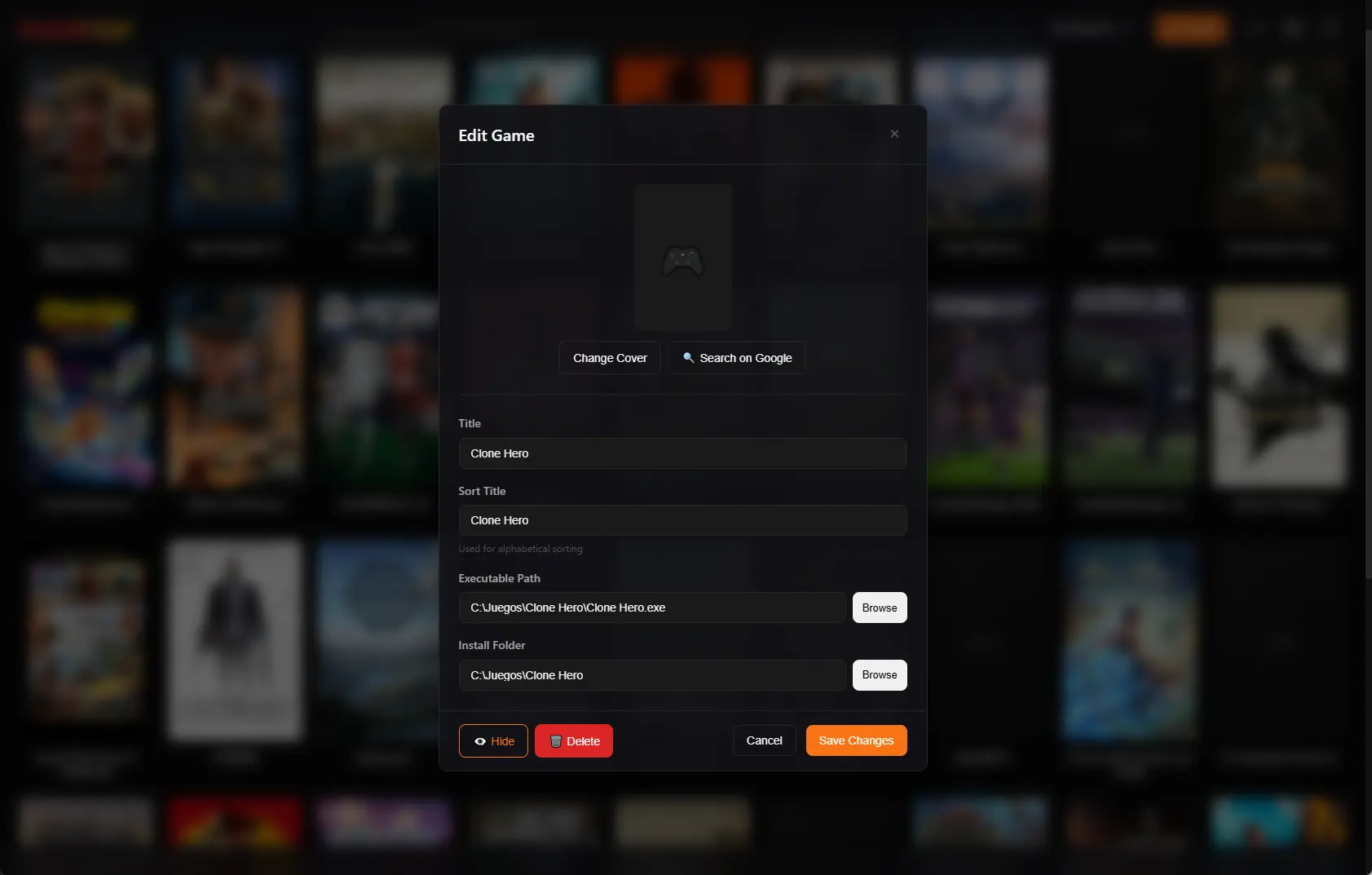
Game metadata should make your PC library easier to recognize, not more confusing. Kolektor includes IGDB matching tools so you can correct wrong covers, descriptions, screenshots, trailers, release details, and other metadata when an automatic match needs a human check.
Why Metadata Matches Can Be Wrong
Kolektor beta 4 added IGDB integration for cover art and rich metadata. That gives the library better covers, descriptions, genres, release dates, screenshots, trailers, and details when a reliable match is available.
Automatic matching still has edge cases. PC games often have demos, remasters, regional names, old executable names, modded builds, fan projects, and editions that share similar titles. A store install might be named cleanly, while a standalone executable might be named after a launcher, internal folder, or short project code.
We built the IGDB correction flow for those normal cases. The goal is not to make you review every game by hand. The goal is to let you fix the few entries where the visible metadata clearly describes the wrong game.
What A Wrong Match Looks Like
A wrong metadata match is usually easy to spot once you open the game or see it in the grid.
| Symptom | What it usually means |
|---|---|
| The cover art is for another game | The selected IGDB entry does not match your installed game |
| The description names a different release | A similarly named title was selected |
| Screenshots or trailers show the wrong gameplay | The match is probably wrong, even if the title looks close |
| The release year, developer, or genre feels off | The entry may be a remake, DLC, demo, or different platform version |
| A manually added game gets renamed unexpectedly | Metadata settings may allow provider data to overwrite local fields |
When you see one of these signs, fix the match before refreshing metadata again. Refreshing against the same wrong match can keep the bad details in place.
Download Kolektor and keep your PC game library playable, visual, and easy to correct when metadata needs a manual check.
Download KolektorStart From The Game That Looks Wrong
The correction flow starts from the game entry. Open Kolektor, find the game that looks wrong, and use the game actions near that entry.
Kolektor exposes Manage IGDB Match from the Game Details panel. The current Edit Game flow also supports matching or unmatching IGDB data when you are cleaning up a local entry. That keeps metadata repair close to the place where you noticed the problem.
Use this flow:
- Select the game in the library grid.
- Review the Game Details panel for the cover, description, source, screenshots, trailers, and game facts.
- Choose Manage IGDB Match when the metadata points to the wrong game.
- Search for the correct title.
- Pick the best result and match it.
- Refresh metadata if you want Kolektor to re-apply details from the corrected source.
You can also use Edit Game first if the local title is messy. A cleaner title can make IGDB search easier.
Search IGDB With The PC Filter
The Manage IGDB Match modal searches IGDB titles and shows candidate results with cover art, release year, developer, genre, summary, platform list, and IGDB ID when those details are available.
Kolektor includes a PC-focused filter in the match modal. Keep it enabled when you are fixing normal Windows games because it narrows results toward PC, Windows, Mac, and Linux entries. Turn it off only when you need to inspect a broader set of results for an unusual case.
Good matching is practical, not theoretical. Pick the entry that matches the game you actually have installed. The title, year, developer, cover, and summary should all make sense together. If the title is close but the media clearly belongs to another release, keep searching.
Match, Rematch, Or Unmatch
Kolektor gives you three useful options depending on what is wrong.
| Action | Use it when | Result |
|---|---|---|
| Match Selected | The game has no IGDB match or needs a better one | Kolektor links the game to the selected IGDB entry |
| Match & Unlock | You previously blocked automatic matching, but now chose the correct entry | Kolektor applies the selected match and removes the block |
| Unmatch from IGDB | Metadata should be removed from that game | Kolektor removes the IGDB match and clears IGDB-provided data |
Unmatching is useful when no IGDB result accurately describes the game. That can happen with prototypes, community projects, heavily modded builds, internal tools, or standalone executables that are not a normal commercial release.
If a correct match exists, prefer rematching over unmatching. A good match keeps the visual library useful because covers, summaries, screenshots, and trailers can still help you recognize the game later.
Block A Bad Automatic Rematch
When you unmatch a game, Kolektor can also block automatic IGDB matching for that game in the future. Use that when an automatic refresh keeps finding the same wrong result.
The confirmation dialog includes an option to block automatic IGDB matching for the game. It also includes an option to remember your choice so you do not get asked the same question every time. You can manage that behavior later in Settings.
Blocking is not permanent in the sense of losing control. If you later find the right IGDB entry, the Manage IGDB Match modal can match the game again and unlock it.
This is the safest path for stubborn edge cases:
- Unmatch the wrong IGDB entry.
- Block automatic rematching for that game.
- Keep the local title, cover, and launch path as your source of truth.
- Match and unlock later if a better IGDB entry becomes available.
Use Metadata Settings Carefully
Kolektor includes a Game Metadata section in Settings for how metadata is applied across the library. These settings matter after you fix a wrong match because they decide how much provider data can update your local fields.
| Setting | Why it matters |
|---|---|
| Refresh Metadata Now | Re-runs the metadata pipeline using the configured provider order |
| Provider order | Controls whether IGDB or local metadata runs first |
| Metadata merge mode | Chooses whether providers fill gaps or replace provider-owned metadata |
| Overwrite manual edits | Decides whether refreshes can replace fields you edited yourself |
| Overwrite game name from IGDB | Lets official IGDB names replace local names when allowed |
| IGDB screenshot limit | Controls how many screenshots Kolektor stores for each match |
| Ask before unmatching | Shows a confirmation before removing an IGDB match |
| Block on unmatch | Automatically blocks rematching when you manually unmatch |
If you care about hand-edited entries, keep overwrite behavior conservative. If you want the fastest cleanup across a fresh scan, allow more provider updates and then review the entries that look wrong.
Refresh Metadata After The Match Is Correct
After choosing the correct match, use Refresh Metadata Now when you want Kolektor to re-run the metadata pipeline. The app shows metadata progress while it works and reports how many games were updated when the run completes.
Refreshing is most useful after:
- You corrected a wrong IGDB match.
- You enabled IGDB after using local metadata only.
- You changed provider order.
- You changed merge behavior.
- You added games manually and want richer details.
- You changed the screenshot limit and want media refreshed.
Do not use refresh as a substitute for matching. If a game is linked to the wrong IGDB entry, fix the link first. Then refresh so the right source can populate the game details.
How This Fits With Manual Edits
Manual edits and IGDB metadata solve different problems. Manual edits are for the local entry: title, sort title, cover, executable path, install folder, and anything you want to control directly. IGDB metadata is for richer library context: descriptions, developer, publisher, release data, genre, covers, screenshots, trailers, and other details when a match is reliable.
Kolektor supports both because a PC library needs both. Automatic metadata makes the library feel complete. Manual control keeps edge cases from becoming frustrating.
Use manual edits when:
- You know the title or cover you want.
- The executable path needs to point to a specific build.
- A modded game should keep its custom name.
- No IGDB result fits the game.
- You want a local entry to stay stable across refreshes.
Use IGDB matching when:
- The game is a normal PC release with a clear match.
- You want details, screenshots, and trailers in the Game Details panel.
- A wrong match can be replaced with a correct one.
- The library looks better with provider metadata.
Good Fit
This workflow is a good fit if you want a visual PC library but still want control over edge cases. Kolektor supports automatic metadata because it makes installed games easier to browse. We also built manual match, unmatch, and block controls because automatic systems cannot understand every Windows game setup.
Use Kolektor’s IGDB tools whenever the library looks almost right but one entry breaks trust. Fix the match, protect manual edits when needed, refresh metadata from the corrected source, and keep launching from one library.
FAQ
Does Kolektor use IGDB for every game?
Kolektor can use IGDB as a metadata provider when it is enabled, but not every game will have a reliable match. Local metadata and manual edits still matter.
Can I remove IGDB metadata from one game?
Yes. Use Unmatch from IGDB for that game. You can also block automatic rematching if the same wrong result keeps returning.
Can I match a manually added game to IGDB?
Yes. When adding or editing a manual game, Kolektor can search IGDB and use the selected match to fill richer details. The executable path still remains the local launch target.
Will a metadata refresh overwrite my manual edits?
That depends on your metadata settings. Kolektor includes settings for merge mode, manual overwrite behavior, and whether IGDB can overwrite game names.
What should I do if no IGDB result is correct?
Unmatch the game, block automatic rematching if needed, and maintain the entry manually. The game can still stay in your Kolektor library and launch normally.
Related Guides
- View PC game details in Kolektor
- Edit PC game details in Kolektor
- Game cover art and metadata
- Refresh your PC game library
Try Kolektor for your PC library
Kolektor is free for the core launcher experience: automatic detection, one-click launching, cover art, and a unified view across major PC game platforms.
Download Kolektor