Bulk Import PC Games From a Folder in Kolektor
Use Kolektor Premium's Add Multiple Games flow to scan a Windows folder, review detected executables, skip duplicates, and import local games into one library.
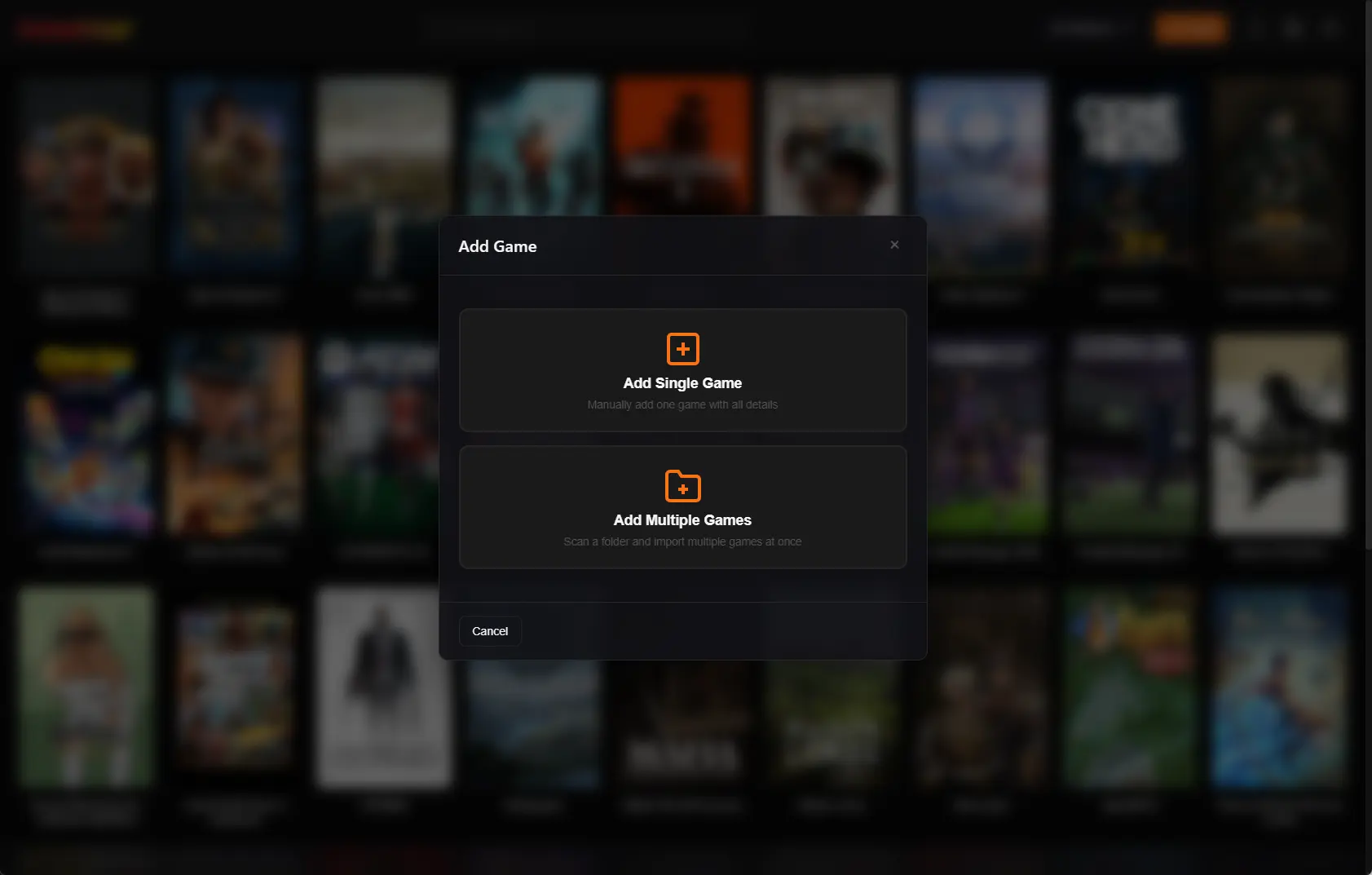
A folder full of PC games should not become a second library you have to remember manually. Kolektor Premium supports an Add Multiple Games flow that scans a selected Windows folder, finds likely game executables, lets you review the results, and imports the games you choose into the same visual library as your detected platform games.
Add Multiple Games is a Premium feature. Add Single Game remains Free, requires only a title, and lets you attach an executable now or later.
When Bulk Import Helps
Bulk import is for the moment when manual add is useful, but one game at a time would be too slow. Maybe you keep DRM-free games on a separate drive. Maybe an older library lives in D:\Games. Maybe you have a folder of local builds, fan games, mods, or portable installs. Those games can be playable and still invisible because they do not belong cleanly to a store launcher.
Kolektor already detects installed games from major PC platforms automatically. Bulk import is the cleanup path for the folder-based part of your library. It helps you avoid turning that cleanup into a spreadsheet of paths.
Use bulk import when the games are already installed or playable from their folders. Do not use it for installer archives, downloaded setup files, patches, tools, redistributables, or folders you do not actually launch games from.
What Kolektor Looks For
The Add Multiple Games flow starts by asking you to choose a folder. After you select it, Kolektor scans that folder and its subfolders for Windows .exe files that look like game launch targets.
That scan is designed to reduce noise. Kolektor filters many common helper executables such as launchers, updaters, installers, uninstallers, crash reporters, diagnostics, config tools, redistributables, DirectX installers, and bundled support utilities. The goal is not to show every executable on disk. The goal is to show candidates that are worth reviewing as playable games.
Kolektor also tries to read useful file information from the executable, such as product name, file description, company name, and version details when Windows exposes them. If that information is not available, Kolektor falls back to folder names so the candidate list is still usable.
| What the scan sees | How Kolektor treats it |
|---|---|
| A likely game executable | Shows it as a candidate for import |
| A folder name that looks like the game title | Uses it as a practical fallback name |
| A helper, updater, installer, or config executable | Filters it out when it matches known noise patterns |
| A game already in your library | Skips it instead of creating another entry |
| An executable inside an existing game folder | Skips it to avoid clutter from bundled tools |
Start With The Right Folder
The selected folder matters. If you choose an entire drive, the scan may find too many unrelated programs. If you choose a folder that only contains one game, bulk import may not save much time.
The cleanest folder is usually the parent folder that contains game folders:
| Folder shape | Good fit for bulk import? | Why |
|---|---|---|
D:\Games\Game One\Game.exe and D:\Games\Game Two\GameTwo.exe | Yes | Each game has its own folder under one parent |
D:\Old PC Games\... | Yes | Older standalone installs often live together |
Downloads | Usually no | It often contains installers, archives, and unrelated files |
| A Steam library folder | Usually no | Kolektor should detect supported store games through the normal scan |
| One single game folder | Maybe | Use Add Single Game if there is only one entry to add |
Kolektor will still ask you to review candidates before importing. Choosing a cleaner folder simply makes that review faster.
Have a folder of local PC games you want in one visual library? Install Kolektor and use Add Multiple Games after your normal platform scan.
Download KolektorThe Bulk Import Flow
The practical flow is:
- Open Kolektor on Windows.
- Let the normal library scan handle supported platforms first.
- Open Add Games.
- Choose Add Multiple Games.
- Select the folder that contains the games you want to import.
- Wait while Kolektor scans for possible game executables.
- Review the grouped results.
- Select only the executables you actually want as games.
- Fill in any missing names.
- Import the selected games.
Kolektor groups scanned results by folder so you can review them as game folders instead of staring at a flat list of executable paths. If one folder contains several possible executables, you can choose the right one and avoid importing extra helper tools.
The import step creates manual game entries with executable paths and install folders. After games are added, Kolektor starts cover download work for the newly imported entries so the library can become visual instead of path-only.
Review Before Importing
Bulk import should still be selective. A game folder can contain the real game executable, a launcher wrapper, a benchmark, a settings tool, a crash reporter, and an uninstaller. Kolektor filters many of those, but no scanner can know every custom folder layout.
Before importing, check three things:
- The name is the game title you would search for later.
- The executable is the file you actually use to start the game.
- The folder grouping makes sense for that game.
If a game has multiple launch choices, pick the one that matches your normal play habit. For example, a modded build may have a custom executable that is more useful than the original executable. A remaster or fan patch may live beside the base game but deserve its own entry. Bulk import is useful because it gives you the choice before the library is changed.
What Happens To Duplicates
Kolektor checks scanned candidates against the games already in your library. It can skip games that already exist by matching useful clues such as name, executable path, and install path. It also filters executables found inside folders that are already tied to existing games.
That matters because PC folders often contain more than one executable. Without duplicate filtering, a bulk import could create noisy entries for launchers, support tools, and alternate binaries inside a game that Kolektor already knows about.
The review screen also shows when games were ignored because they were already in the library or inside existing game folders. That gives you a simple reason for why the scan found fewer new candidates than the raw folder contents might suggest.
Bulk Import Does Not Replace Store Scanning
Kolektor works best when each flow does the job it is meant to do. The normal scan should handle supported platform libraries. Add Single Game should handle one specific missing game where you want full control. Add Multiple Games should handle a folder where several local games are waiting to be added.
That keeps the library clean. You avoid importing Steam, Epic Games Store, GOG, Ubisoft Connect, EA App, Xbox Game Pass, Battle.net, or Amazon Games entries by hand when Kolektor can detect them automatically. You also avoid leaving standalone games outside the library just because they do not belong to one of those platforms.
The useful boundary is simple: stores manage ownership, updates, accounts, cloud saves, and purchases. Kolektor helps you see and launch the installed games you can play from your Windows PC.
After Importing
Once the selected games are imported, check the library grid and launch a few entries. This is the fastest way to catch a wrong executable path or a confusing title. If something needs cleanup, use Kolektor’s edit flow to adjust the title, sort title, executable path, install folder, cover, or details.
For games with weak file metadata, a clean title matters more than a perfect folder name. Name the entry the way you expect to search for it. If you have two versions of the same game, make the title specific enough to tell them apart.
Cover art and metadata can make imported games easier to browse, but they should not block the library from being useful. The first win is getting the right games visible and launchable. Visual cleanup can happen next.
Good Candidates For Add Multiple Games
Bulk import is a good fit for:
- DRM-free games installed from standalone installers.
- Older PC games stored together on another drive.
- Portable games that launch directly from a folder.
- Fan games and small indie games outside a store launcher.
- Modded builds with their own executable.
- Local builds or test installs you want visible in your library.
- Restored game folders after a Windows reinstall.
It is usually a poor fit for random download folders, system program folders, platform launcher install directories, or archives that have not been installed yet.
FAQ
Can Kolektor import several local games at once?
Yes. Kolektor Premium supports Add Multiple Games, which scans a selected folder and lets you import selected executable candidates as manual game entries. Free users can add games one at a time with Add Single Game.
Does bulk import add every executable it finds?
No. Kolektor filters common non-game executables and asks you to select which candidates to import. You should still review the list before continuing.
Will Kolektor skip games already in my library?
Yes. The folder scan checks for existing games and skips entries that appear to already be in the library or inside existing game folders.
Does a manually imported game need an executable path?
Yes. Manual game entries need an existing .exe path because Kolektor uses that path to launch the game.
Should I bulk import games from supported stores?
Usually no. Let Kolektor’s normal scan handle supported platforms first, then use bulk import for local folders and games outside normal store detection.
Related Guides
- Add non-Steam games to one PC library
- Automatic game detection on Windows
- Edit PC game details in Kolektor
- Game cover art and metadata
- Download Kolektor
Try Kolektor for your PC library
Kolektor Core is free, including automatic detection, one-click launching, cover art, a unified view across major PC game platforms, and Full Library Sync.
Download Kolektor