Organize Xbox Game Pass Games on PC in One Library
Xbox Game Pass on PC is useful, but installed games can disappear into another launcher. Kolektor keeps Game Pass games visible with the rest of your PC library.
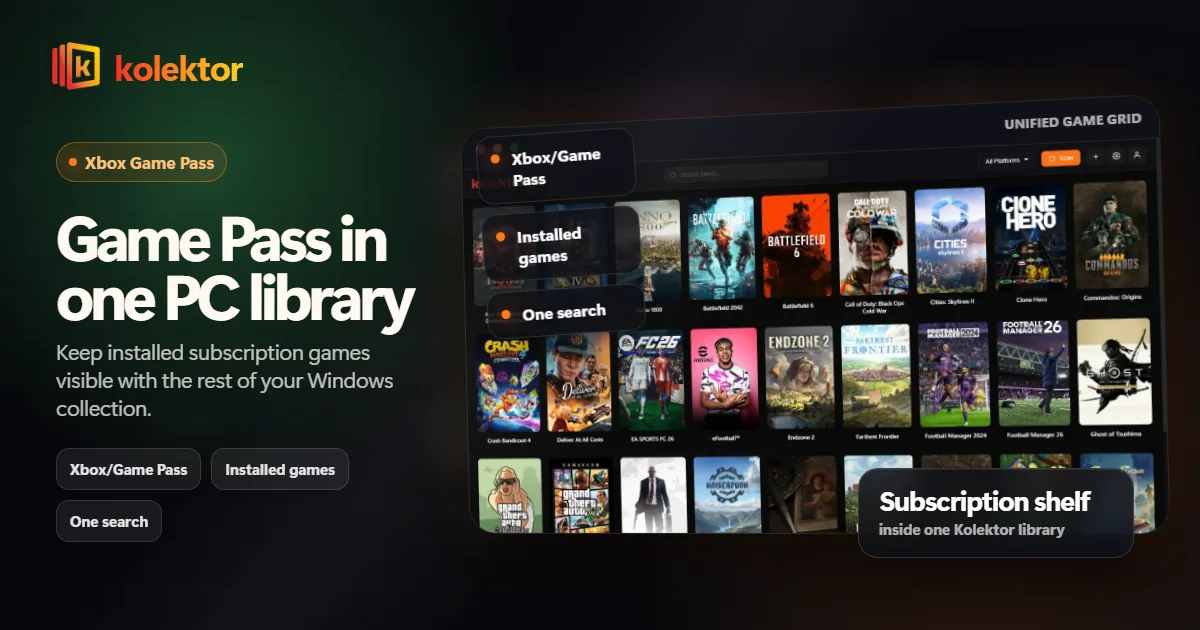
Xbox Game Pass can add a lot of playable games to a Windows PC, but it also adds another place to check before playing. Kolektor helps by keeping installed Game Pass games visible alongside Steam, Epic, GOG, Ubisoft, EA, Battle.net, Amazon Games, and manually added titles.
The Game Pass Library Problem
Game Pass is designed around access. You browse a rotating catalog, install what looks interesting, try games you might not have bought, and move on. That model is useful, but it can make the installed library feel temporary and easy to forget.
Steam games tend to stay visible because Steam is often open. Game Pass installs can become less visible because they sit inside a separate subscription app. If you also use Epic, GOG, Ubisoft, EA, Battle.net, and Amazon Games, the problem gets bigger: the question “what do I have installed?” no longer has one answer.
Kolektor gives installed games one front door. Game Pass stays where it belongs for subscription and install management, but the playable games can live in the same launch habit as everything else.
What To Keep In The Xbox App
A unified launcher should not pretend to replace the Xbox app. Game Pass has specific jobs that belong in Microsoft’s app and account ecosystem.
Keep using the Xbox app for:
- Browsing the Game Pass catalog.
- Installing new Game Pass games.
- Updating Game Pass games.
- Managing subscription access.
- Handling account-specific Xbox features.
- Checking whether a game is still available through the subscription.
Kolektor’s role is narrower and more practical: show installed games in the same place as the rest of your PC library and let you launch from there.
Where Kolektor Fits
Kolektor supports Xbox Game Pass as part of its built-in platform coverage. That means Game Pass can be part of the same scan and library view as the other major PC platforms Kolektor supports.
The value is not that Xbox disappears. The value is that you do not need to remember to check Xbox separately every time you want to play something.
| Job | Best place for it |
|---|---|
| Discovering new Game Pass catalog titles | Xbox app |
| Installing or updating Game Pass games | Xbox app |
| Seeing installed games with your wider PC library | Kolektor |
| Browsing visually across platforms | Kolektor |
| Launching a game you already installed | Kolektor or the original app |
If Game Pass is one more library you forget to check, use Kolektor to bring installed games into the same Windows library view.
Download KolektorA Cleaner Game Pass Workflow
Use this workflow if you play across Game Pass and other stores:
- Use the Xbox app to install Game Pass games on your PC.
- Install games from your other stores as usual.
- Open Kolektor and run a scan.
- Browse installed games from Xbox, Steam, Epic, GOG, Ubisoft, EA, Battle.net, and Amazon in one grid.
- Use the original Xbox app when you need subscription-specific actions.
- Use Kolektor when you want to decide what to play.
This keeps each tool in its strongest role. The store manages access. The launcher manages visibility.
Why Visual Browsing Helps Game Pass
Game Pass encourages trying games. That creates a different kind of library: more experiments, more partially played games, and more titles installed because they looked interesting once.
Those games need visual memory. A title alone may not remind you why you installed it. Cover art, screenshots, trailers, and game details help you rediscover what caught your attention in the first place.
Kolektor beta 4 added IGDB metadata, cover art, game details, screenshots, and trailers. For Game Pass players, that matters because the library becomes easier to browse after the first install session is over.
Common Game Pass Use Cases
Game Pass installs often fall into a few patterns. Some are long-term games you play every week. Some are short experiments you installed after seeing them in the catalog. Some are multiplayer games you keep around because friends might ask. Others are single-player games you started once and meant to return to.
Those patterns are hard to manage when Game Pass sits outside the rest of your PC library. You may already have a Steam backlog, Epic claims, GOG classics, and publisher games competing for attention. The Game Pass titles are playable, but they live in a separate mental drawer.
Kolektor helps by putting installed Game Pass games into the same visual routine as the rest of the installed library. That makes it easier to see which subscription games are still worth keeping installed and which ones are only taking space.
Keeping The Library Current
Game Pass libraries change more often than purchased libraries. You install a game to try it, uninstall it after a week, reinstall it later, or remove it when it leaves your personal rotation. A unified launcher has to handle that kind of churn without becoming stale.
Use Kolektor’s scan as part of normal cleanup. After a batch of installs or uninstalls, scan again and check whether the visible library matches what is actually on the PC. If something no longer launches, go back to the Xbox app first because the subscription app controls install state and entitlement.
This workflow keeps Kolektor focused on the playable view while the Xbox app remains responsible for the subscription catalog. The split is cleaner than trying to make one app do every job.
Why Game Pass Benefits From Installed-First Thinking
The full Game Pass catalog can be large, but the installed set is what matters when you are deciding what to play right now. Installed-first thinking keeps the library honest. It shows the games that are already available on the machine instead of turning every session into catalog browsing.
That is why Kolektor Free focuses on installed games. It reduces choice overload. You can still open the Xbox app when you want to discover something new, but Kolektor can become the place where installed games compete fairly with the rest of your PC library.
Installed Games vs Full Library Sync
Kolektor Free focuses on installed games. That distinction is important for Game Pass because the available catalog is much larger than what you currently have installed.
Installed-game focus is a strength when your question is “what can I play on this PC right now?” It avoids turning the launcher into another catalog browser and keeps attention on playable games.
Permanent Full Library Sync is part of the Free work we are building. PC Game Pass subscription identification and its temporary catalog belong to Premium. The current public launcher is about installed games and quick launching today.
What To Check After The First Scan
After installing Kolektor, check your Game Pass setup against real behavior:
- Do installed Game Pass games appear in the library?
- Are they easy to find with search?
- Do covers and details make the games recognizable?
- Can you still use the Xbox app for subscription-specific work?
- Does Kolektor reduce the number of apps you check before playing?
The last point is the product test. A unified launcher should change the daily habit, not just show another list.
When Manual Add Still Helps
Most Game Pass workflow should come through platform detection, but manual add still matters for games outside normal store behavior. If you have standalone games, old installs, modded versions, or direct executables, add them manually so they sit beside the Game Pass games.
That makes Kolektor useful beyond one subscription. It becomes the front door for installed games, regardless of where they came from.
Good Fit
Kolektor is a good fit if you play on Windows, use Game Pass alongside at least one other PC store, and want a consistent launch surface for installed games.
It is also useful if you install Game Pass games, forget they are there, and rediscover them only when browsing the Xbox app later. A unified library turns those games into part of your normal library instead of a separate subscription shelf.
It is not meant to replace catalog discovery. If your main activity is browsing what is new on Game Pass, start in the Xbox app. If your main activity is choosing among games already installed on your PC, start in Kolektor.
FAQ
Does Kolektor support Xbox Game Pass?
Yes. Kolektor lists Xbox Game Pass support as part of its built-in platform coverage.
Does Kolektor replace the Xbox app?
No. Keep the Xbox app for subscription, catalog browsing, installs, updates, and account features. Use Kolektor to browse and launch installed games in one library.
Can Kolektor show uninstalled Game Pass games?
Kolektor Free currently focuses on installed games in the public build. Permanent Full Library Sync is being built for Free, while the PC Game Pass catalog remains Premium.
Does this also work with Steam and Epic?
Yes. Kolektor supports Steam, Epic Games Store, GOG, Ubisoft Connect, EA App, Xbox Game Pass, Battle.net, and Amazon Games.
Related Guides
- Organize Steam, Epic, and GOG games
- Automatic game detection on Windows
- Free game launcher for Windows
- Download Kolektor
Try Kolektor for your PC library
Kolektor Core is free, including automatic detection, one-click launching, cover art, a unified view across major PC game platforms, and Full Library Sync.
Download Kolektor