Organize Ubisoft, EA, and Battle.net Games in One Launcher
Publisher launchers can split your PC library into smaller shelves. Kolektor keeps installed Ubisoft, EA, and Battle.net games visible with everything else.
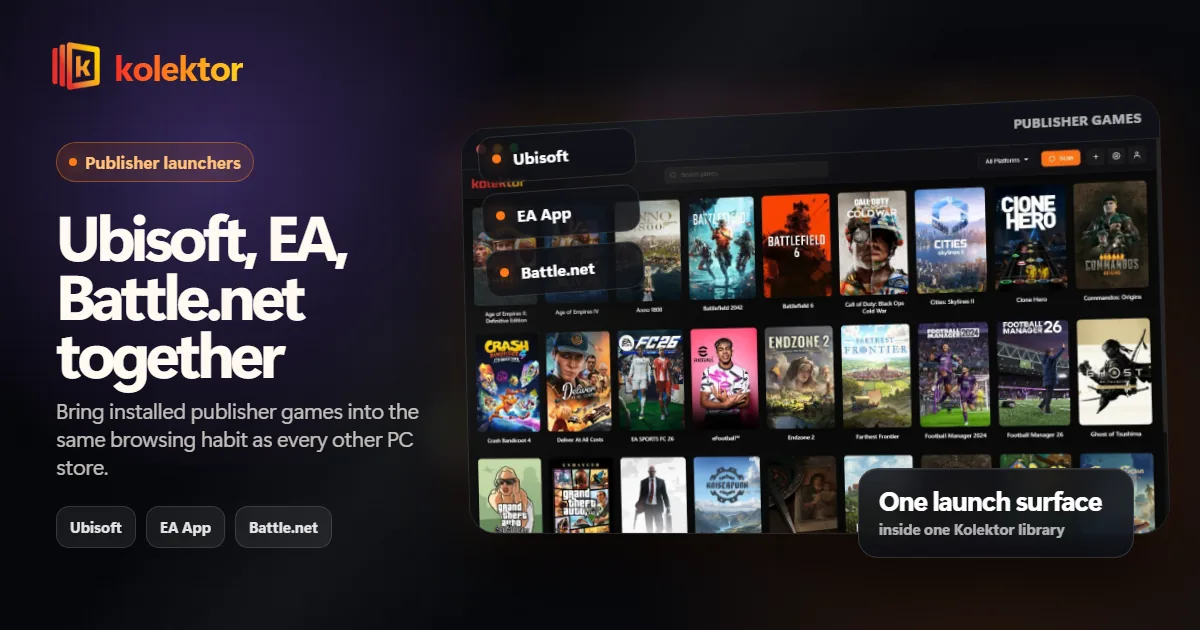
Publisher launchers are useful for the games they manage, but they can split a PC library into smaller shelves that are easy to forget. Kolektor supports Ubisoft Connect, EA App, and Battle.net so installed publisher games can sit beside Steam, Epic, GOG, Xbox Game Pass, Amazon Games, and manually added titles.
Why Publisher Launchers Fragment A Library
Publisher launchers usually start with a single need. You install one app for one game, then another publisher app for a different series, then another for a multiplayer title. Over time, those apps become small libraries of their own.
That does not mean they are useless. Ubisoft Connect, EA App, and Battle.net each handle account login, updates, entitlements, online services, and publisher-specific features. The problem is that they are not the only places your games live.
If you also use Steam, Epic, GOG, Xbox Game Pass, and Amazon Games, publisher launchers become part of a larger visibility problem. You do not always remember whether the game you want is under a store, a publisher, a subscription app, or a direct install.
Kolektor gives installed games one library layer above that split.
What Stays In The Publisher Launcher
A unified launcher should not break the platform relationship. Publisher launchers still have jobs that belong to them.
| Job | Keep using the publisher launcher |
|---|---|
| Account login | Ubisoft, EA, or Battle.net account flows |
| Updates | Publisher-managed patches and services |
| Online features | Friends, multiplayer services, cloud saves, or account-specific features |
| Store features | Purchases, DLC, subscriptions, rewards, and platform settings |
| Troubleshooting | Platform-specific repair or verify tools |
Kolektor does not need to replace those jobs. It needs to make the installed games easier to find alongside the rest of your PC library.
Where Kolektor Helps
Kolektor supports Ubisoft Connect, EA App, and Battle.net as part of its built-in platform coverage. That means publisher games can appear in the same visual library as games from Steam, Epic Games Store, GOG, Xbox Game Pass, Amazon Games, and manually added titles.
This is useful because publisher games often disappear from the normal play habit. You may remember the big game from a publisher, but forget the smaller titles that came with a subscription, bundle, sale, or older install.
Kolektor turns the question from “which launcher owns this?” into “what do I want to play?”
If publisher launchers make your PC library feel split, install Kolektor and scan your installed games into one view.
Download KolektorA Practical Publisher-Launcher Workflow
Use this flow if your games are spread across publisher apps:
- Keep Ubisoft Connect, EA App, and Battle.net installed.
- Let those apps manage account access and updates.
- Install the games you actually want available on this PC.
- Open Kolektor and scan supported platforms.
- Browse the installed games from one visual library.
- Launch from Kolektor when you are ready to play.
- Return to the publisher app only when that app has a specific job.
This creates a cleaner daily habit without fighting the platform architecture.
Why Built-In Support Matters Here
Publisher launchers are exactly where setup-heavy workflows become annoying. If every publisher needs a separate integration, and every integration needs separate maintenance, the launcher becomes another thing to administer.
Kolektor’s approach is built-in support for major PC platforms. For players, that means less time assembling a launcher and more time checking whether the installed library appears correctly.
The value is not theoretical. It shows up when you reinstall Windows, add a new drive, move between stores, or install a game from a publisher app you rarely open. A launcher with built-in platform coverage reduces the setup tax.
Visual Context Helps Publisher Games
Publisher libraries can be narrow. You might open one for a specific franchise and ignore the rest. When those games join a visual grid, they have a better chance of being rediscovered.
Kolektor’s cover art, IGDB metadata, game details, screenshots, and trailers support that rediscovery. A game from a publisher launcher should not be represented only by an executable or a small platform list. It should look like part of your collection.
This matters for players who rotate through games slowly. The game you installed three months ago may become interesting again if you can actually see it while browsing.
Common Publisher-Launcher Use Cases
Publisher launchers often collect games around specific franchises or account systems. Ubisoft Connect may hold open-world games or older publisher installs. EA App may hold sports games, shooters, subscription titles, or legacy purchases. Battle.net may hold long-running multiplayer games and games you return to seasonally.
Those use cases create a different problem than a large Steam library. The publisher app may have only a few installed games, so you stop checking it unless you already know what you want. The games are installed, but they do not compete for attention with the rest of your library.
Kolektor fixes that visibility gap. A publisher game can appear next to everything else you might play tonight. That is a small change, but it affects behavior: games you can see are more likely to be considered.
Keep Publisher Apps Installed
Some players want a unified launcher because they are tired of opening publisher apps. That is understandable, but it is important to keep the platform layer intact.
Many publisher games still depend on the original app for login, updates, anti-cheat, multiplayer services, cloud saves, ownership checks, or repair tools. Kolektor should be the browsing and launch layer, not a promise that publisher infrastructure disappears.
The clean workflow is to keep those apps installed and reduce how often you browse inside them. Use Ubisoft Connect, EA App, or Battle.net when a game or account needs that platform. Use Kolektor when you are deciding what to play from the installed library.
How To Keep The Publisher Shelf Clean
Publisher games can become stale because some are installed for a single campaign, event, season, or multiplayer period. A unified library makes those games visible, but you still need occasional cleanup.
Every few weeks, check which publisher games you actually launch. If a game no longer belongs on the PC, uninstall it from the original publisher app. Then rescan in Kolektor so the unified library reflects the real installed state.
This prevents the visual grid from becoming a museum of games you no longer intend to play. Kolektor is most useful when it represents the playable library, not every game you have ever touched.
Store Identity Still Matters
A unified library should not erase platform identity. You still need to know where a game came from, especially when it needs an update, account login, DLC check, or platform-specific fix.
Kolektor’s job is to reduce the number of places you check before playing, not to hide the original source. The best library keeps both truths visible: one place to browse, clear context for where the game belongs.
That distinction is important for publisher apps because many games still rely on those services even when launched from another surface.
Manual Add For Edge Cases
Most publisher games should come from platform detection. Manual add is still useful for games that live outside normal installs: old boxed PC games, direct executables, modded versions, fan patches, or separate launch shortcuts.
If a game is playable and you want it in the same browsing habit, add it. If it is only a repair tool, installer, config utility, or launcher helper, leave it out. The library should stay focused on games.
Good Fit
Kolektor is a good fit if you use Windows and your library includes publisher launchers in addition to the common stores. It is especially useful if you remember games by cover art and title, not by which launcher owns them.
It is also a good fit if you want the publisher apps to remain installed but stop acting as separate memory silos.
It is not the right framing if you want to remove every publisher dependency from your PC. The healthier target is simpler: keep the required platform apps available, but stop using each one as a separate library habit.
FAQ
Does Kolektor support Ubisoft Connect, EA App, and Battle.net?
Yes. Kolektor supports Ubisoft Connect, EA App, and Battle.net as part of its built-in platform coverage.
Does Kolektor replace those launchers?
No. Those launchers still handle accounts, updates, online services, purchases, and platform-specific features. Kolektor gives installed games one library and launch surface.
Can I use Kolektor with Steam and Epic too?
Yes. Kolektor also supports Steam, Epic Games Store, GOG, Xbox Game Pass, and Amazon Games.
What if a publisher game does not appear?
Confirm the game is installed and launches from its original app. If it is an unusual install or custom shortcut, use manual add to keep it visible in Kolektor.
Related Guides
- Automatic game detection on Windows
- Game launcher without plugins
- Add non-Steam games to one PC library
- Download Kolektor
Try Kolektor for your PC library
Kolektor Core is free, including automatic detection, one-click launching, cover art, a unified view across major PC game platforms, and Full Library Sync.
Try Kolektor Free