Game Launcher Without Plugins: Built-In Support Matters
A no-plugin game launcher keeps setup simple. Kolektor detects major PC platforms directly so your installed games appear with less maintenance.
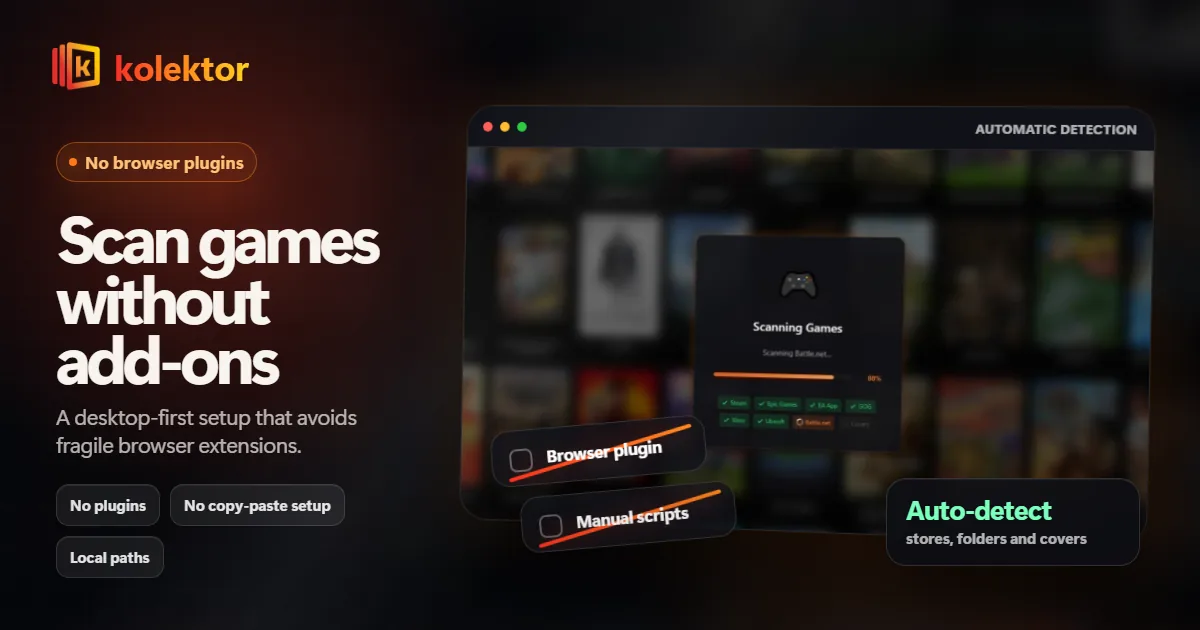
A game launcher without plugins is best when you want your library to appear quickly and keep working without managing separate store integrations. Kolektor takes that route with built-in support for major PC platforms.
The Hidden Cost Of Plugins
Plugins can be useful for power users, but they also add another layer between the launcher and the library. Every extra integration is something to find, configure, update, and troubleshoot later.
For most players, the job is simpler: open one app, find the game, and play.
| Setup style | What the user has to manage | Where Kolektor fits |
|---|---|---|
| Built-in support | Install the launcher and scan | Kolektor’s default approach |
| Plugin-based setup | Find and maintain integrations | Useful for heavy customization, but more work |
| Manual-only imports | Add games one by one | Fine for small libraries, slow for real PC collections |
Why Built-In Support Feels Faster
PC stores change, launchers update, and Windows installs move over time. When platform support is built into the launcher, the core experience is easier to keep consistent.
Kolektor supports Steam, Epic Games Store, GOG, Ubisoft Connect, EA App, Xbox Game Pass, Battle.net, and Amazon Games directly. That means the first setup is about scanning your installed games, not assembling a stack of add-ons before the app becomes useful.
If plugin setup is the reason you stopped using a unified launcher, test Kolektor against your installed library.
Download KolektorA Better First-Run Flow
A no-plugin launcher should make the first run obvious:
- Install the launcher.
- Let it detect supported PC platforms.
- Confirm the games that appeared.
- Add any standalone games manually.
- Start launching from one library.
That is where Kolektor is strongest: the first useful result happens before you spend time customizing anything.
When Plugins Are Overkill
Plugins are overkill when you only need support for major PC stores, a visual library, search, cover art, and launch buttons. Those are baseline launcher jobs. They should not require a maintenance routine.
Kolektor is not trying to make every player become a launcher admin. It is built for players who want a cleaner game library with fewer moving parts.
What To Check In Your Own Setup
Before switching your daily launcher, test it against your real library:
- Do your Steam, Epic, GOG, Ubisoft, EA, Xbox, Battle.net, and Amazon games appear?
- Can you still open the original store when a game needs updates or account features?
- Is launching easier after a week, not just during the first scan?
If the answer is yes, the launcher is doing its job.
FAQ
Does no-plugin mean less powerful?
Not for the common use case. Built-in support is often better for players who care about major PC platforms, fast setup, and predictable launching more than deep launcher customization.
Can I still use Steam, Epic, GOG, and other stores?
Yes. Kolektor does not replace store accounts, installs, purchases, or updates. It gives you one place to browse and launch installed games.
What if a game is not detected?
Kolektor includes manual add, so standalone games or unusual installs can still live in your library.
Is this only about installed games?
Kolektor Free includes the permanent Full Library Sync work we are building, including owned games that are not installed. Subscription catalogs, bulk manual import, and advanced collection tools are Premium.
Related Guides
Try Kolektor for your PC library
Kolektor Core is free, including automatic detection, one-click launching, cover art, a unified view across major PC game platforms, and Full Library Sync.
Try Kolektor Free