Organize Amazon Games on PC in One Library
Amazon Games installs can be easy to forget. Kolektor keeps installed Amazon Games visible beside Steam, Epic, GOG, Xbox, and more.
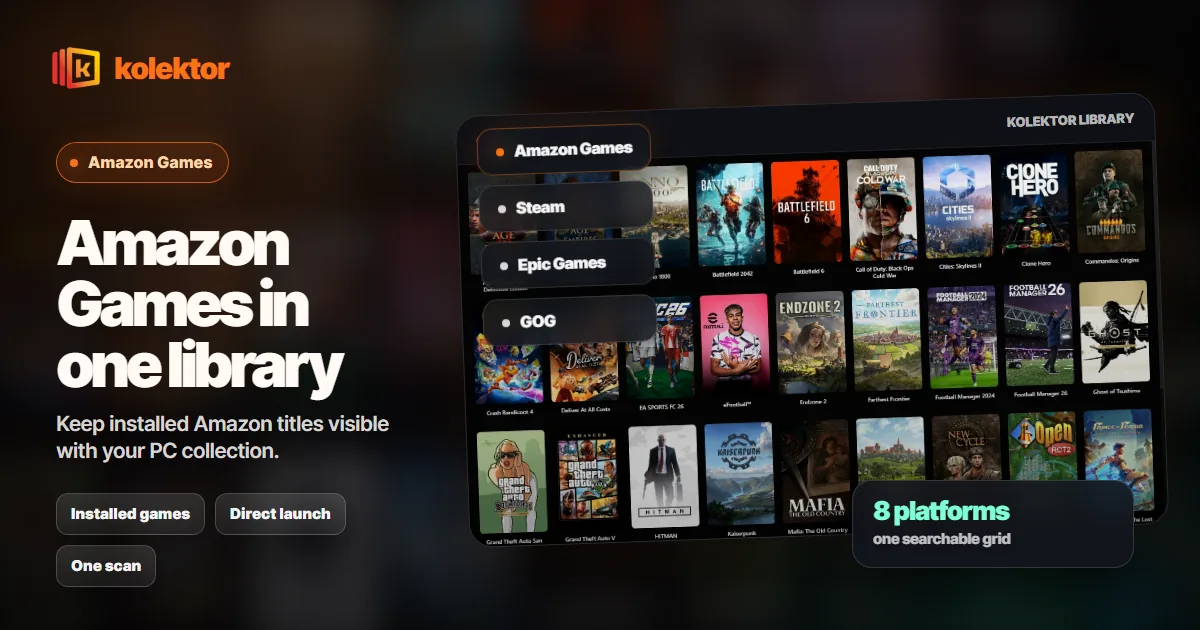
Amazon Games is useful for claimed and installed PC games, but it can become one more shelf to remember before playing. Kolektor supports Amazon Games so installed Amazon titles can appear beside Steam, Epic Games Store, GOG, Ubisoft Connect, EA App, Xbox Game Pass, Battle.net, and manually added games in one Windows library.
The Amazon Games Visibility Problem
Amazon Games often starts as a side library. You claim a game, install it because it looks interesting, and then return to Steam, Epic, GOG, Xbox, or a publisher launcher for the rest of the week. The game may still be installed, but it no longer competes for attention because it lives in a separate place.
That is the real problem a unified launcher needs to solve. It is not enough to say that a game is technically installed. The game has to be visible when you are deciding what to play.
Kolektor treats Amazon Games as part of the normal PC launcher problem. If your library spans multiple stores, Amazon should not become a forgotten corner. Installed Amazon games should sit in the same visual routine as the rest of your installed collection.
What Kolektor Supports For Amazon Games
Kolektor v1.0.0-beta.3 added Amazon Games integration, bringing the launcher to 8 supported platforms. The current platform set includes Steam, Epic Games Store, GOG, Ubisoft Connect, EA App, Xbox Game Pass, Battle.net, and Amazon Games.
For Amazon Games specifically, Kolektor focuses on installed games. The scanner checks whether Amazon Games is installed, looks for Amazon Games library folders, reads the configured install path when available, and uses Amazon game markers such as manifests and fuel.json files to identify installed titles.
That means the useful question is simple: “Which Amazon games are installed on this Windows PC and should be visible when I open my launcher?”
| Amazon Games task | Best place to do it |
|---|---|
| Claiming Prime Gaming titles | Amazon Games |
| Installing or updating Amazon games | Amazon Games |
| Account, entitlement, and store work | Amazon Games |
| Browsing installed games with the rest of your PC library | Kolektor |
| Launching installed Amazon games from one library view | Kolektor |
| Adding unusual standalone games that detection misses | Kolektor manual add |
This split keeps the workflow honest. Kolektor is not trying to replace the Amazon Games app for everything Amazon owns. We built Kolektor to make installed games easier to find, browse, and launch across platforms.
If Amazon Games is another library you forget to check, install Kolektor and scan your real Windows setup.
Download KolektorA Cleaner Amazon Games Workflow
Use this workflow if Amazon Games is one part of a larger PC library:
- Keep Amazon Games installed for claiming, installing, and updating Amazon titles.
- Install the Amazon games you actually want on the PC.
- Open Kolektor and scan supported platforms.
- Review the unified library with Amazon games beside Steam, Epic, GOG, Ubisoft, EA, Xbox, Battle.net, and manual entries.
- Launch installed Amazon games from Kolektor when you are choosing what to play.
- Return to Amazon Games when you need Amazon-specific account or install actions.
The important part is the habit change. Instead of opening every store to remember what is installed, start from one library view. Amazon Games remains responsible for Amazon’s own platform work, but it no longer has to be a separate memory test.
Why Installed-First Matters
Kolektor Free focuses on installed games. That matters for Amazon Games because many players claim more games than they actively install. A full account library and an installed PC library are different jobs.
When you want to discover new Amazon offers or claim a title, start in Amazon Games. When you want to decide what to play from games already on the machine, start in Kolektor.
This installed-first model keeps the library practical. It avoids turning the launcher into another giant catalog that mixes playable games with games you may never install. For daily use, the best question is often smaller: “What can I play right now?”
We are working on Full Library Sync as a Free feature. Today, the free launcher experience is strongest when it makes installed games across platforms visible, searchable, and launchable.
How Amazon Games Detection Works In Practice
PC game installs are messy. Some platforms have clean manifests. Some games have unusual folder names. Some users install libraries on secondary drives. Some titles have launch commands stored in platform-specific files.
Kolektor’s Amazon scanner handles the common Amazon Games setup by looking for the Amazon Games launcher under the local Windows app data path, reading the configured install location when Amazon provides one, and checking common Amazon Games library folder patterns. It also falls back to scanning drive roots for Amazon library folders.
Once a library folder is found, Kolektor uses two passes:
| Detection pass | What it is for |
|---|---|
| Manifest parsing | Uses Amazon install data when it exists |
| Folder scan | Uses Amazon game folders and fuel.json as a backup path |
That backup path is important because real PCs are not perfect test environments. The goal is not to make users understand every Amazon file. The goal is to turn the installed state of the PC into a usable library.
Launching Amazon Games From Kolektor
Kolektor handles Amazon games with Direct Launch behavior. In practical terms, Amazon games are launched through the executable Kolektor finds for the installed game rather than through a configurable platform launcher preference.
That fits the way Amazon game installs are represented locally. For the user, the ideal result is straightforward: the Amazon game appears in the Kolektor library, you press play, and the installed game starts.
There is still a boundary to understand. If a game needs an Amazon account check, a platform update, a repair action, or a reinstall, use Amazon Games. Kolektor is the launch and library layer. The original platform still owns its platform-specific responsibilities.
What To Do When An Amazon Game Is Missing
Automatic detection should reduce setup work, not pretend every PC state is predictable. If an Amazon game does not appear after a scan, check the basics first:
- Confirm Amazon Games is installed.
- Confirm the game itself is installed, not only claimed.
- Open the game from Amazon Games once to make sure the install is healthy.
- Run a Kolektor scan again after install or repair work.
- Use manual add for standalone games, moved executables, or unusual installs.
Manual add is part of the product for a reason. A unified library should support both normal platform detection and edge cases. If an Amazon title is installed in an unusual way, adding it manually is still better than leaving it invisible.
Why Visual Browsing Helps Amazon Libraries
Amazon Games can be especially easy to forget because the library may not be your main buying or launching habit. A title list alone often does not create enough memory. Cover art, platform badges, metadata, screenshots, and game details help the game become recognizable again.
Kolektor beta 4 added IGDB integration for cover art and rich metadata and the New Game Details panel. That work matters for Amazon Games because the title can move from “something I claimed once” to an actual game card you can recognize while browsing.
For large PC libraries, visual memory is not decoration. It is navigation. When you have games across several launchers, the cover, title, platform, and details help you make a faster decision without opening each store.
How To Evaluate An Amazon Games Launcher
If you are choosing a launcher for Amazon Games, test it with real installed titles instead of a feature list. A useful setup should answer these questions:
| Question | Why it matters |
|---|---|
| Do installed Amazon games appear after scanning? | The launcher needs to start from your real PC state |
| Are Amazon games visible beside other stores? | The point is one library, not another isolated list |
| Can you launch from the same grid as other games? | The launcher should reduce context switching |
| Is manual add available for exceptions? | Edge cases are normal on Windows |
| Does the app avoid plugin setup before it becomes useful? | Setup work should stay low |
| Does the library remain clear after a few weeks? | The workflow has to survive normal use |
Kolektor is a good fit if Amazon Games is one part of a mixed Windows setup and you want the installed games to appear in the same daily library as everything else.
It is not the right tool for replacing Amazon’s store, account, or claim flow. Keep using Amazon Games for those tasks. Use Kolektor when the question is what to play from games already installed on the PC.
Where Amazon Fits In A Multi-Platform Library
The value of Amazon Games support grows when it is not alone. If you only play Amazon titles, opening Amazon Games may be enough. The friction appears when Amazon is one of several places your games live.
Kolektor supports Amazon Games alongside the other major PC platforms we cover. That means an Amazon install can sit next to a Steam game, an Epic free claim, a GOG classic, an Xbox Game Pass title, a Ubisoft or EA game, a Battle.net install, and a manually added executable.
That combined view is the point. You do not have to remember whether a game came from Amazon before deciding whether to play it.
FAQ
Does Kolektor support Amazon Games?
Yes. Kolektor v1.0.0-beta.3 added Amazon Games integration, and Amazon Games is part of the current 8-platform support set.
Does Kolektor show every game I claimed through Prime Gaming?
Kolektor Free focuses on installed games today. Claimed but uninstalled account-library sync is part of the broader Full Library Sync work we are building for Free.
Does Kolektor replace the Amazon Games app?
No. Use Amazon Games for claiming, installing, updating, account work, and platform-specific actions. Use Kolektor to browse and launch installed games from one unified library.
How does Kolektor launch Amazon games?
Kolektor uses Direct Launch behavior for Amazon games, launching the installed game through its executable when the path is available.
What if an Amazon game does not appear?
Confirm the game is installed and launches from Amazon Games, then scan again. If the install is unusual, use Kolektor manual add so the game can still live in your unified library.
Related Guides
- Automatic game detection on Windows
- Add non-Steam games to one PC library
- Game cover art and metadata launcher
- Download Kolektor
Try Kolektor for your PC library
Kolektor Core is free, including automatic detection, one-click launching, cover art, a unified view across major PC game platforms, and Full Library Sync.
Try Kolektor Free